
A-114For School Admins and Directors
Video chaining: the next chapter video or the next lesson step
Choose what autoplay goes to when a chapter video ends: the next chapter's video (the default, the quiz stays to do later) or the lesson's next step (the behaviour before).
How-to video A-114 · 0:44
Read the words of this video
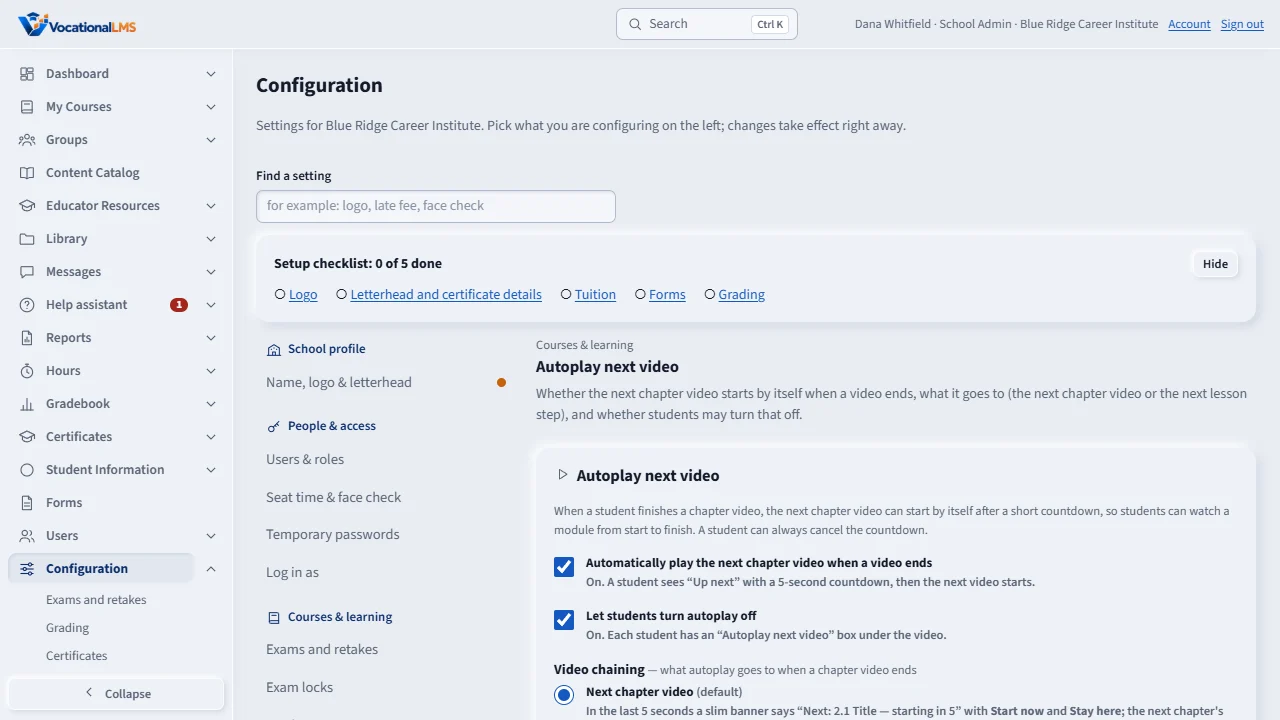
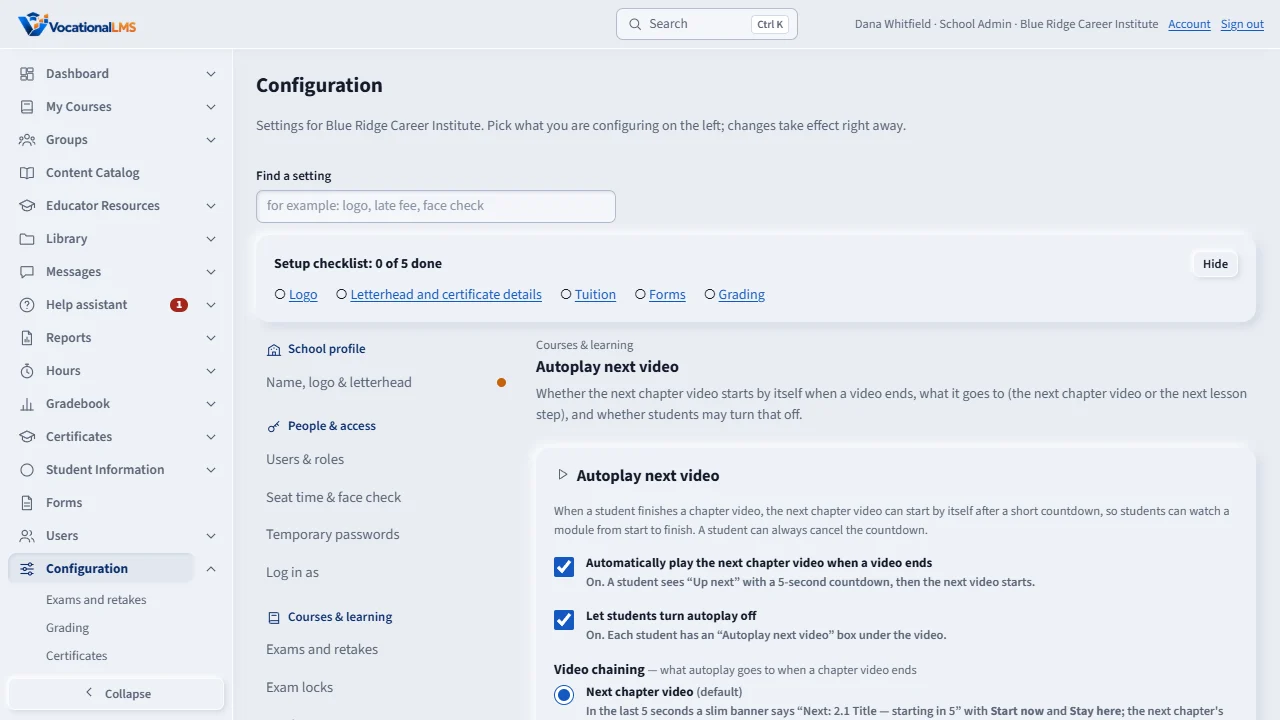
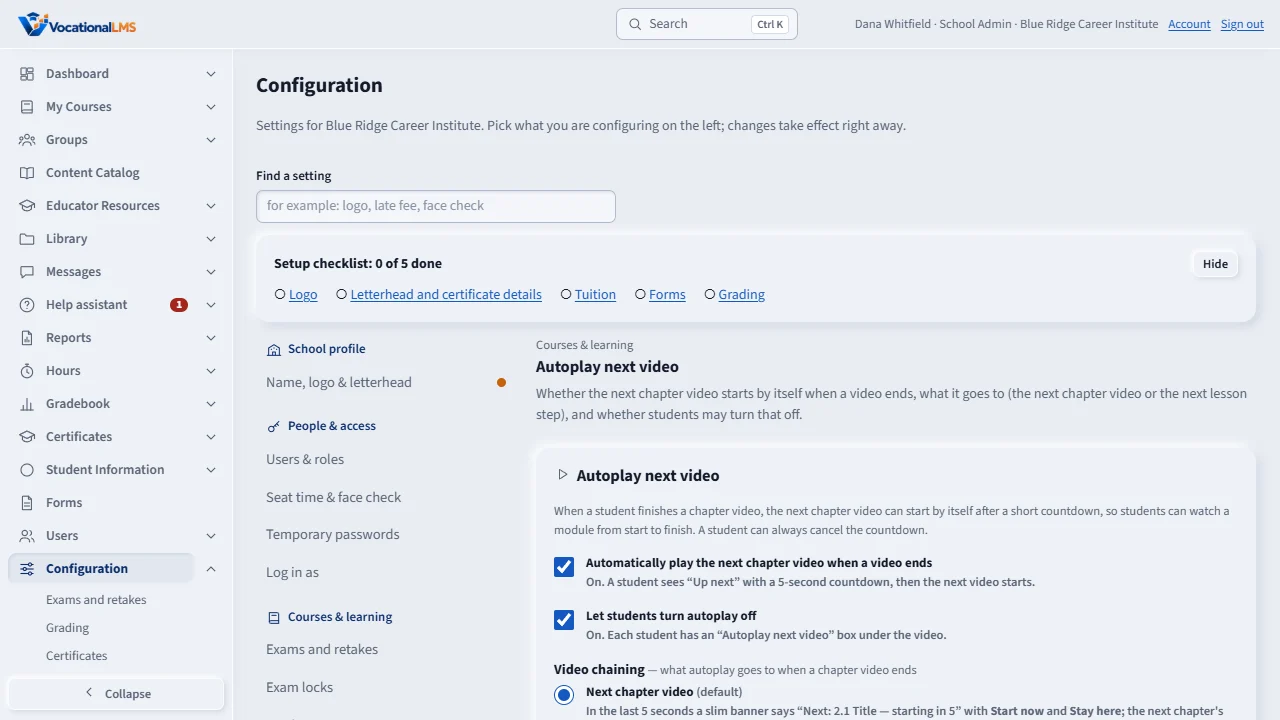
Open Configuration, then Courses and learning, then Autoplay next video. Tick Automatically play the next chapter video when a video ends. It is saved at once.
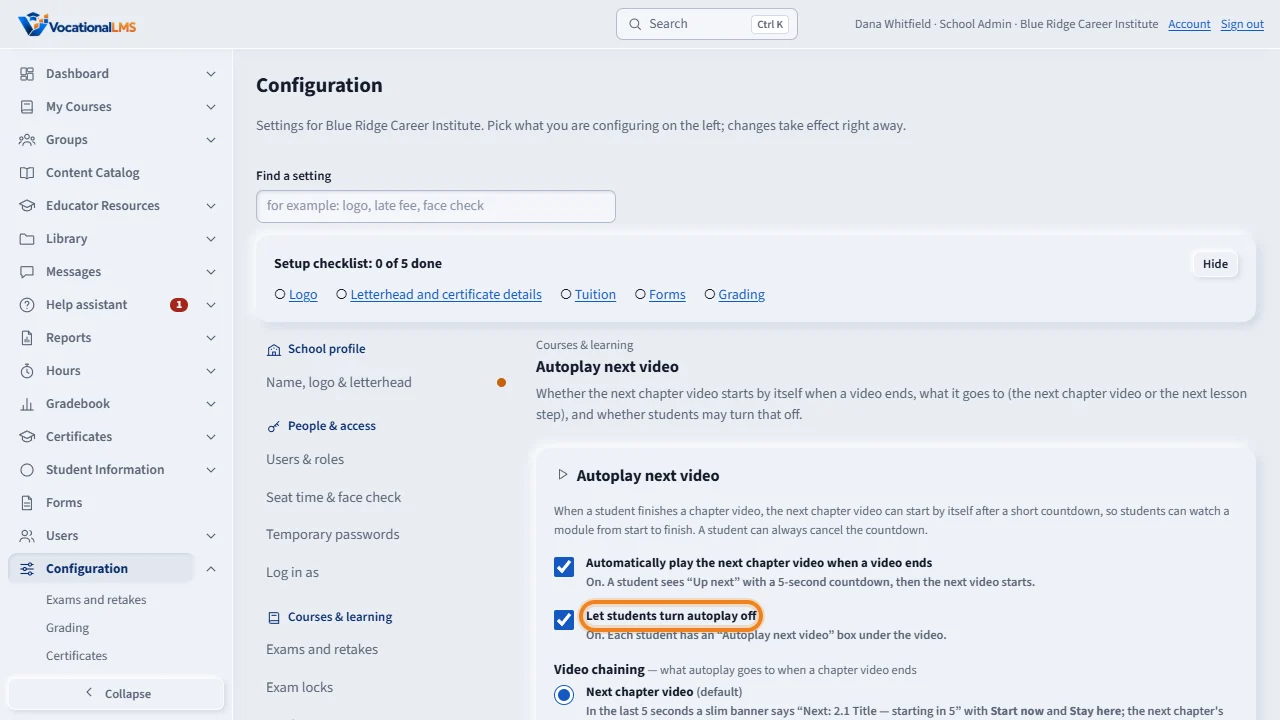
Tick Let students turn autoplay off if you want each student to have their own switch under the video.
Under Video chaining choose Next chapter video, the usual setting, or Next lesson step, where the card at the end of a video offers the lesson's own quiz or reading first.
The page shows who changed the setting last and when. Students see the change the next time they open a lesson.
Open this in VocationalLMSConfiguration > Courses & learning > Autoplay next video > Video chaining
Who can do this: The School Admin changes it (the Super Admin for a chosen school). A Director or auditor can look but not change. A school that never chose has Next chapter video.
What it is for
With Next chapter video (the default) a student's chapter video is followed by the next chapter's video: in the last 5 seconds a banner over the video says Next: 2.1 Title — starting in 5 with Start now and Stay here, the next chapter opens and plays, and the lesson just left keeps its incomplete status until its quiz and reading are done (a To do chip under the next video links back). With Next lesson step the card at the end of a video offers the lesson's own quiz or reading, and the next video counts down only when the lesson has nothing left; this is how autoplay worked before November 11, 2026. Either way the student's own Autoplay next video box (when you allow it) turns autoplay off entirely, nothing is marked complete by autoplay, the study clock and the 95% rule are unchanged, and a locked module, an exam lock, a test or an exam is never opened by itself.
Steps
Choose the mode
- Open Configuration, then Courses & learning, then Autoplay next video.
- Under Video chaining choose Next chapter video or Next lesson step. It is saved at once and the page shows who changed it last and when.
- Students see the change the next time they open a lesson. The two switches above it (autoplay on or off for the school, and whether students may turn it off) work as before (A-108).
Check it as a student would
- As the Super Admin, open a lesson's preview and watch its video to the last 5 seconds: the banner, the hand-off and the To do chip behave as on a student's page (nothing is saved for you).
What happens next
With Next chapter video, the last video of a module goes on to the first video of the next module when Module order allows it; an ordinary knowledge check between two chapter videos is passed over and listed on the student's To do chip, while a chapter test or exam stops the chain and is offered with a Start button.
Common problems
| # | Problem | What to do |
|---|---|---|
| 1 | Students say the quiz is skipped. | It is not skipped, it is left for later: the lesson stays incomplete and the To do chip under the next video links back to it. Choose Next lesson step if you want the quiz offered right after each video. |
| 2 | The next chapter did not open for a student. | Module order (A-26) or the exam locks (S-36) still apply: the banner tells the student what to finish first. |