
A-113For School Admins and Directors
Vocabulary flashcards: the card view, the 'why' line and the printable sheet
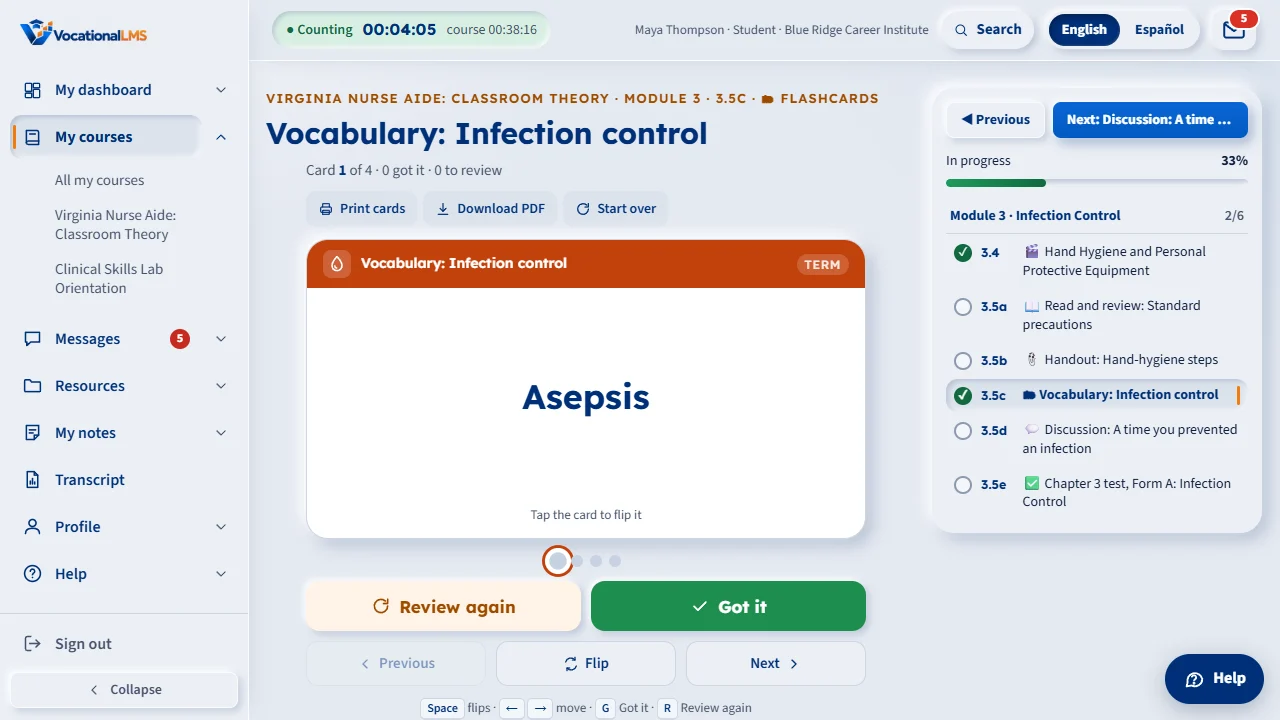
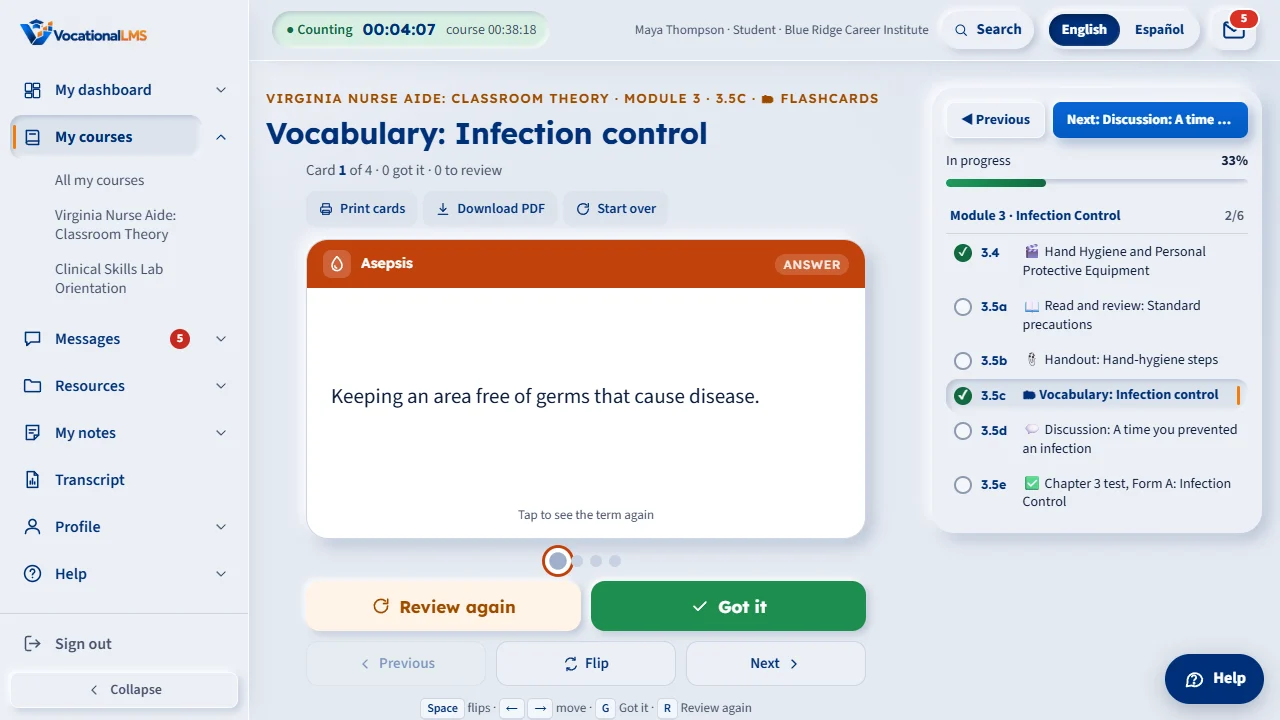
The chapter's Vocabulary item is now a one-card-at-a-time view with a flip, Got it / Review again and a printable 2 x 4 card sheet. The AI's key terms carry a short 'why' line that goes on the back of each card.
How-to video S-50 · 0:34 (the same video as S-50)
Read the words of this video
Each flashcard shows a term on the front. Tap the card or press Space, and it turns over to the answer and a short line on why it matters.
Click Got it if you knew it, and the card leaves this round. Click Review again if you did not, and it comes back a few cards later.
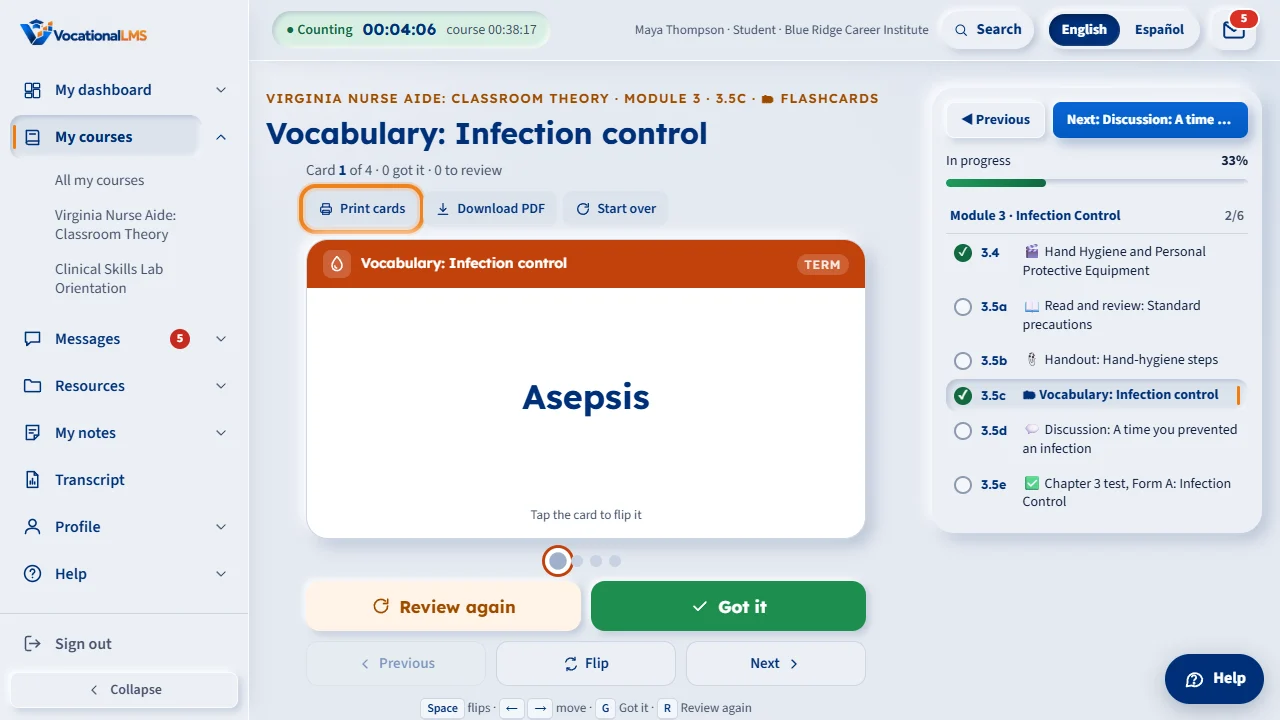
Print cards opens letter-size sheets of eight cards, fronts on one page and backs on the next, lined up for two-sided printing.
Open this in VocationalLMSAI Course Builder > a course > a chapter > Make vocabulary
Who can do this: Whoever may edit the course. Every student enrolled in an approved item can use the view and the sheet; staff with access to the course can open the sheet too.
What it is for
When a lesson's reading is written, the AI lists its key terms; each one now has a why line (one or two sentences, under 160 characters: why it matters or how to remember it). Make vocabulary on a chapter builds the Flashcards item from those terms (one card per distinct term) and keeps the why line. Students see the new card view; Print cards and Download PDF give a US-letter sheet of eight cards per page, fronts then backs mirrored for two-sided printing.
Steps
Build or refresh the cards
- Write the lessons' readings first (the key terms come from them), then open the chapter and click Make vocabulary. Refreshing it after the readings change rewrites the cards and sends the item back through review.
- Edit a card's term, definition or why in the item's editor; a card may also carry an image address (image_url) for a small picture on its back.
Check the sheet
- Open the item as a student would and click Print cards. The PDF is drawn by the server the first time it is asked for, cached with the lesson's media, and drawn again after any change to the cards.
What happens next
Older cards without a why line keep working: the back simply shows the definition alone.
Common problems
| # | Problem | What to do |
|---|---|---|
| 1 | A card has no 'why'. | Its reading was written before this feature. Rewrite the reading (or type the why line in the editor) and refresh the vocabulary. |
| 2 | The sheet is 404. | Only an approved Flashcards item with at least one card has a sheet; a student also needs an active enrollment. |