
S-51For students
Video chaining: the next chapter video follows by itself
In the last 5 seconds of a video a banner says which video comes next and counts down. Start now, Stay here, what happens to the quiz you have not taken yet, and the To do chip.
How-to video S-51 · 0:52
Read the words of this video
When a chapter video is about to end, a slim banner slides down over the top of the video. It says Next, then the name of the next video, and counts down from five.
Do nothing and the next chapter opens on the same page and its video starts from the beginning. Click Start now to go sooner, or Stay here to stop the count and stay on this video.
A quiz, a reading or a test is never started for you, and a locked module stays locked. Your lesson keeps its incomplete status until you finish its quiz, and a To do chip links back to it.
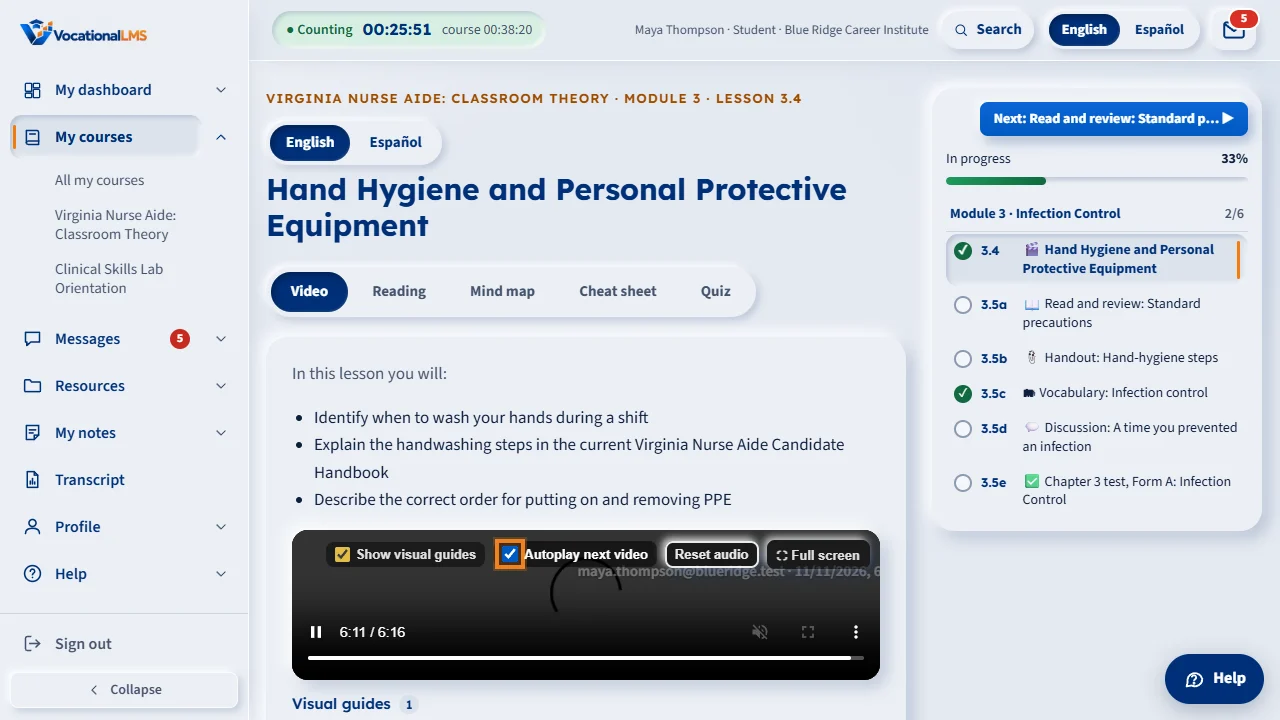
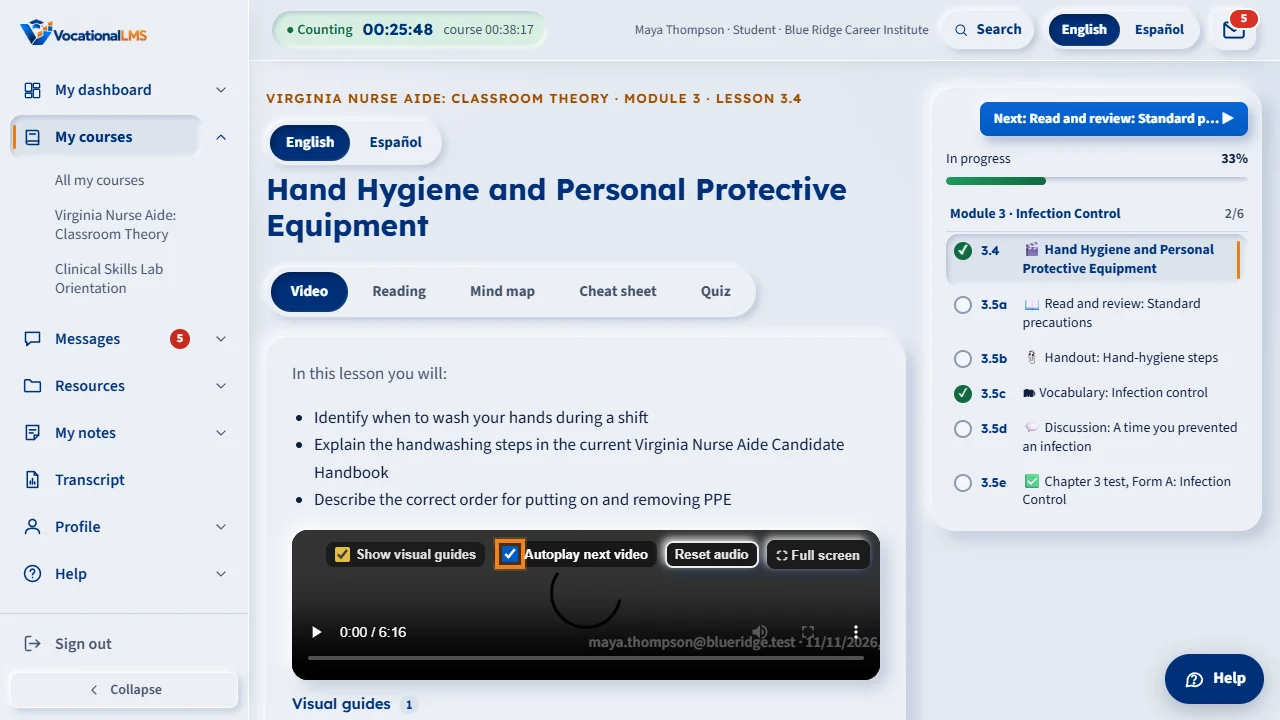
Under the video, the box Autoplay next video turns this off or on for you. If the box is not there, your school keeps it the same for everyone.
Open this in VocationalLMSA lesson > the banner in the last 5 seconds of a video
What it is for
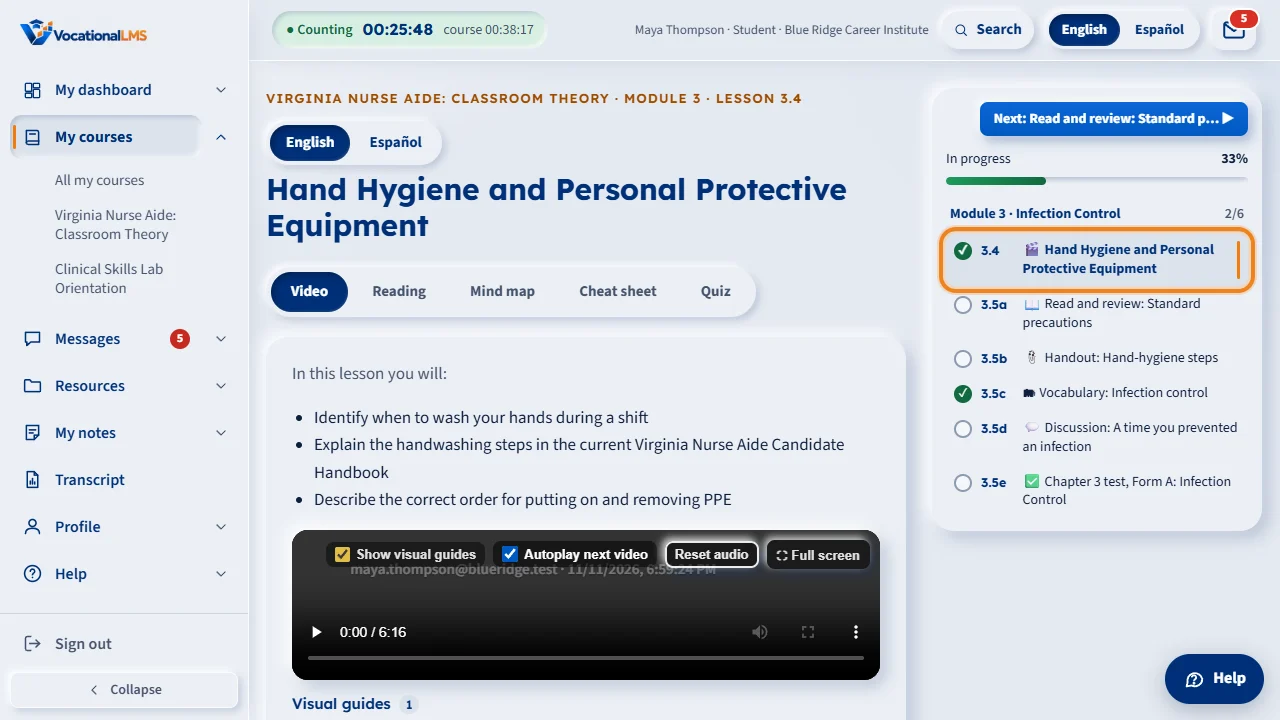
When autoplay is on and your school chose Next chapter video (the usual setting), a chapter video is followed by the next chapter's video, not by the quiz. In the last 5 seconds a slim banner slides down over the top of the video: Next: 2.1 Title — starting in 5…4…3…2…1. When the video ends, the next chapter opens on the same page and its video starts from the beginning; a short line over it says Now playing · Module 2 · Lesson 2.1 — Title and fades. The last video of a module goes on to the first video of the next module (Next module: …). The quiz, reading, mind map and cheat sheet of the lesson you left are not lost: the lesson stays incomplete until you do them, and a small To do chip under the next video (for example To do: quiz for 1.1) takes you back.
Steps
Let it run
- Watch a video. In its last 5 seconds the banner appears at the top of the picture with the name of the next video and the count.
- Do nothing and the next video starts when this one ends. Click Start now to go sooner. In full screen the banner shows inside the player; after Start now the next video stays in full screen when your browser allows it, otherwise it plays in the page.
- If your school uses face check, the check runs as always and the video starts after it clears. If your browser does not start the video by itself, press the Play button that appears.
Stay on this video
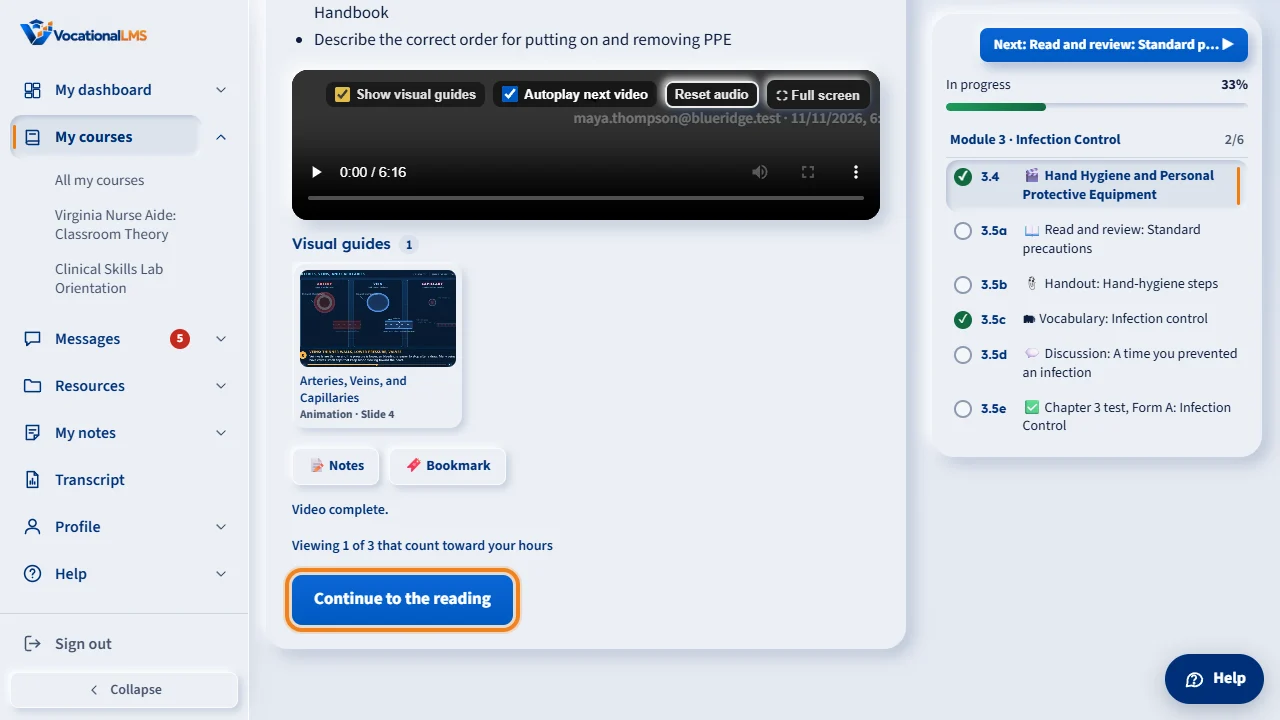
- Click Stay here. The count stops and nothing starts by itself for the rest of this visit; when the video ends you see the usual card (Continue: Lesson quiz, Watch again).
- To turn it off for good, untick Autoplay next video under the video controls (if your school lets you).
Finish what you left
- Under the video, click an item on the To do chip, for example quiz for 1.1. It opens that lesson; take the quiz (or read the reading) and the lesson is marked complete as always.
- The chip lists up to three items from earlier chapters. It goes away when they are done.
What happens next
Your study clock and the 95% rule are unchanged: only what you really watch counts, and nothing is marked complete by chaining. A locked module or exam is never opened: the banner says what to finish first (for example Next chapter opens after 1.1 Welcome, 1.2 Hand hygiene) and the usual card shows at the end. A test or exam that comes next is offered with a Start button, never started. The last video of the course shows the usual end card. The Spanish video goes on to the next chapter's Spanish video.
Common problems
| # | Problem | What to do |
|---|---|---|
| 1 | The next video did not start. | The next chapter may be locked (the banner says what to finish first), the next item may be a test or exam (press Start), or your browser asked you to press Play. Your school may also have chosen Next lesson step: then the card offers the quiz instead. |
| 2 | I want the quiz right after the video, not the next video. | Click Stay here on the banner, or untick Autoplay next video. Your school can also choose Next lesson step for everyone. |
| 3 | My lesson shows as not complete. | Its quiz or reading is still to do. Use the To do chip under the video, or open the lesson from the course list. |