
V-49For the VocationalLMS Super Admin
Storage: see it, buy more
The server's disks and DigitalOcean volumes, what lives on each, what they cost a month, how long the free space lasts, and Add a 100 GB volume from the page.
How-to video V-49 · 2:03
Read the words of this video
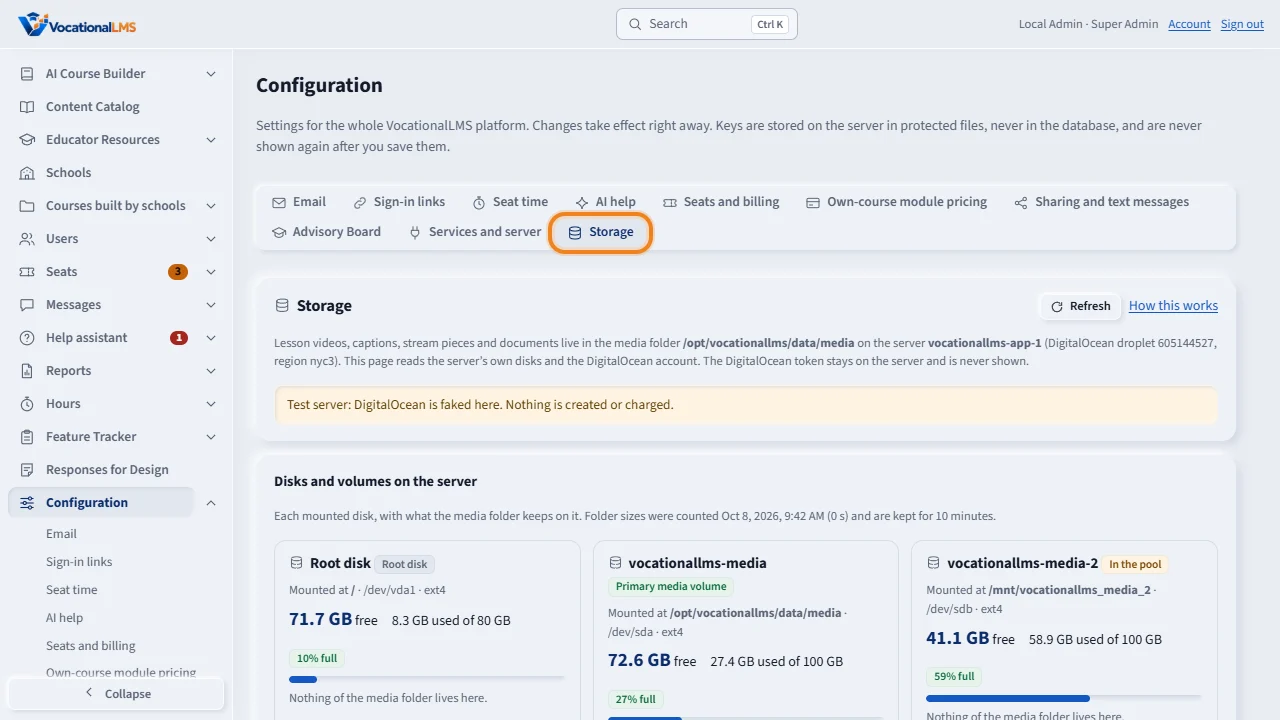
Lesson videos and documents live in the media folder, on DigitalOcean volumes of one hundred gigabytes each. To see the storage, click Configuration, then Storage.
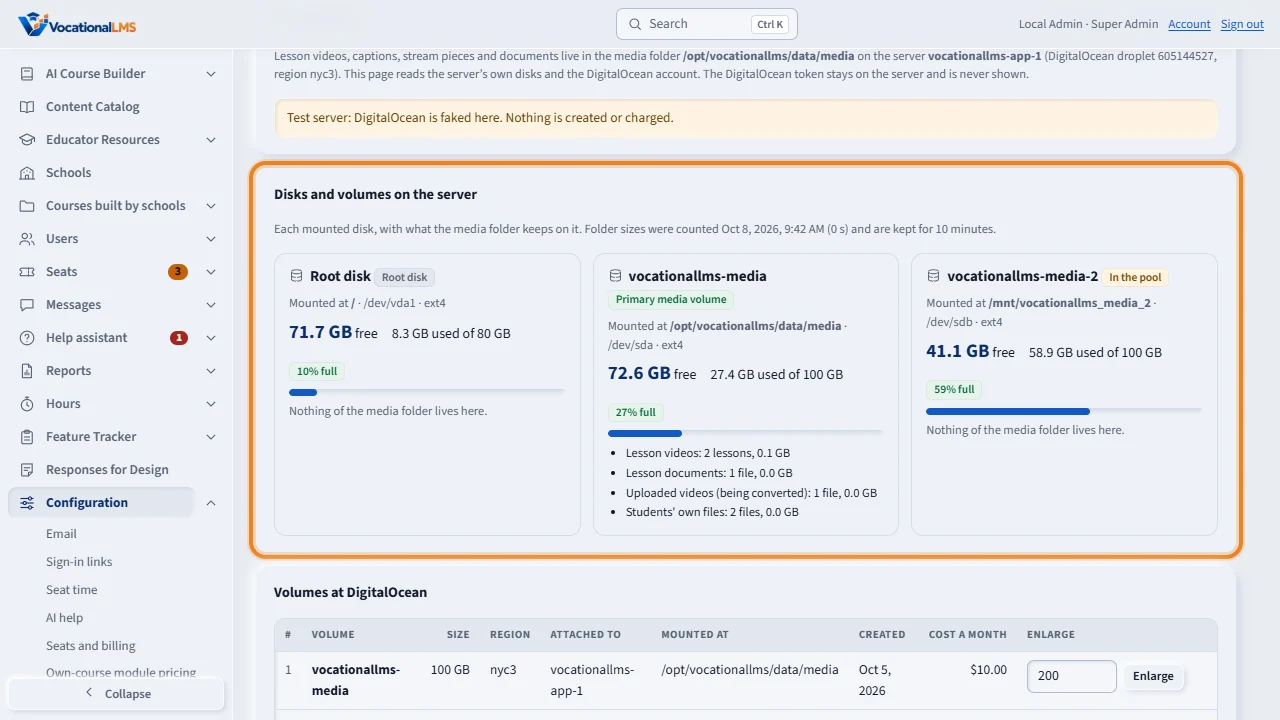
Disks and volumes on the server shows each disk: how much is free and used, how full it is, and what lives there. The primary media volume holds the media folder.
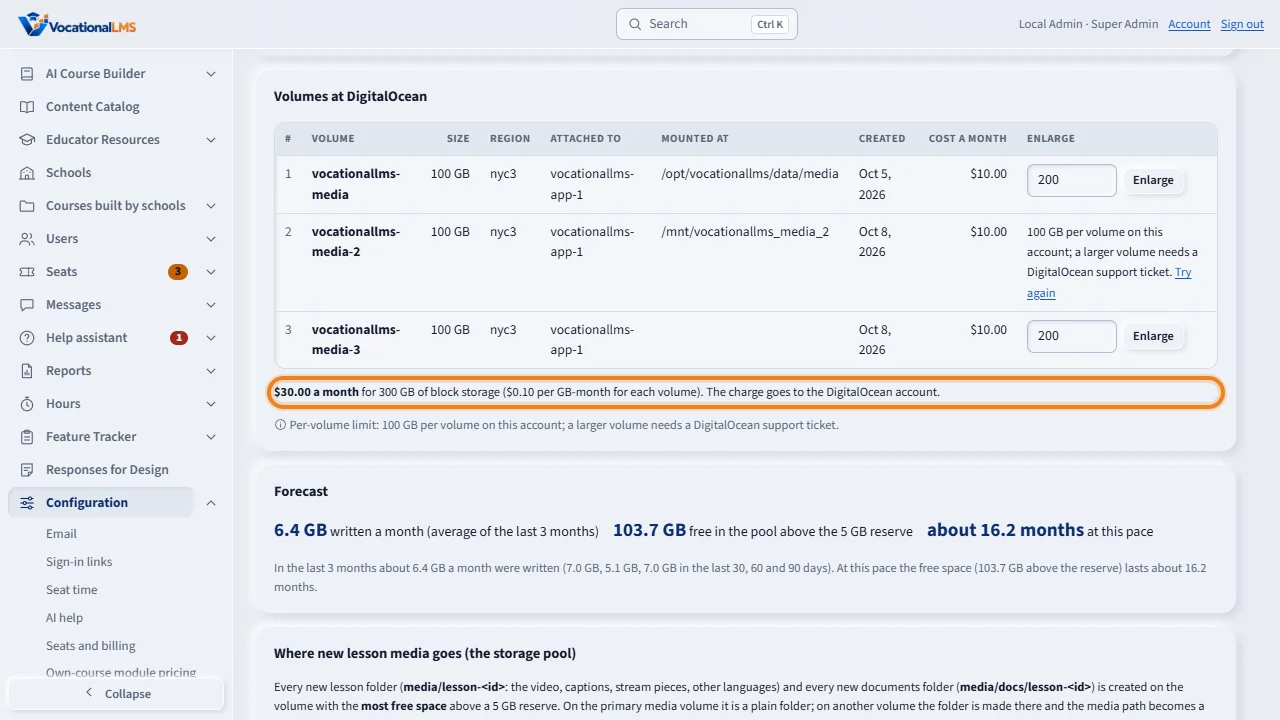
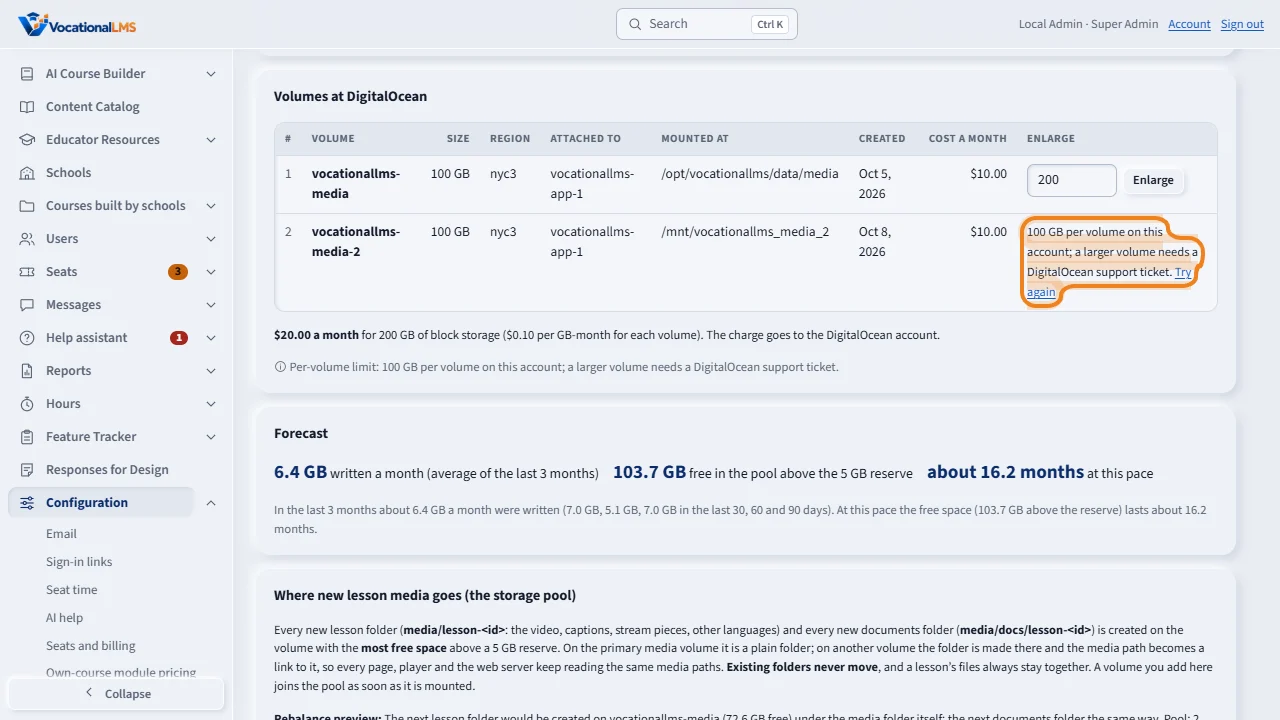
Volumes at DigitalOcean lists the account's volumes with their size, the server they are attached to, and the cost a month: ten dollars for each one hundred gigabytes. The line under the table adds them up.
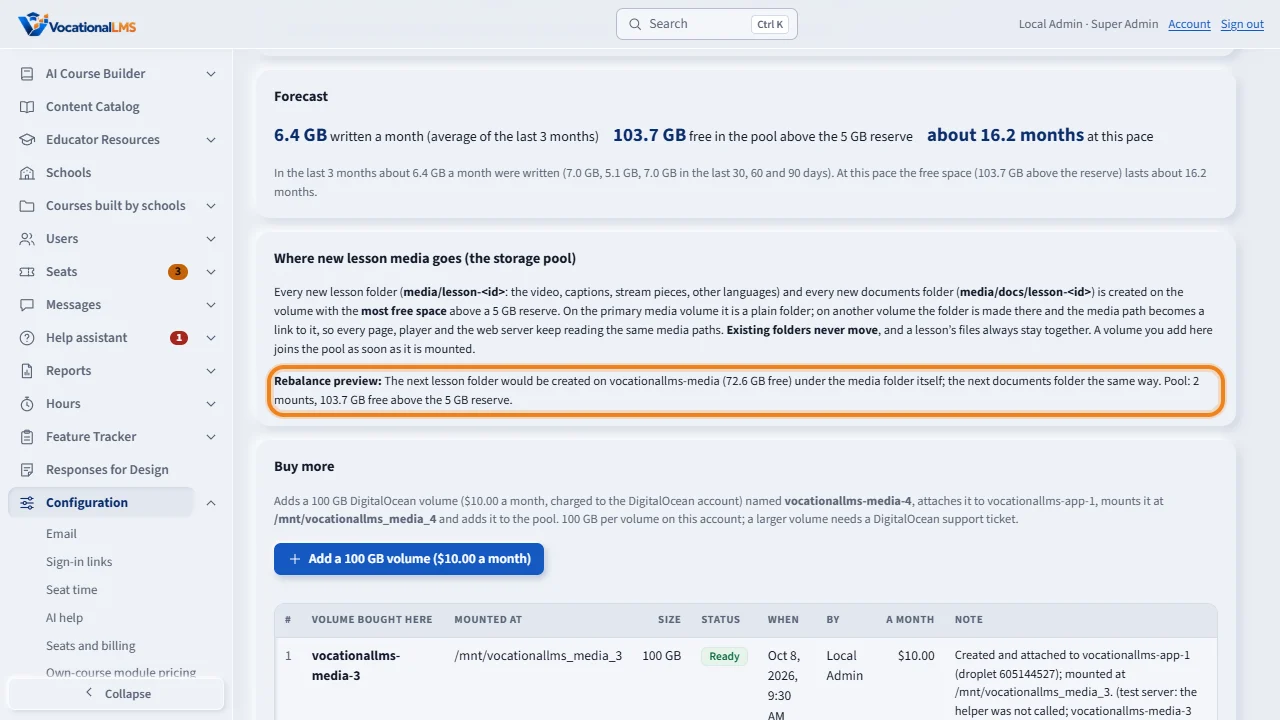
Forecast says how many gigabytes were written a month over the last three months, and about how many months the free space lasts at that pace. Below it, the pool: every new lesson folder goes to the volume with the most free space. Nothing already stored is ever moved.
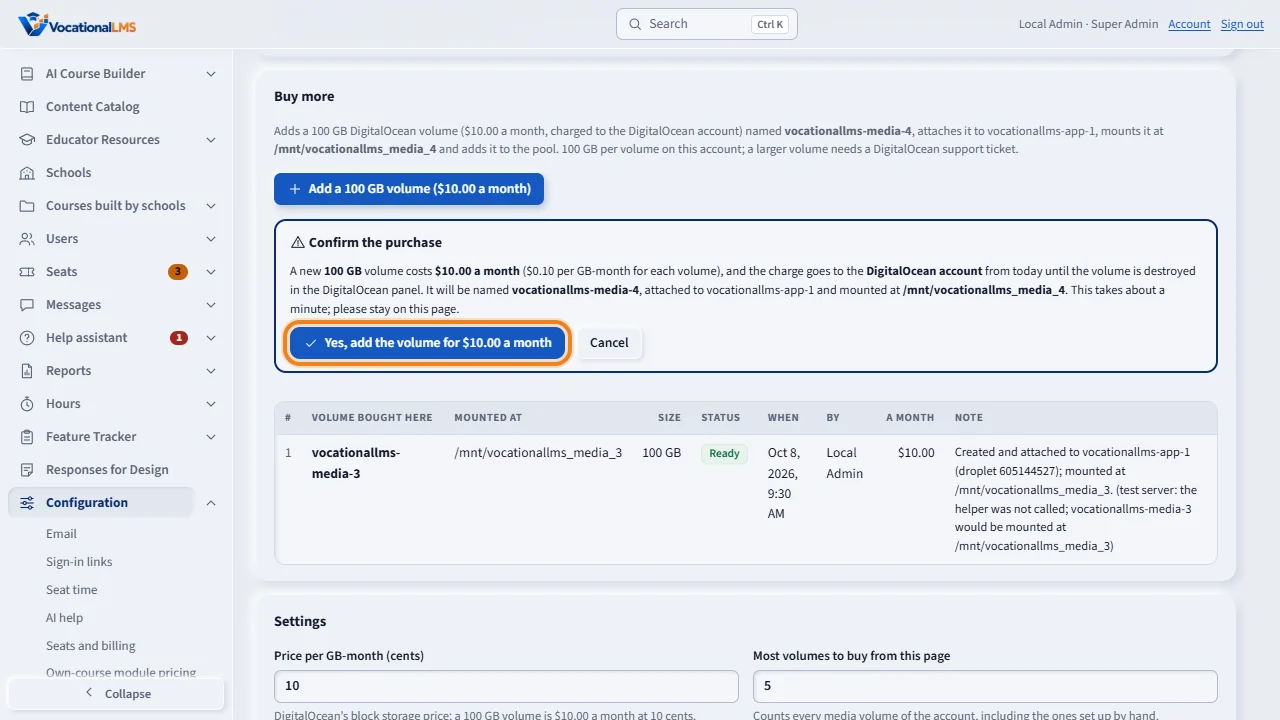
To buy more, click Add a one hundred gigabyte volume. The confirm box states the price, ten dollars a month charged to the DigitalOcean account, the volume's name and where it will be mounted. Click Yes, add the volume.
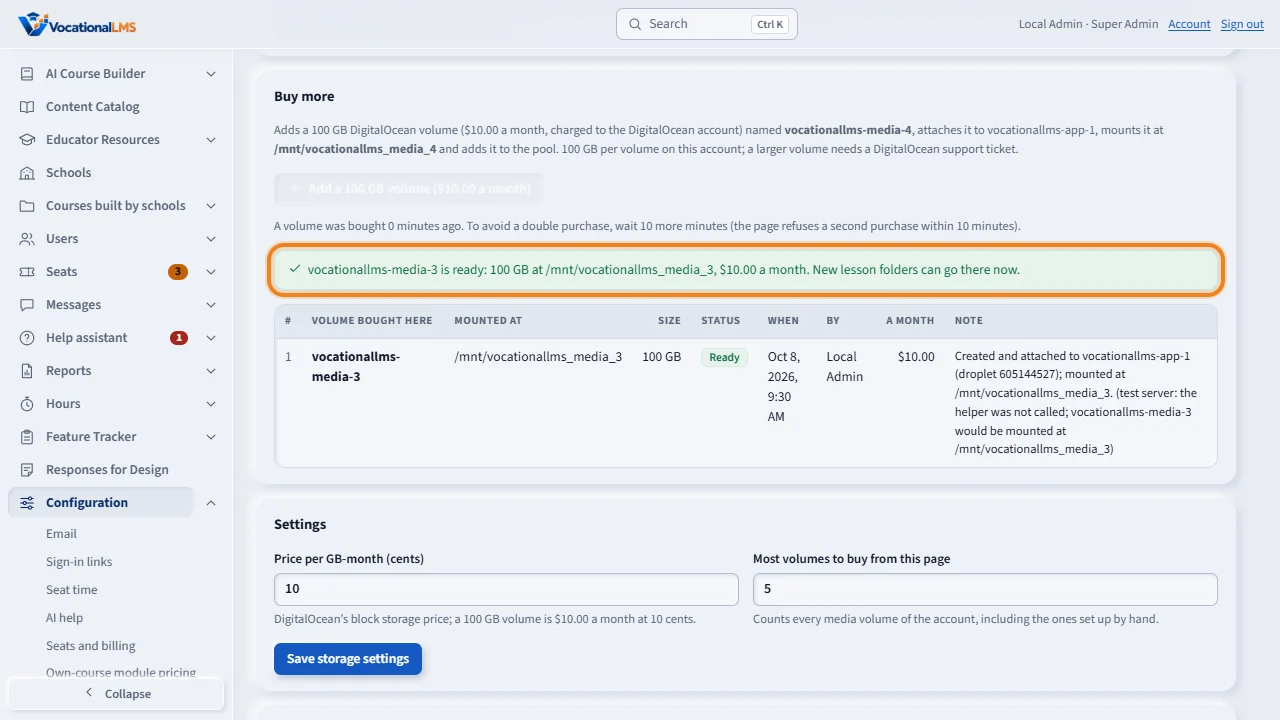
The server creates the volume at DigitalOcean, attaches it, mounts it, and writes the result here and in the history. The new volume joins the pool at once. The page refuses a second purchase within ten minutes.
Beside each volume you can type a new size and click Enlarge, then click again. This account allows one hundred gigabytes per volume: DigitalOcean refuses more, and the page shows the limit words instead, with Try again for later. A larger volume needs a DigitalOcean support ticket.
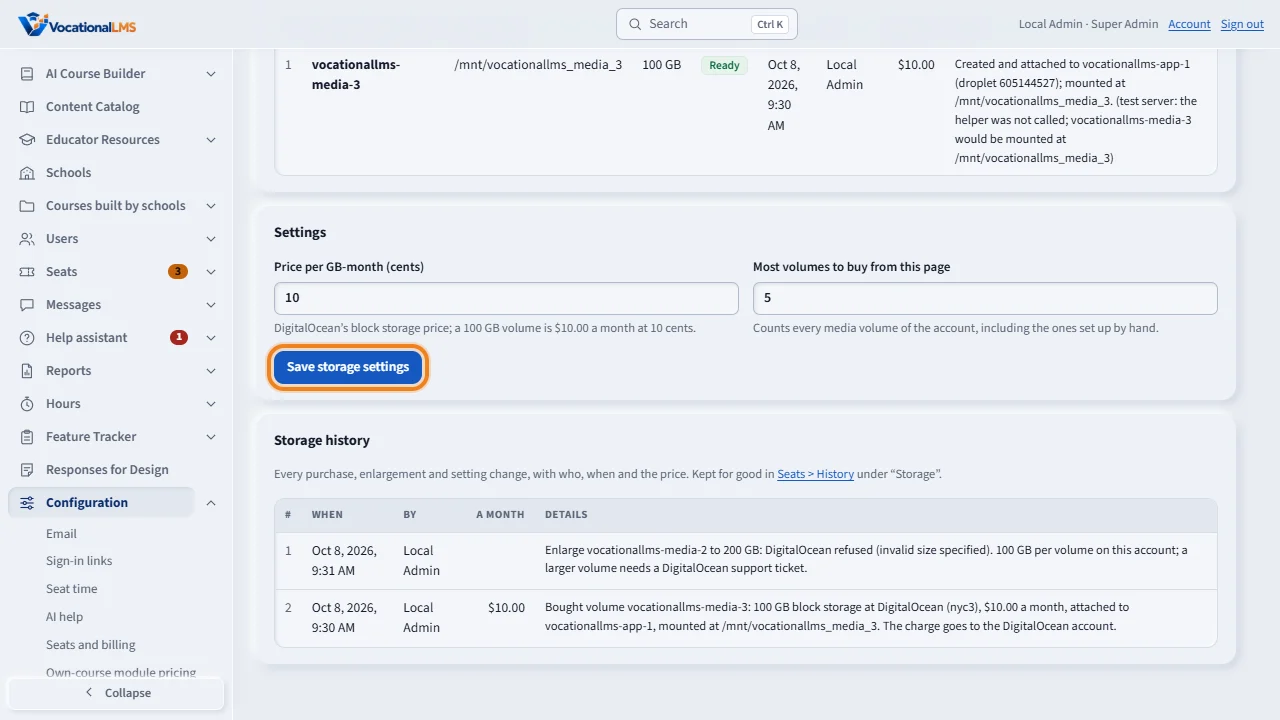
Under Settings, the price per gigabyte-month is ten cents, and Most volumes to buy from this page guards against a purchase by mistake. Every purchase, enlargement and setting change is in the history, with who, when and the price.
Open this in VocationalLMSConfiguration > Storage
Who can do this: The VocationalLMS Super Admin.
What it is for
Lesson videos, their captions, the protected stream pieces and the documents attached to items live in the media folder on the server, on DigitalOcean block-storage volumes of 100 GB each ($10.00 a month for each, $0.10 per GB-month). Configuration > Storage shows every disk of the server with its size, what is used and free, and what of the media lives on it; the volumes of the DigitalOcean account with their cost a month; a forecast of how long the free space lasts at the pace of the last three months; and where the next lesson folder will go. From the same page you add a 100 GB volume: the server creates it at DigitalOcean, attaches it, mounts it and starts using it, with no command line. The DigitalOcean token stays on the server and is never shown.
Steps
See the storage
- Click Configuration, then Storage.
- Disks and volumes on the server shows each disk: how much is free and used, how full it is, and what lives there (lesson videos, documents, course imports). The Primary media volume holds the media folder.
- Volumes at DigitalOcean lists the account's volumes with their size, the server they are attached to and the cost a month; the line under the table adds them up. The per-volume limit of the account is written there too: 100 GB per volume; a larger volume needs a DigitalOcean support ticket.
- Forecast says how many GB were written a month over the last three months and about how many months the free space lasts at that pace. Click Refresh to count again now; the sizes are otherwise kept for 10 minutes.
Buy more
- Under Buy more click Add a 100 GB volume ($10.00 a month). A confirm box states the price, that the charge goes to the DigitalOcean account, the volume's name and where it will be mounted.
- Click Yes, add the volume. The server creates the volume at DigitalOcean, attaches it, mounts it and writes the result in the table Volume bought here and in the history. It takes about a minute; stay on the page.
- The new volume joins the pool at once: the next lesson folders are created on the volume with the most free space. Nothing already stored is moved.
- Two guards: the page refuses a second purchase within 10 minutes of the last one, and it refuses once the account has as many volumes as Most volumes to buy from this page allows (5 by default; change it under Settings).
Enlarge a volume
- Beside each DigitalOcean volume, type a new size and click Enlarge, then click again. DigitalOcean only makes a volume larger, never smaller.
- On this account DigitalOcean refuses any size above 100 GB. When it does, the page shows the limit words instead of the button; Try again offers it once more (for example after a support ticket raised the limit).
What happens next
Every purchase, enlargement and setting change is written to Seats > History under “Storage”, with who, when and the price. The price per GB-month is a setting (10 cents), in case DigitalOcean changes it. The server itself needs a one-time root helper installed for mounting (deploy/vlms-storage-helper.sh); without it a purchase stops at the mount step and says so, and the volume can still be mounted by hand.
Common problems
| # | Problem | What to do |
|---|---|---|
| 1 | The Add button is gray. | Read the words beside it: a purchase is still in progress, one was made in the last 10 minutes, or the account already has the most volumes the page may buy. Wait, Refresh, or raise the number under Settings. |
| 2 | A purchase failed after the volume was created. | The table under Buy more shows the step it reached and the note says why. The volume exists at DigitalOcean (and is charged): either finish the mount by hand on the server or destroy the volume in the DigitalOcean panel, then Refresh. |
| 3 | Enlarge says “invalid size specified”. | That is the account's per-volume limit. Add another 100 GB volume instead, or open a DigitalOcean support ticket to raise the limit. |
| 4 | The numbers look old. | Folder sizes are kept for 10 minutes. Click Refresh. |