
V-64For the VocationalLMS Super Admin
Player problems: when a video's sound slows down or freezes
The lesson player fixes itself when the voice slows down or the video freezes, tells the server quietly, and the Super Admin sees the counts per lesson under Configuration, Player problems.
How-to video V-64 · 0:53
Read the words of this video
Sometimes after several minutes a video's voice plays too slowly. The player now watches itself every two seconds and, when it sees a problem, shows Reconnecting audio and restarts the stream at the same second.
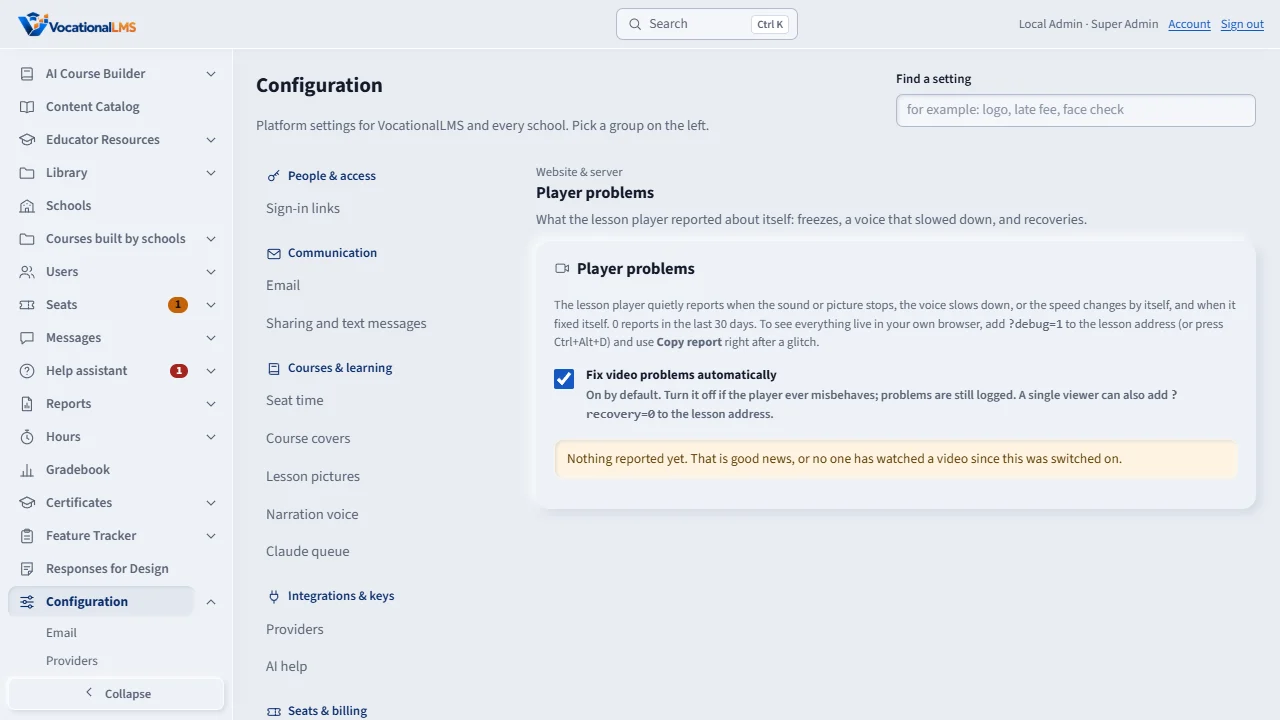
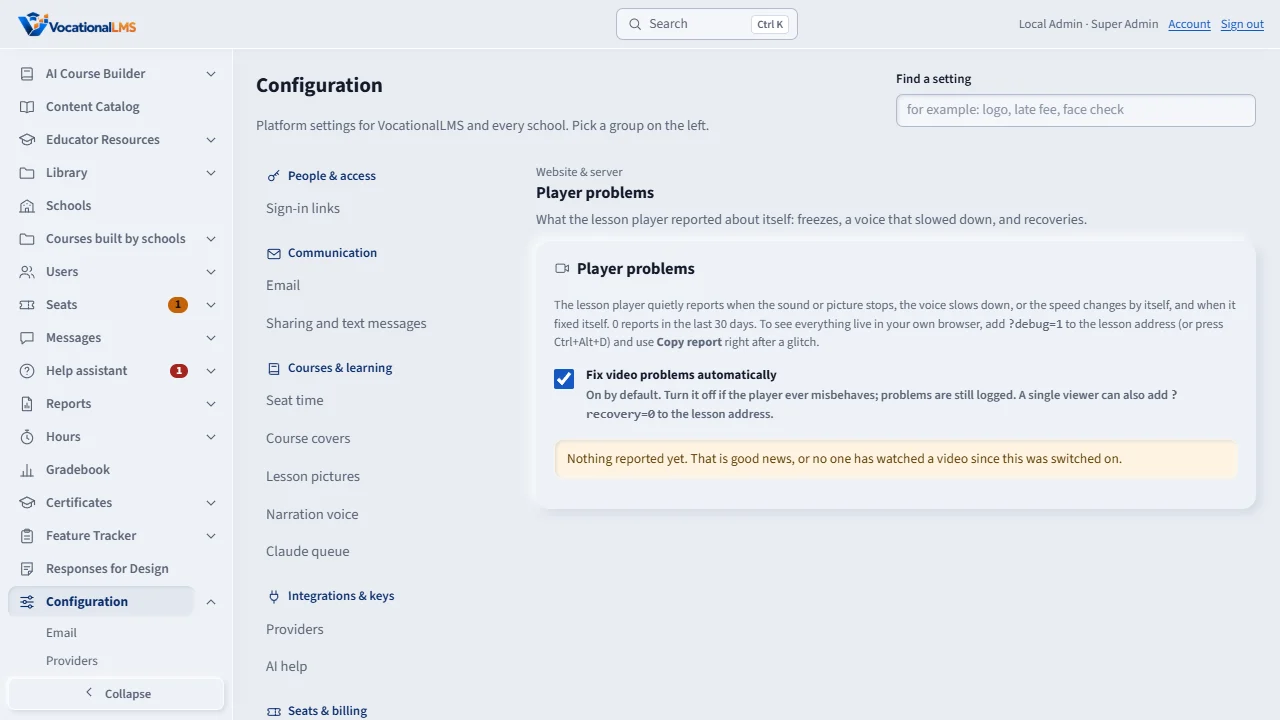
Open Configuration, Player problems. The first table counts problems per lesson and how many fixed themselves. Click Detail on a report to see the player's facts.
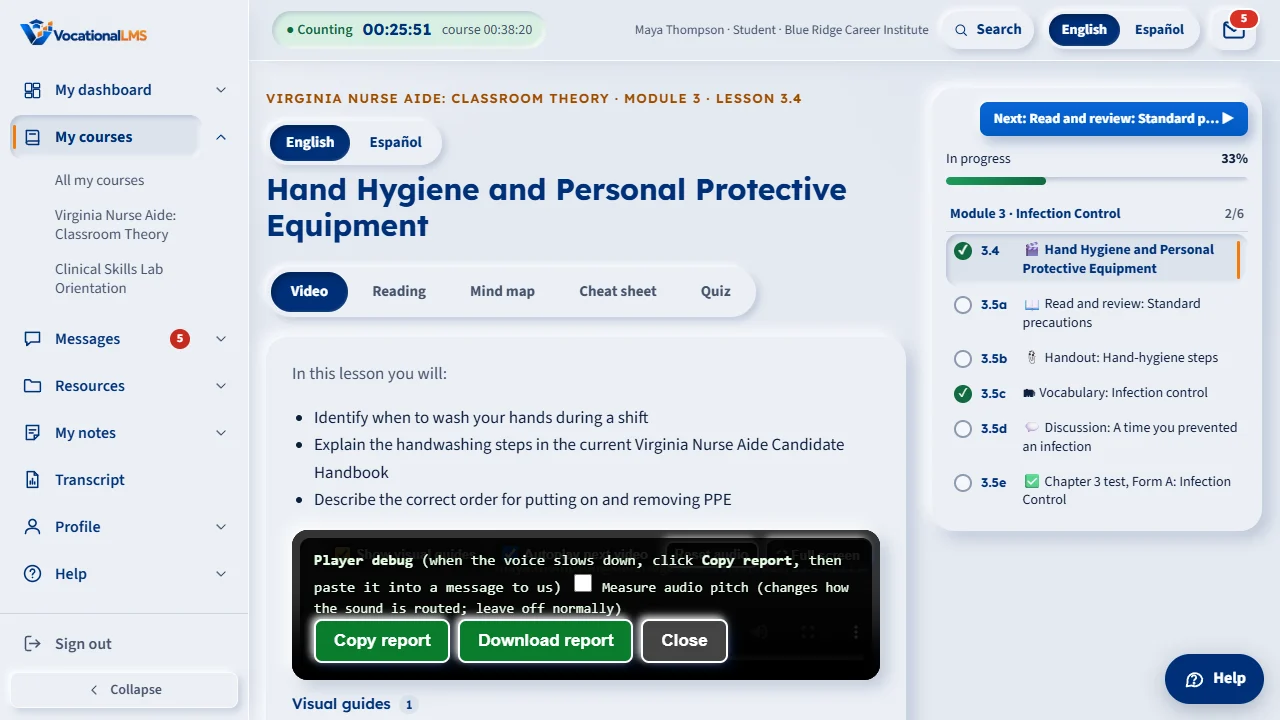
To catch a glitch live, add question mark debug equals one to the lesson address, or press Control Alt D. A small panel shows speed, position and the last errors. Reset audio and Continue-from are there too.
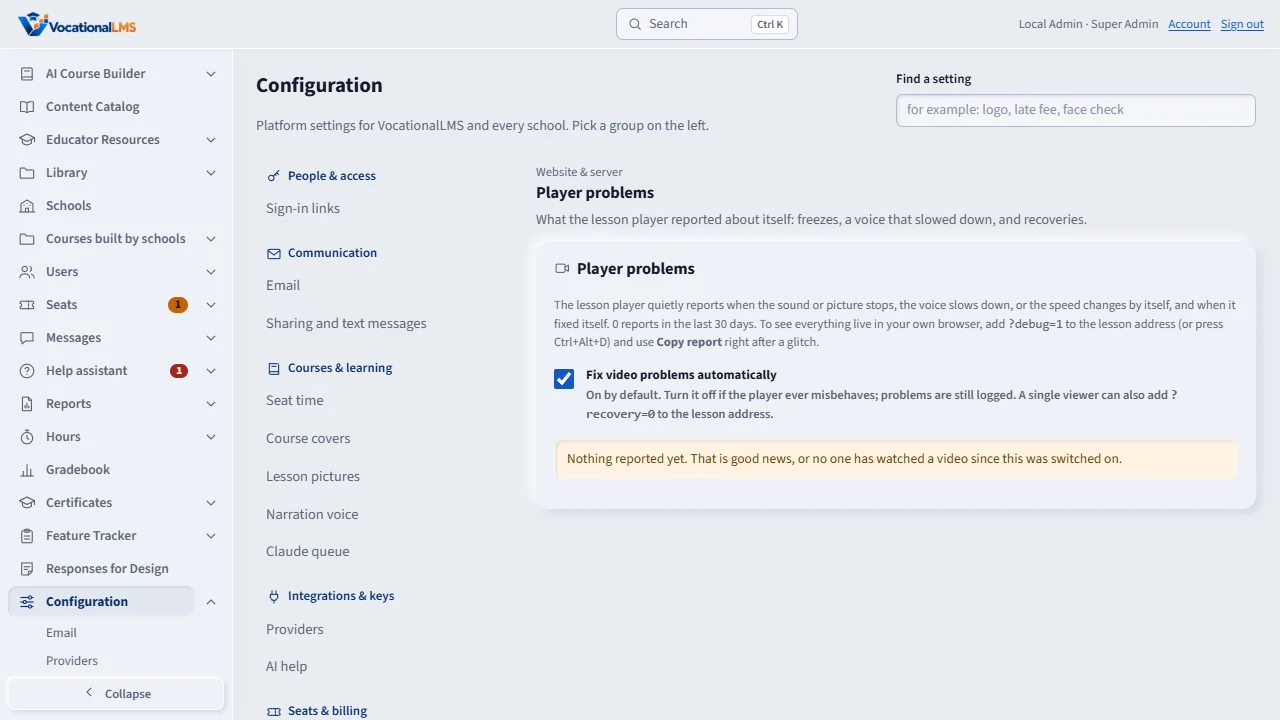
On the Player problems page you can turn automatic fixing off. Problems are still logged.
Open this in VocationalLMSConfiguration > Player problems
Who can do this: Everyone sees the short Reconnecting note; the Super Admin sees the list.
What it is for
Sometimes, after several minutes of a video, the narrator's voice suddenly plays far too slowly, like a deep voice, until someone pauses and plays or reloads the page. The cause is the browser's sound output, not the recording. The player now watches itself every two seconds. When the sound slows down, the picture freezes, or the stream reports an error, it shows Reconnecting audio... for a moment, starts the stream again from the same second, and plays on if the video was playing. A video that was paused (by the student, or by the face check) stays paused, and the study clock gets no extra time.
Steps
See what the players reported
- Click Configuration, then Player problems.
- The first table counts the problems per lesson (freezes, a slowed voice, a speed change by itself, media errors) and shows how many recovered by themselves. Click a lesson to open it.
- Under Latest reports, click Detail on a row to see the player's facts (browser, buffer, frames per second) and its last events before the problem.
Capture a glitch live in your own browser
- Add ?debug=1 to the lesson address, or press Ctrl+Alt+D while the lesson is open. A small panel shows the speed, position, buffer, frames and the last errors, updated every second.
- When the voice slows down, click the big Copy report button in the panel, then paste it into a message to us. If the browser blocks copying, the report appears selected: press Ctrl+C. Or click Download report and send the file. It is plain text and holds the last 200 events.
Turn the automatic fixing off
- On the Player problems page, untick Fix video problems automatically. Problems are still logged. One viewer can also add ?recovery=0 to the lesson address.
What happens next
Reports hold only the signed-in person's number, the school, the lesson, the position, the browser name and a few player facts, and are removed after 90 days. At most 60 reports an hour are kept for one person.
Common problems
| # | Problem | What to do |
|---|---|---|
| 1 | The list says nothing reported yet. | Good news, or nobody has watched a video since the update. Reports appear when a problem happens. |
| 2 | The voice still slowed down and no Reconnecting note appeared. | Open the lesson with ?debug=1, wait for it, then click Copy report and send it to us. |