
S-46For students
Autoplay: the next video starts by itself
When a video ends, the next video of your course can start by itself after 5 seconds. How to cancel it, play now, or turn autoplay off.
How-to video S-51 · 0:52 (the same video as S-51)
Read the words of this video
When a chapter video is about to end, a slim banner slides down over the top of the video. It says Next, then the name of the next video, and counts down from five.
Do nothing and the next chapter opens on the same page and its video starts from the beginning. Click Start now to go sooner, or Stay here to stop the count and stay on this video.
A quiz, a reading or a test is never started for you, and a locked module stays locked. Your lesson keeps its incomplete status until you finish its quiz, and a To do chip links back to it.
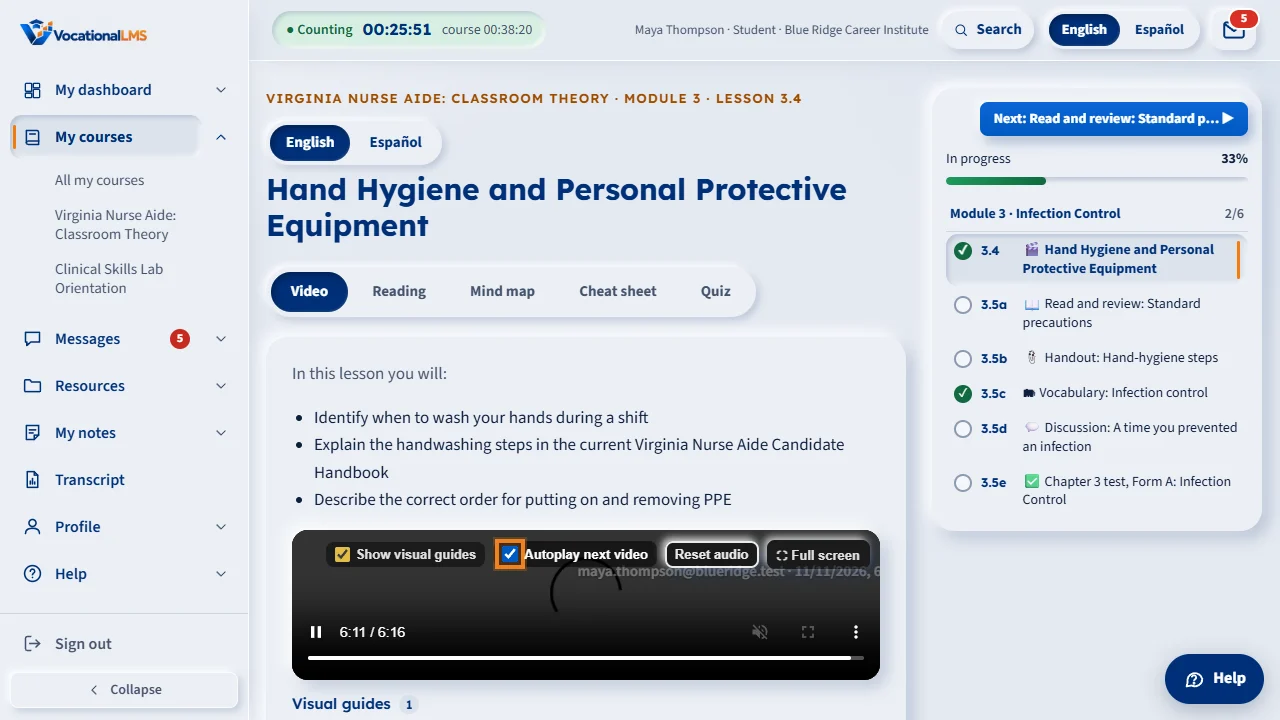
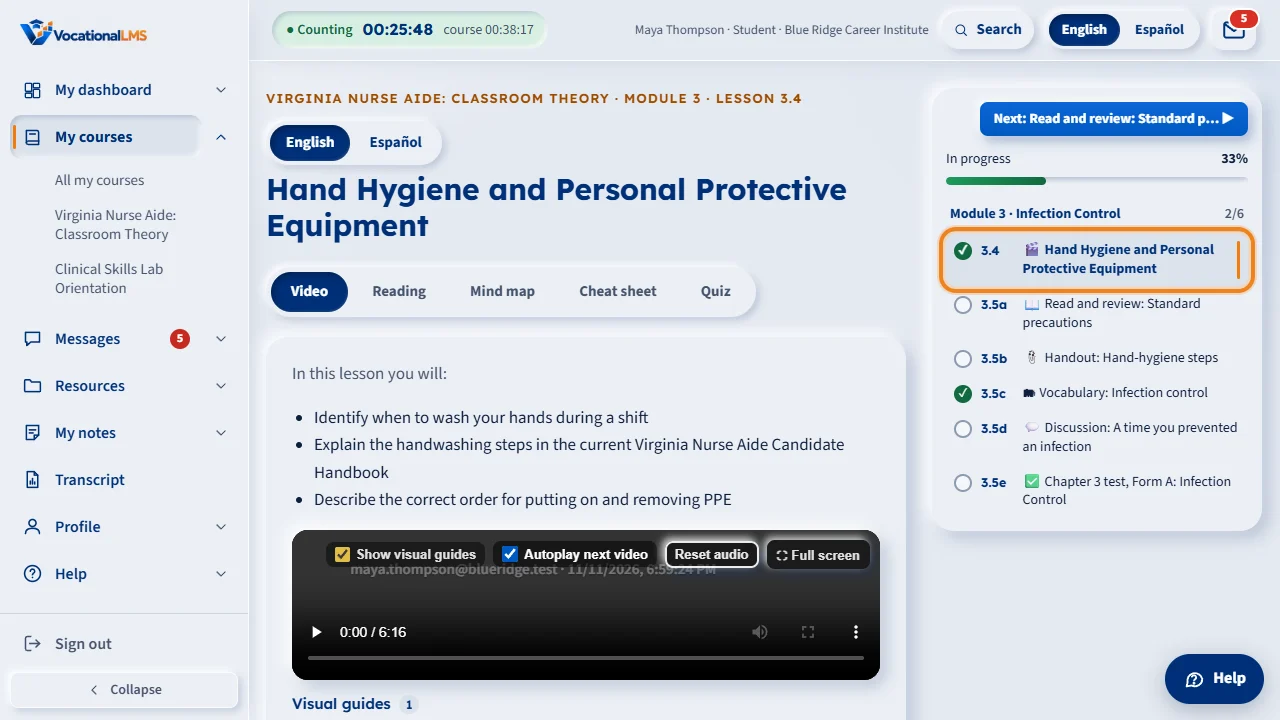
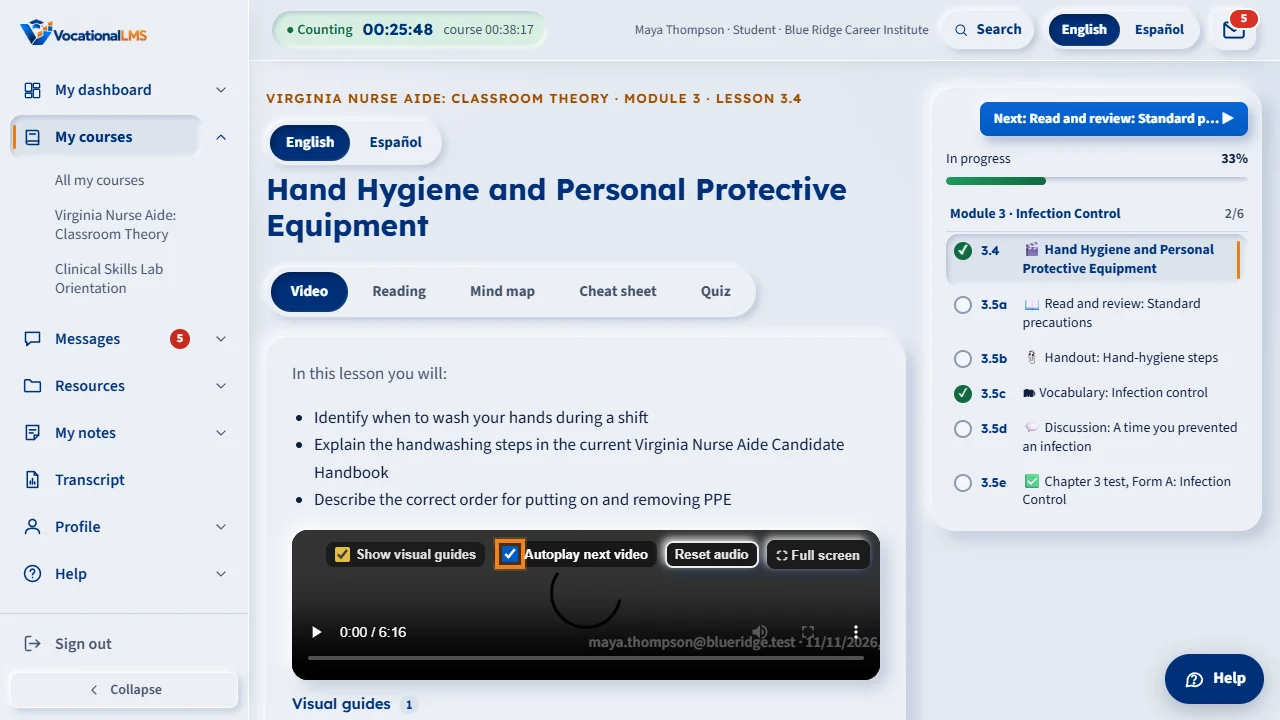
Under the video, the box Autoplay next video turns this off or on for you. If the box is not there, your school keeps it the same for everyone.
Open this in VocationalLMSA lesson > Autoplay next video
What it is for
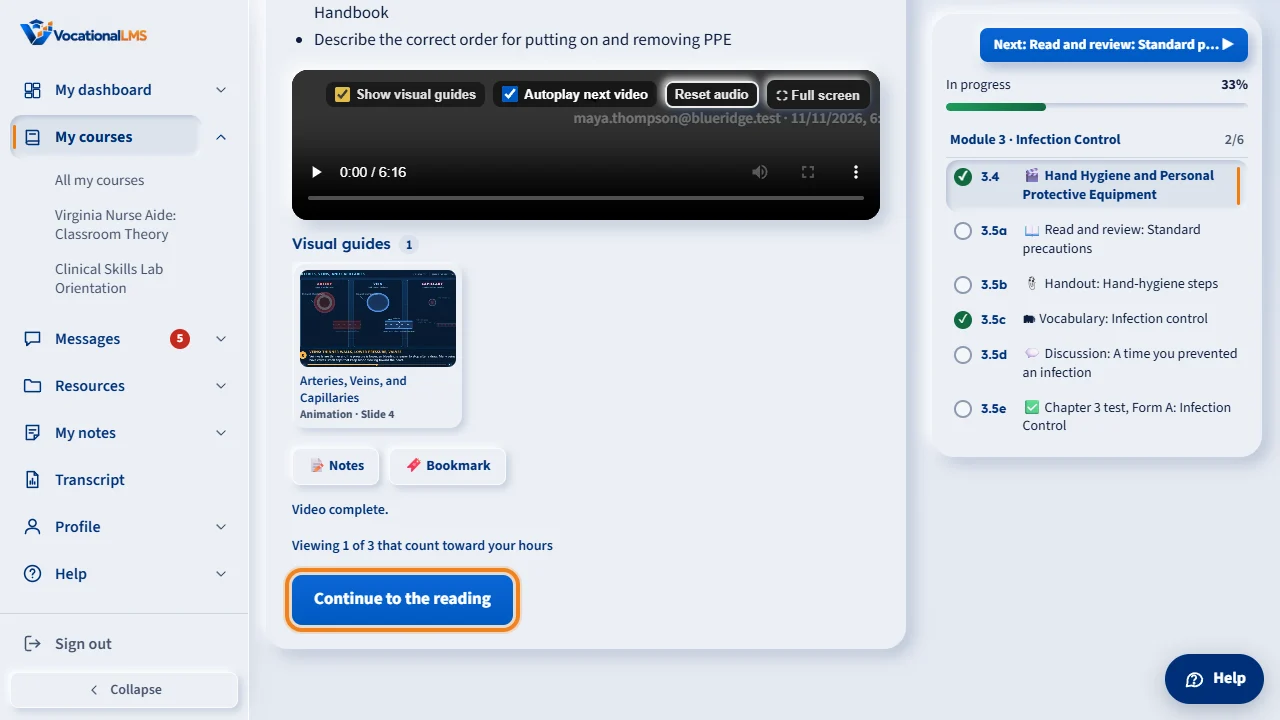
When you finish a video, a small box says Up next with the name of the next video and a 5-second countdown. The next video then starts by itself, so you can watch a whole module one video after another. A reading, quiz or test is never started by itself: you press Start. A module that is still locked stays locked.
Steps
Use it
- Watch a video to the end. The box Up next appears over the video.
- Do nothing and the next video starts when the countdown reaches 0. Click Play now to start it sooner, or Cancel to stay here.
- If your browser does not start the video by itself, press the Play button that appears.
Turn it off or on
- Under the video controls tick or untick Autoplay next video. Your choice is remembered on your device and for your account.
- If the box is not there, your school keeps autoplay the same for everyone.
What happens next
Your study clock counts only while you really watch, exactly as before. Autoplay never adds time.
Common problems
| # | Problem | What to do |
|---|---|---|
| 1 | The next video did not start. | The next item may be a reading, quiz or test (press Start), a module that is still locked, or your browser asked you to press Play. |
| 2 | I do not want the next video to start. | Click Cancel in the box, or untick Autoplay next video. |