
S-27For students
Find anything: search the site
The Search box at the top of every page: type what you are looking for, such as my hours or change password, and open the exact place. In English or in Spanish.
How-to video S-27 · 1:07
Read the words of this video
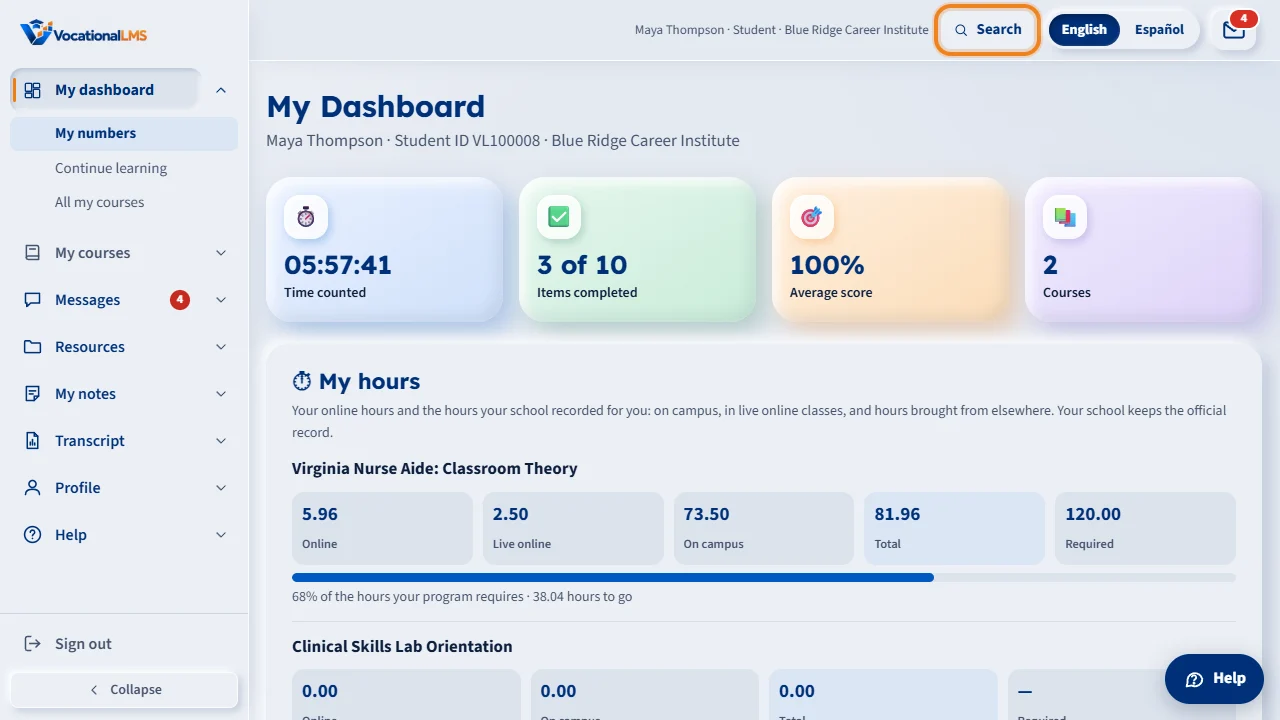
Every page has a Search button at the top. Click it. On a keyboard you can press Control and K, or the slash key.
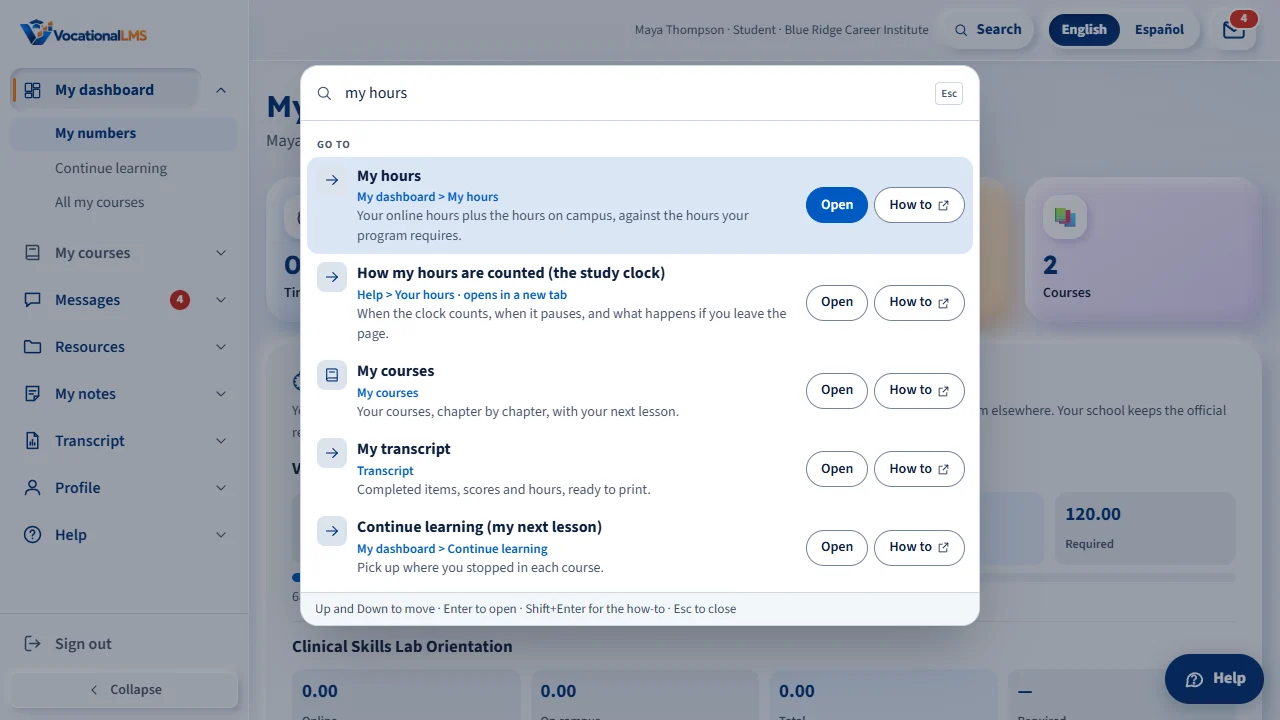
Type what you are looking for, such as my hours, transcript, or change password. A spelling mistake is fine. Under each result you see where it is.
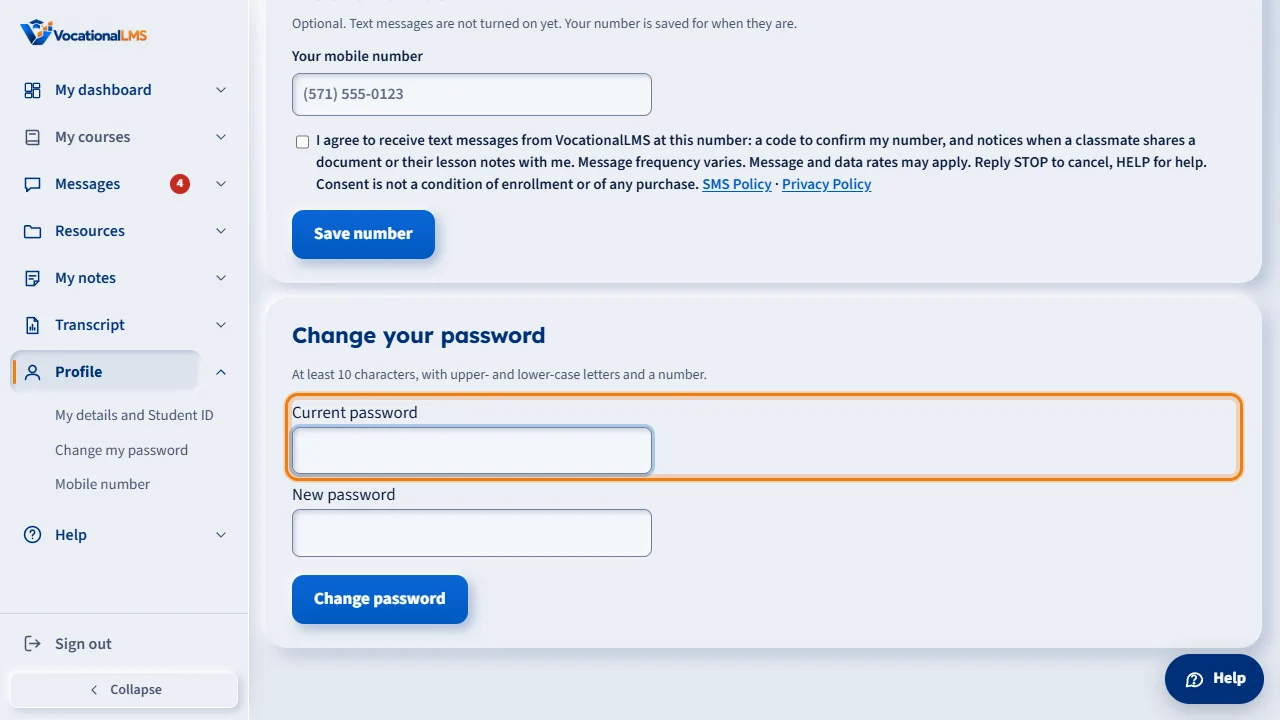
Click a result, or press Enter. The exact place opens. Here, Change my password opens your Profile, and the password box is marked with an orange outline.
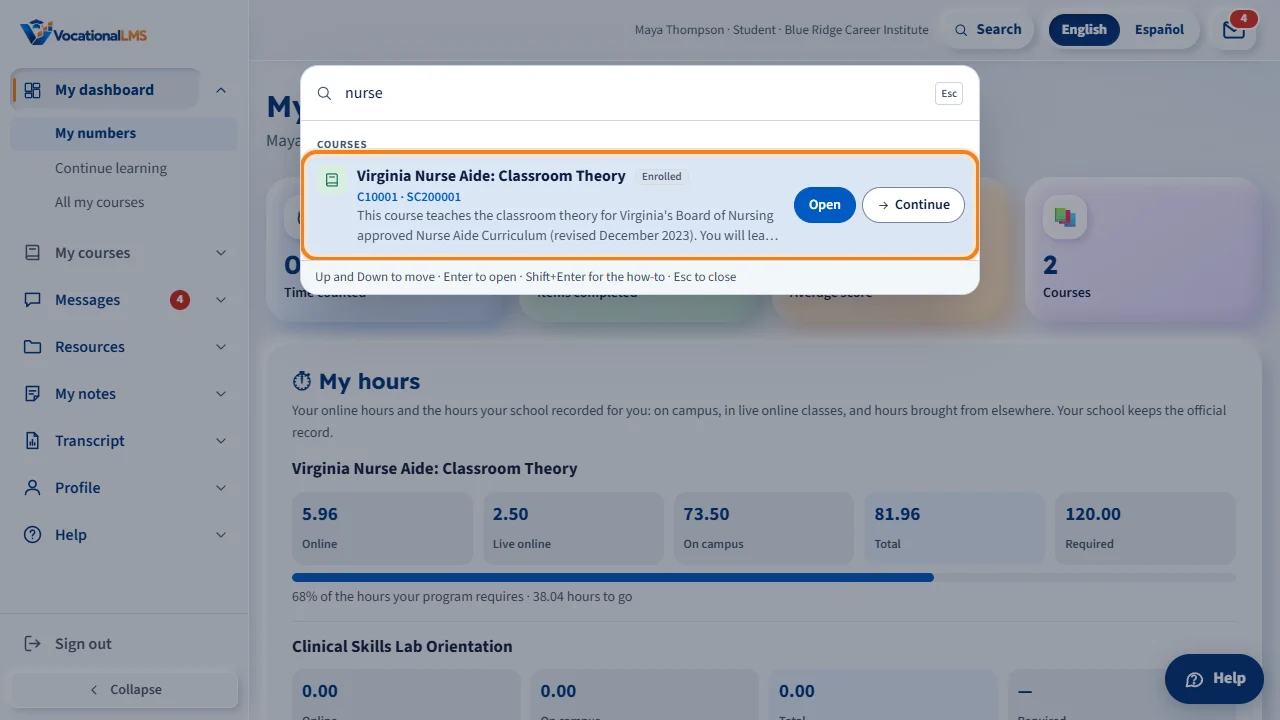
Type the name of one of your courses, and the Courses group lists it with its ID and its hours. Open shows the course on My courses. Continue opens your next lesson. In Spanish the group says Cursos, and the buttons say Abrir and Continuar.
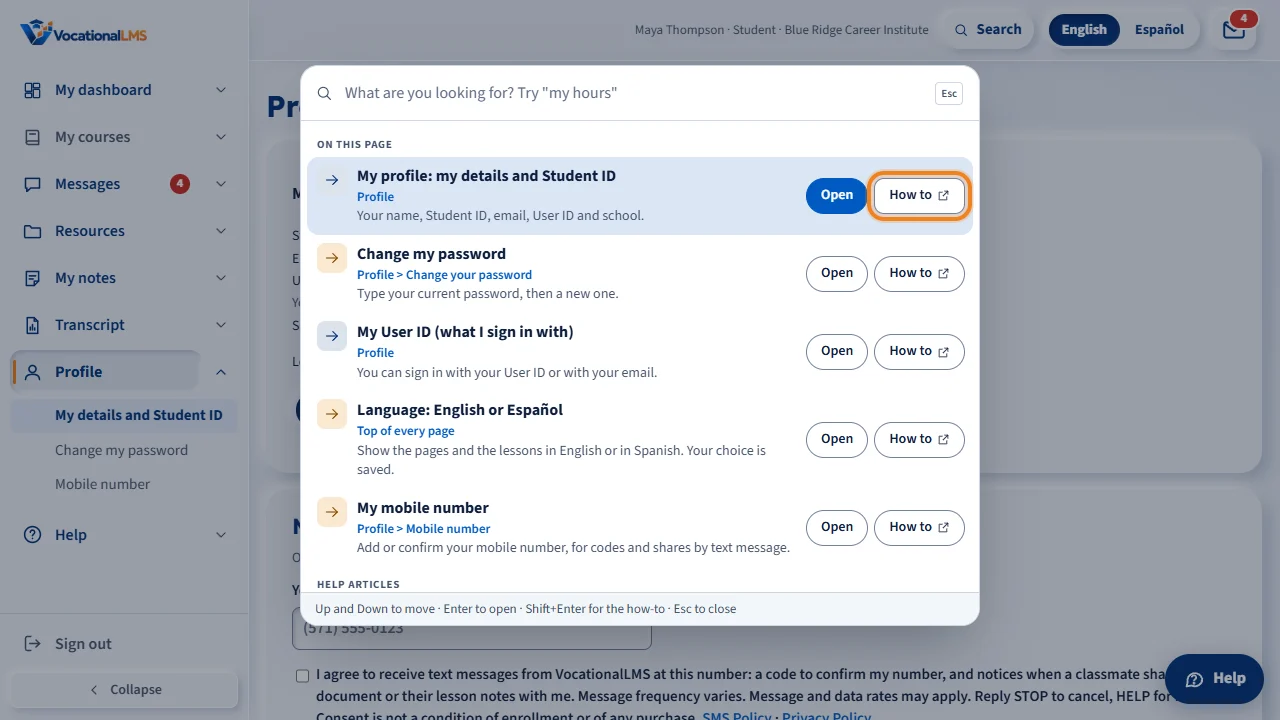
With an empty box, you see what belongs to the page you are on. How to opens the help article and its video in a new tab. If you use the site in Spanish, the button says Buscar, and you can type in Spanish.
What it is for
Every page has a Search button at the top. Type what you are looking for, such as my hours, transcript, change password or message my instructor. Click a result and the exact place opens. Type the name of one of your courses and it comes first, under Courses, with Continue to your next lesson. The search works in English and in Spanish.
Steps
- Click Search at the top of the page. On a keyboard you can press Ctrl and K together, or the / key.
- Type what you are looking for. A spelling mistake is fine.
- Click a result, or click Open. With the keyboard, use the arrow keys and press Enter.
- The page opens at the exact place. For example, Change my password opens your Profile with the password box marked.
- Type the name of one of your courses (or its course ID). The Courses group (Cursos in Spanish) lists it with its status, its ID and its hours. Open (Abrir) shows the course on My courses; Continue (Continuar) opens your next lesson. You find only the courses you are enrolled in.
- Click How to beside a result to read the help article and watch its video in a new tab.
- If you use the site in Spanish, the button says Buscar and you can type in Spanish.
What happens next
Press Esc to close the box. With an empty box you see what belongs to the page you are on, and what you opened last. If nothing matches, the box offers the Help center and Ask the Help assistant.
Common problems
| # | Problem | What to do |
|---|---|---|
| 1 | Nothing matches. | Try another word. Or click Ask the Help assistant in the box and ask your question. |
| 2 | You are looking for one lesson. | Type the name of the course. Under Courses, click Continue for your next lesson, or Open to see every lesson of the course on My courses. |
| 3 | You do not see the word Search on your phone. | On a small screen the button is a magnifying glass at the top. |