
I-13For instructors
Open a locked module for your students
Unlock one module, every module, or a module for one student, in a course you teach.
How-to video I-13 · 0:26
Read the words of this video
When your school uses module order, a student's next module opens only after the one before it is complete. In a course you teach, you can open modules yourself. On the course page, find Module access for students. Tick Unlocked for all students on a module, or click Unlock all modules. To help one student, choose Open a module for one student.
Open this in VocationalLMSMy Courses > a course > Module access for students
What it is for
When your school uses module order, a student's next module opens only after the one before it is complete. As the instructor of a course you can open modules for your students whenever you need to.
Steps
- Open the course you teach (My Courses, then the course).
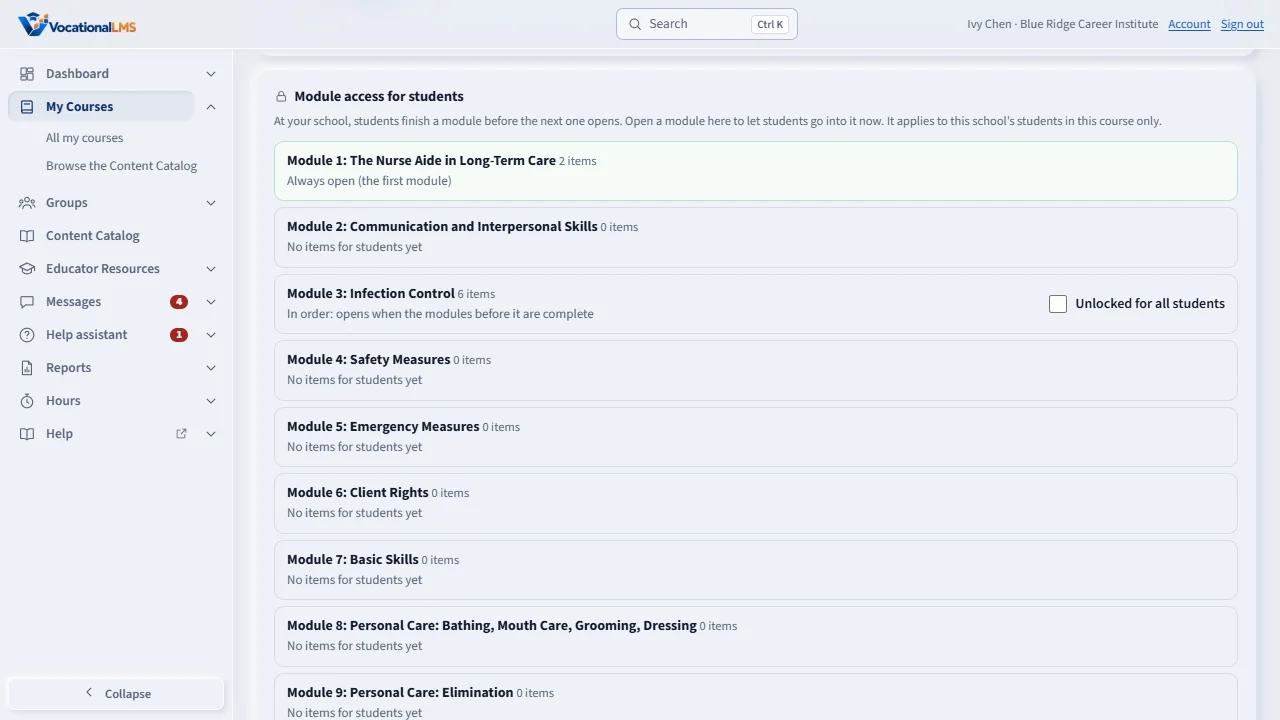
- Find the panel Module access for students.
- Tick Unlocked for all students on a module, or click Unlock all modules. Back to in order undoes it.
- For one student, click Open a module for one student, choose the student and the module, and click Open for this student.
What happens next
Students see the module open the next time they click it. Their hours, scores and completion are not changed. The panel's History shows who opened what.
Common problems
| # | Problem | What to do |
|---|---|---|
| 1 | You do not see the panel. | It appears only on courses you teach. Ask your School Admin to add you to the program. |
| 2 | The panel says every module is already open. | Module order is off for your school, so there is nothing to unlock. |