
A-84For School Admins and Directors
Certificates of Completion: print, number and verify
Print a Certificate of Completion for a student on a landscape PDF with its own number (AVI100001): the name, the course, the dates and optional subjects, the school's two signatures and a gold seal; set up the school name, the 3-letter code and the signatures.
How-to video A-84 · 0:44
Read the words of this video
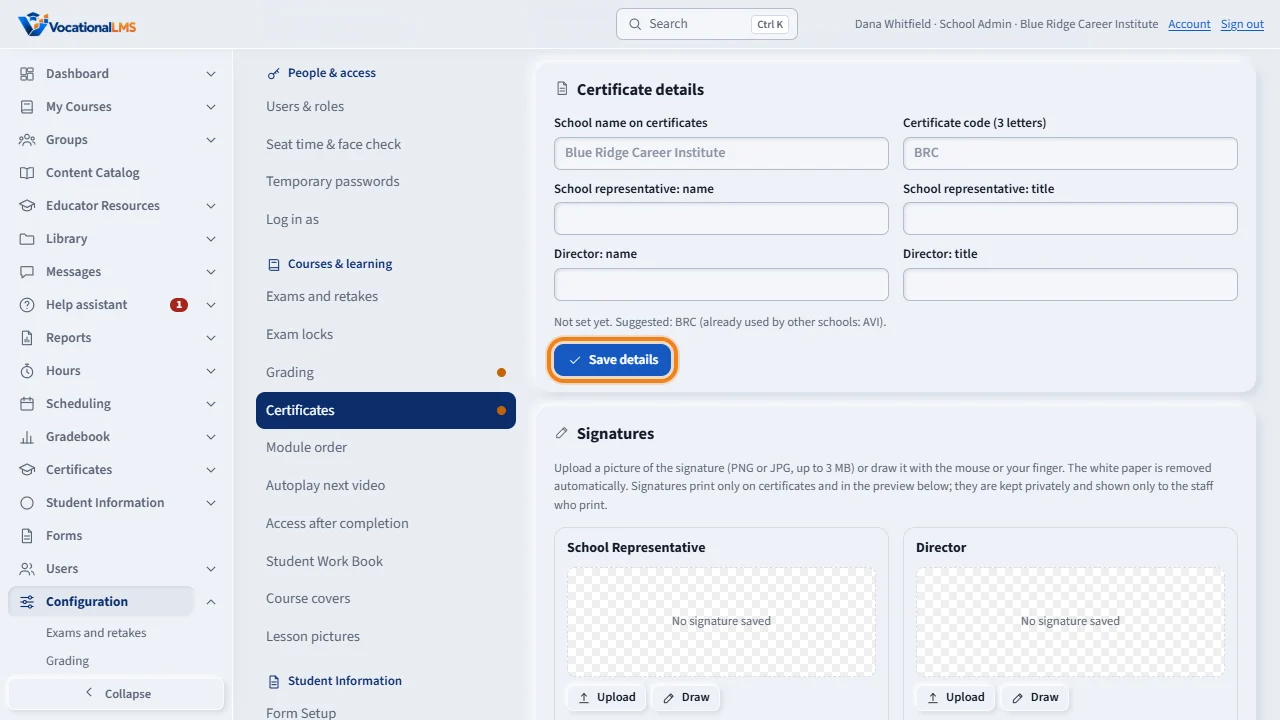
Under Configuration, Certificates, type the name printed on certificates, the three letter code that starts every certificate number, and the names and titles of the school representative and the director.
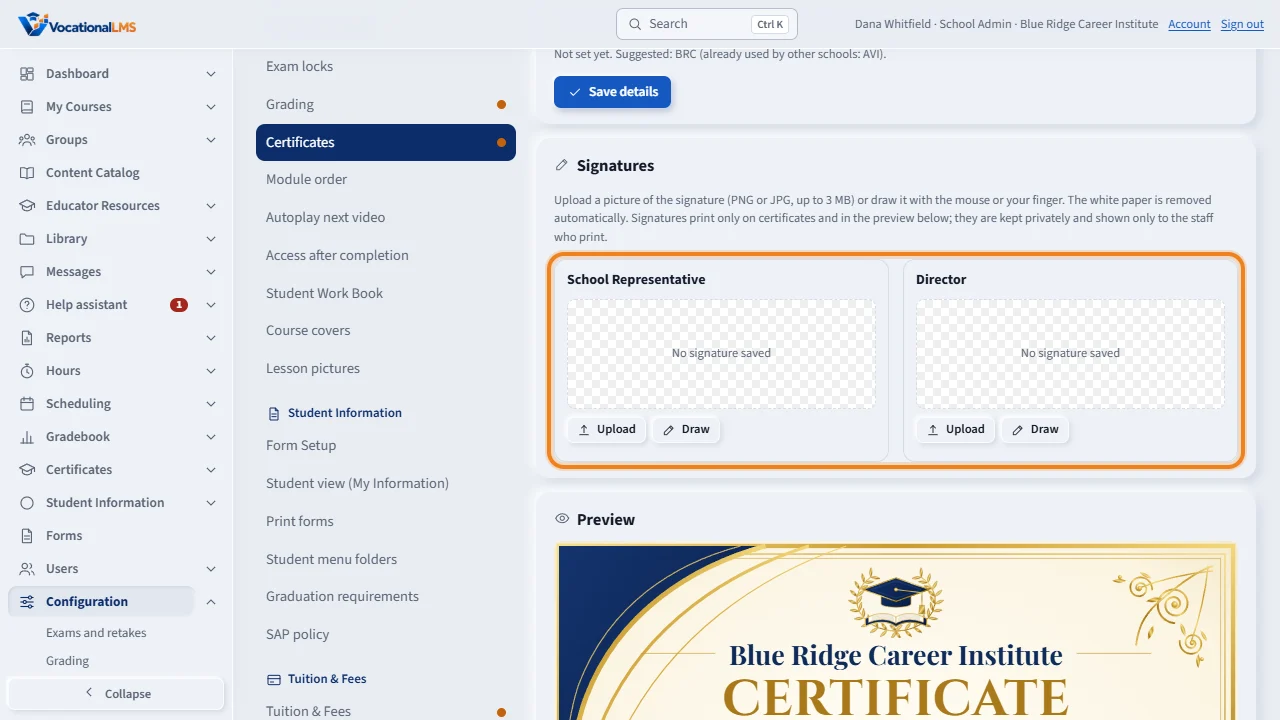
Add each signature by uploading a picture, or by drawing it on the pad with the mouse or your finger. The white paper is removed for you.
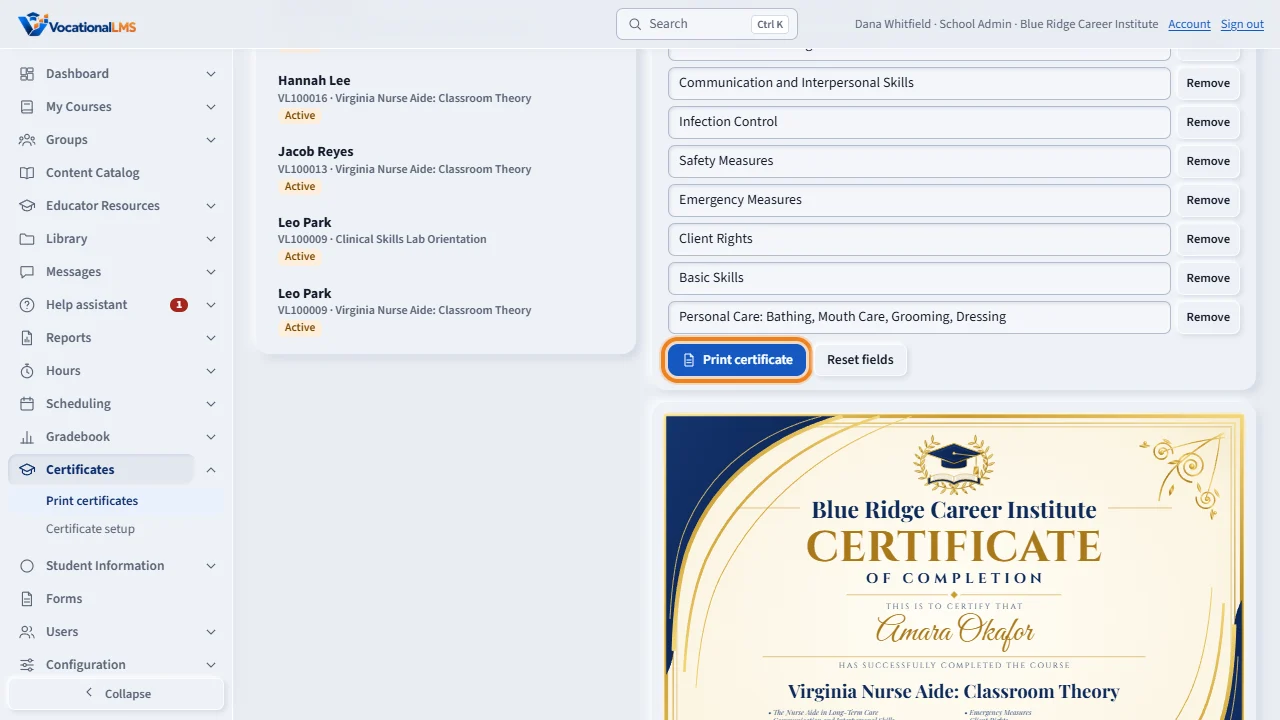
Open Certificates, click a student, and the certificate appears. Change the name, dates, course or subjects if you need to; this changes only this certificate. Click Print certificate: it gets its own number and opens as a PDF.
Open this in VocationalLMSCertificates
Who can do this: The Super Admin (the owner), the School Admin and a Director print certificates. Only the School Admin (and the owner) change the setup. Instructors and students cannot open Certificates or print one.
What it is for
A Certificate of Completion is a landscape US Letter PDF: the school's name, This is to certify that, the student's name, has successfully completed the course, the course name, an optional list of subjects, the start and graduation dates, a gold seal, two signature lines (School Representative and Director, with their names and titles) and a small certificate number at the bottom. The number is three capital letters (the school's code) and a sequence that starts at 100001 for each school, for example AVI100001. It says Certificate of Completion and nothing else: it never claims a license, DPOR, NACCAS or accreditation.
Steps
Set up once (School Admin)
- Open Configuration › Certificates. Type the School name on certificates (empty = the school's own name), the Certificate code (exactly 3 capital letters, different from every other school; it cannot change once a certificate exists) and the names and titles of the school representative and the director. Click Save details.
- Under Signatures, for each of the two: click Upload and choose a PNG or JPG of the signature (up to 3 MB), or click Draw and sign on the pad with the mouse or your finger (Undo, Clear, Save signature). The white paper is removed for you. Replace and Remove change it later; who changed it and when is logged. Signatures print only on certificates; they are kept privately.
- Check the Preview at the bottom of the page.
Print a certificate
- Open Certificates in the left menu, next to Gradebook. Find the student on the left: search by name or student number, or filter by program or completion status.
- Click the student. The certificate appears on the right. The name, the course, the start date (the enrollment date) and the graduation date (the day the program was marked completed) come from the record. A program not marked completed shows Program not marked completed and today's date; you can still print.
- Change what you need for this certificate only: the student name, the course name, the dates, and the Subjects (prefilled from the course's modules; edit, remove or add up to 8 lines of 60 characters, or click No subjects). The student's record is never changed.
- Click Print certificate. The certificate gets its number and the PDF opens in a new tab. If one was already made for this student and program, a window asks Issue a new number or reprint AVI100001?; reprint is the default and keeps the number.
- Void cancels a certificate: it needs a reason, it can no longer be printed, and its number is retired for good.
What happens next
Anyone can check a certificate at vocationallms.com/certificates/verify by typing its number: the page shows only the number, the name as printed, the course, the graduation date, the school and whether it is valid or voided. Every print, reprint, edit and void is logged with who and when.
Common problems
| # | Problem | What to do |
|---|---|---|
| 1 | “Set this school's 3-letter certificate code first.” | Open Configuration > Certificates and type three capital letters. Required before the first certificate. |
| 2 | “Another school already uses that code.” | Choose different letters. The page shows the codes other schools use. |
| 3 | The signature line prints empty. | No picture is saved for it. Upload or draw one in Configuration > Certificates. |
| 4 | A signature picture is refused. | Use a PNG or JPG up to 3 MB with dark ink on light paper. |
| 5 | Certificates is not in my menu. | Only the Super Admin, the School Admin and Directors see it. Instructors and students ask the school office. |
| 6 | I changed the school's names or the signature and an old certificate did not change. | On purpose: a certificate keeps the names and signatures it was printed with, so a reprint matches the original. |