
A-83For School Admins and Directors
Lesson pictures on the videos your school builds
Every photo slide of a lesson video your school builds with AI gets a realistic picture of the activity it teaches; Add pictures to lessons fills in a course built before; choose Follow / On / Off for your school.
How-to video A-83 · 0:43
Read the words of this video
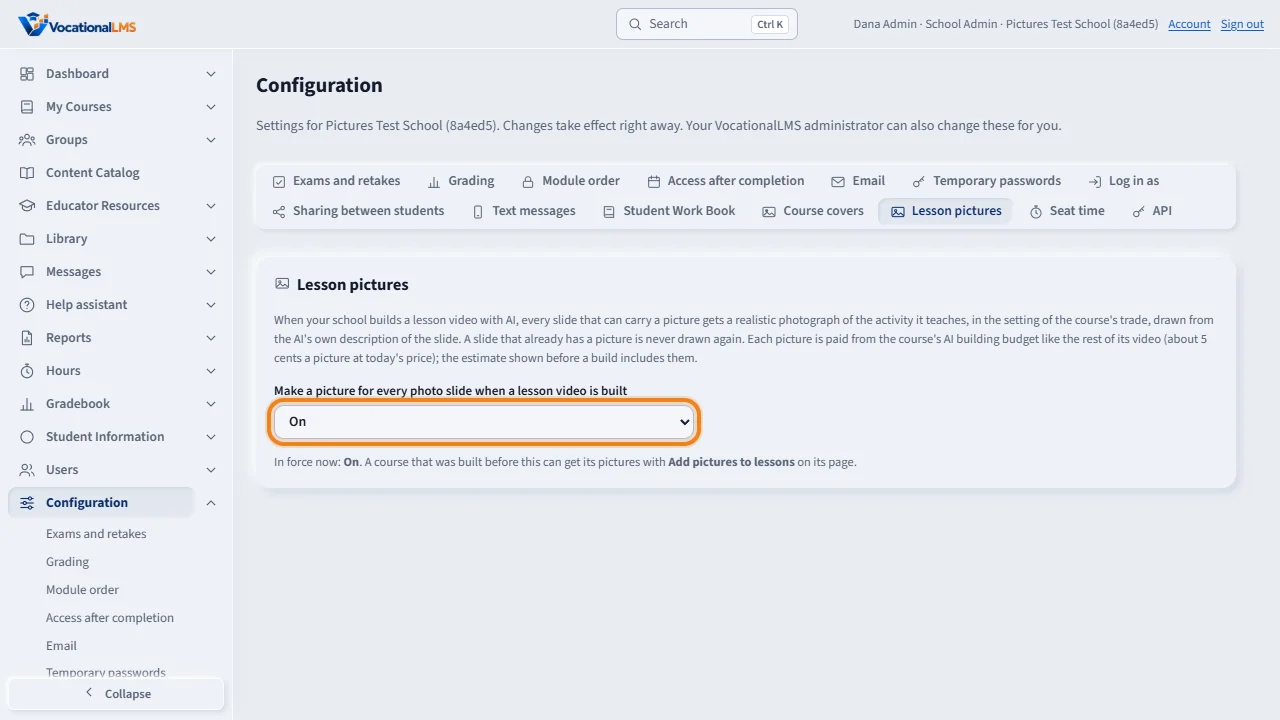
Under Configuration, Lesson pictures: choose Follow VocationalLMS, On, or Off for your school. While it is on, every lesson video your school builds with A I gets a realistic picture on each slide that can carry one, paid from the course's budget like the rest of the video.
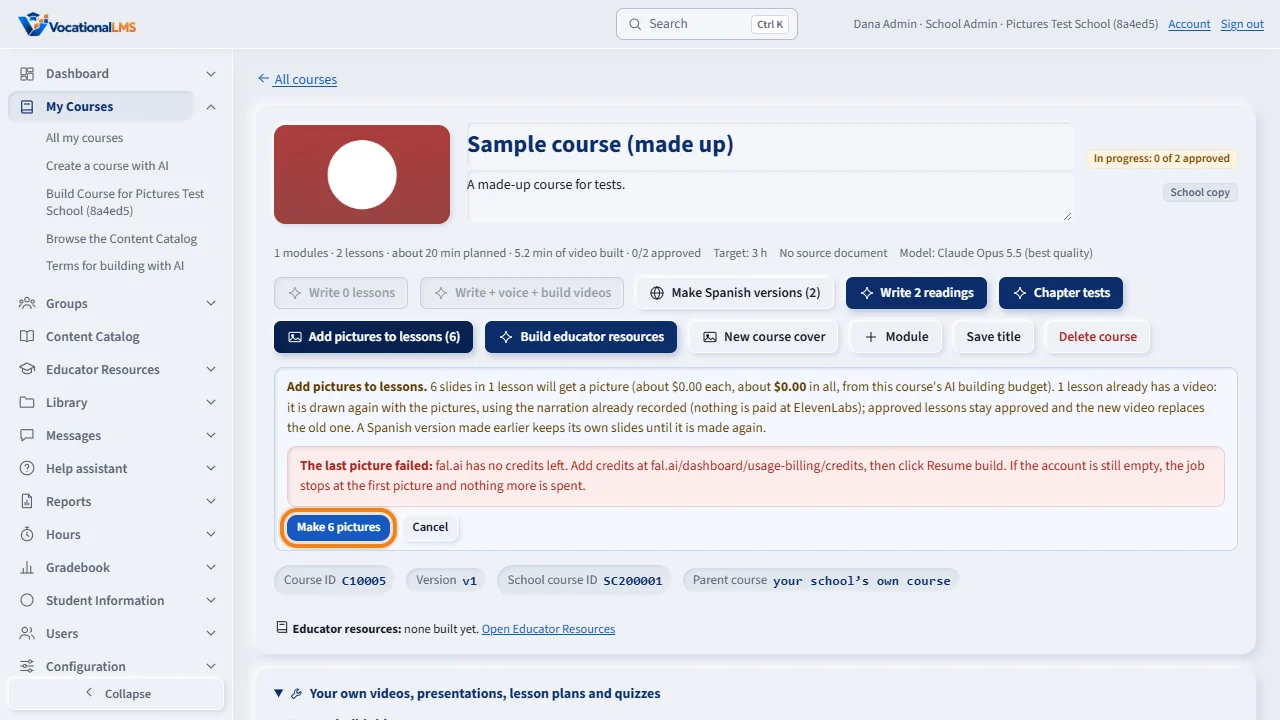
A course built before has Add pictures to lessons on its page. Click it: the box says how many slides will get a picture, the cost from the course's budget, and that the videos are drawn again with the narration already recorded. Click Make pictures. Approved lessons stay approved.
Open this in VocationalLMSConfiguration > Lesson pictures
Who can do this: The School Admin (a Director can also click Add pictures to lessons on the school's own course). Students simply see the pictures in the videos.
What it is for
When your school builds a lesson video with AI, every slide that can carry a picture (title, bullets, summary, steps and scenario slides) gets a realistic photograph of adult models doing what the slide teaches, in the setting of the course's trade, drawn from the AI's own description of the slide. Generic adults, no text or logos, nothing distressing. A slide that already has a picture is never drawn again. Each picture is paid from the course's AI building budget like the rest of its video (about 5 cents a picture at today's price; the estimate before a build includes them), and a course may have at most 2,000 pictures a day.
Steps
Choose for your school
- Configuration › Lesson pictures: Follow VocationalLMS (the default), On or Off. In force now says what applies to your courses.
A course built before
- Open the course. Add pictures to lessons (N) says how many slides have no picture yet. Click it, read the box (how many slides, the cost from the course's budget, the videos drawn again with the narration already recorded), then click Make N pictures.
- Approved lessons stay approved and the new video replaces the old one. If the job stops (the picture service refused), VocationalLMS is told; Resume build continues later with only what is left.
What happens next
New videos your school builds carry their pictures from the start while the setting is On (or Follow while VocationalLMS has it on).
Common problems
| # | Problem | What to do |
|---|---|---|
| 1 | Add pictures to lessons is gray. | Nothing is missing, work is running on the course, Lesson pictures are Off for your school, or VocationalLMS has no picture service connected. |
| 2 | The button is refused for the budget. | The pictures do not fit the course's AI building budget. Top up under AI building: estimate and budget (A-72), then click again. |
| 3 | A video built by VocationalLMS has no pictures. | VocationalLMS adds them to its own courses; ask under Help. |