
S-33For students
Face check while you watch lesson videos
If your school uses it: what it measures (not a video), how to agree or say no, how to set it up, and how to withdraw.
How-to video S-44 · 1:17 (the same video as S-44)
Read the words of this video
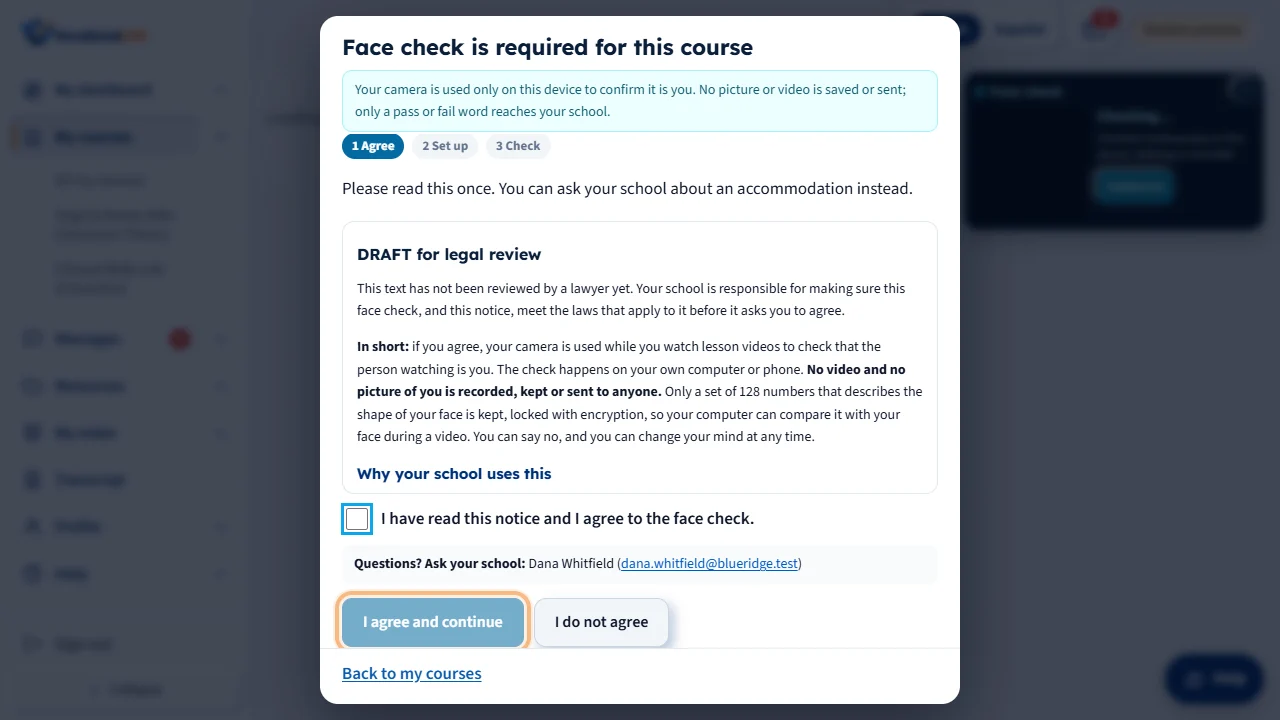
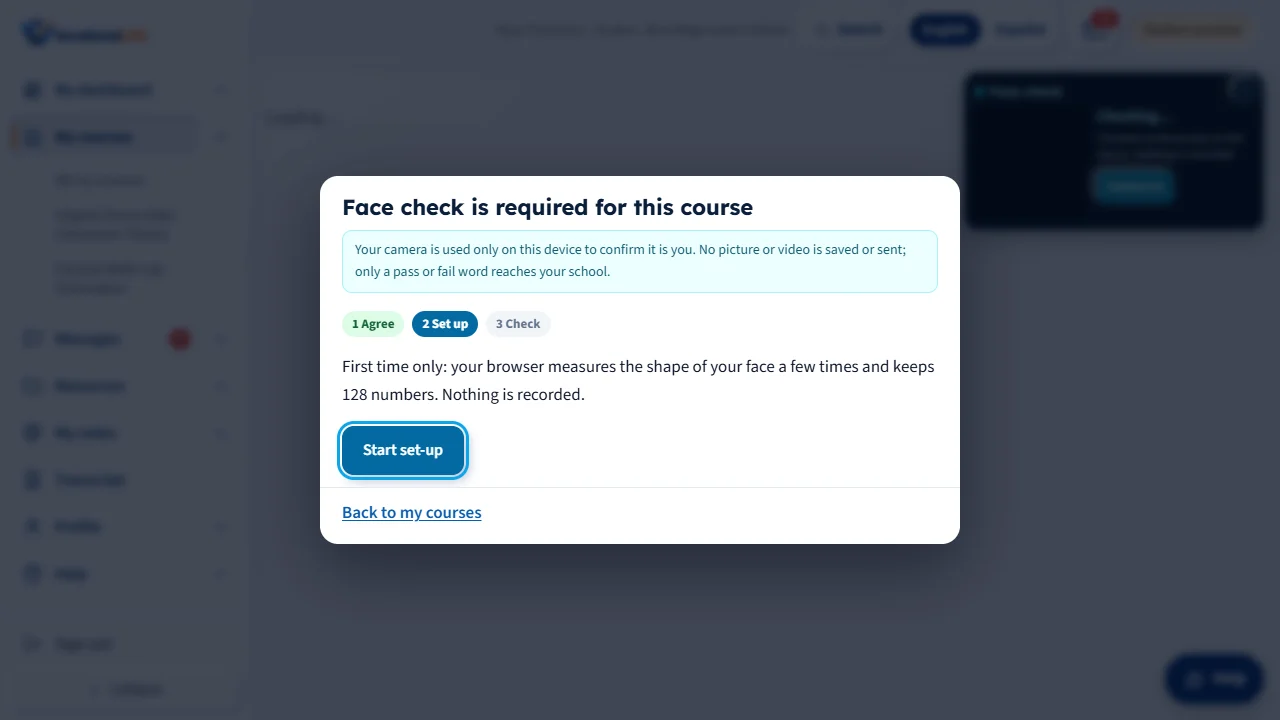
If your school uses face check, you must be confirmed before any lesson, video, reading or test opens. When you open a lesson, a window called Face check is required opens. Your dashboard, grades and messages never need the camera.
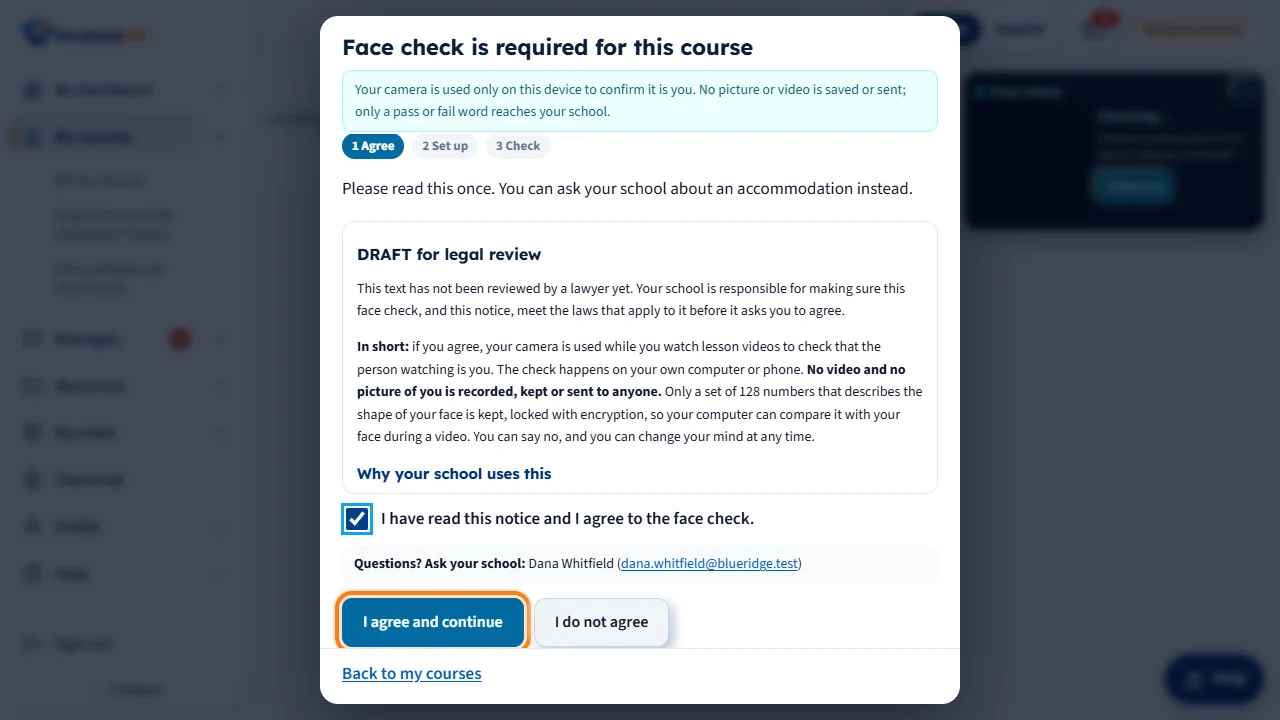
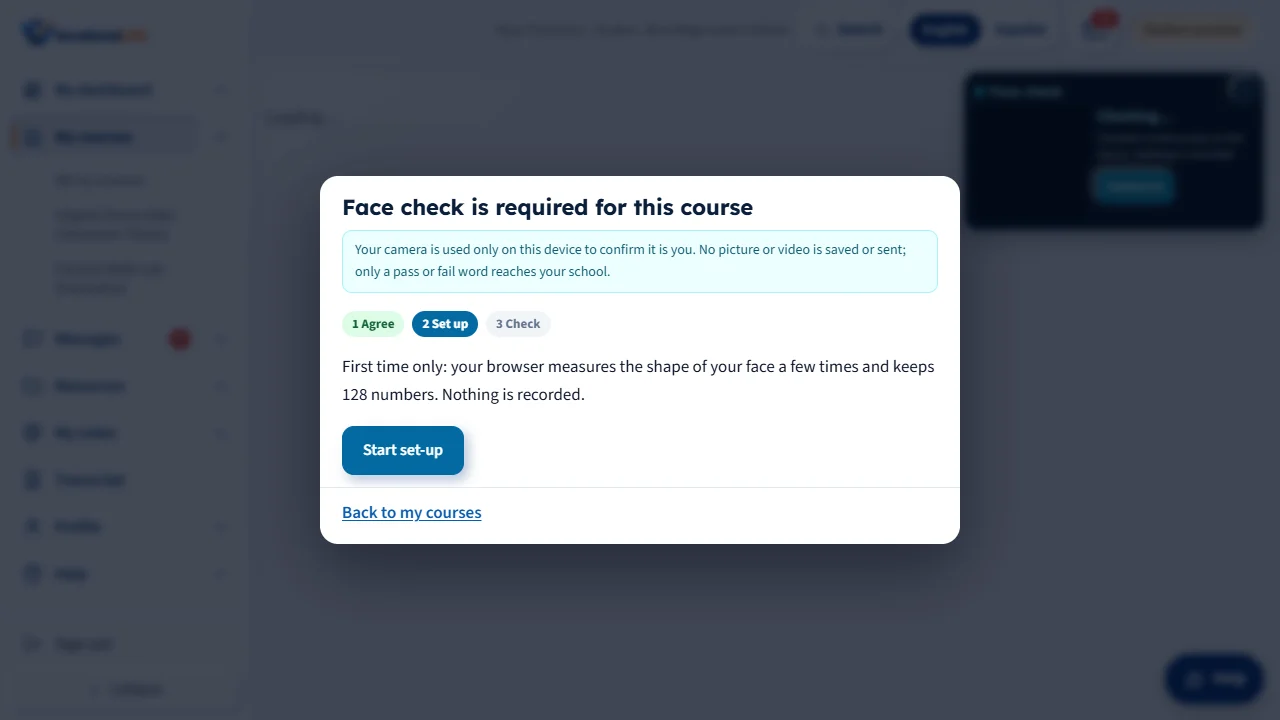
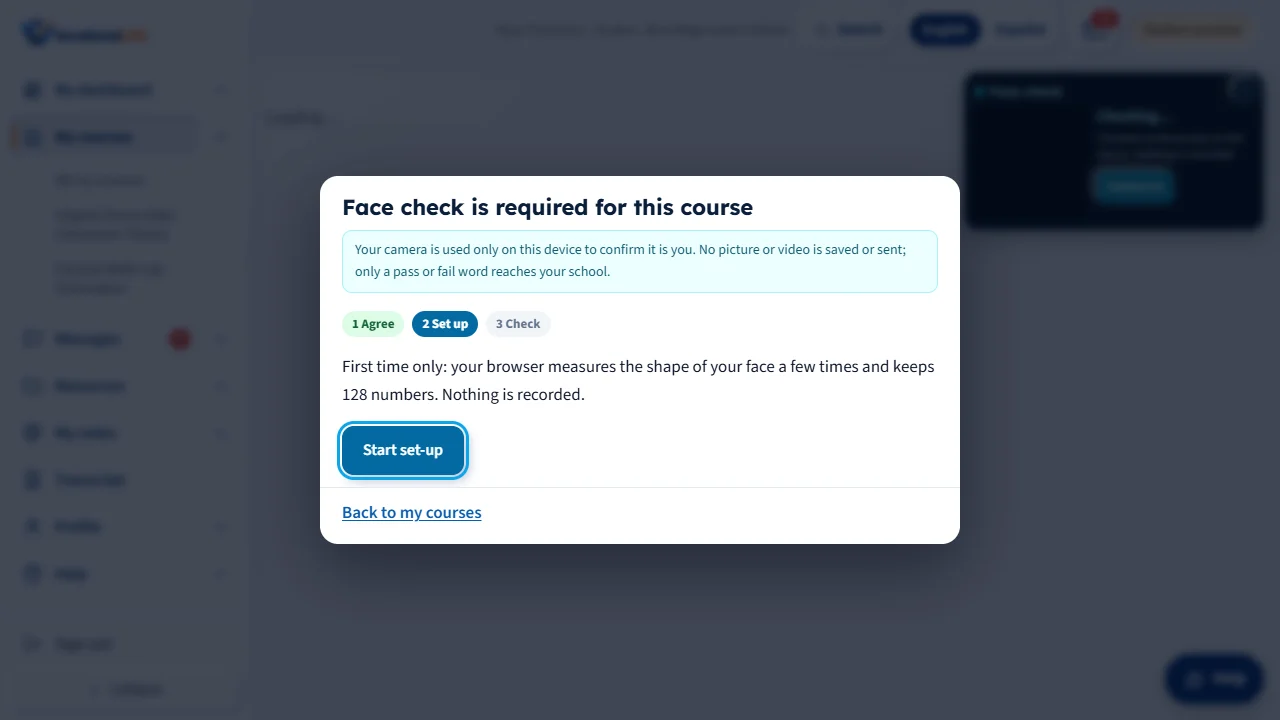
The first time, read the notice, tick the box that says you agree, and click I agree and continue. Then click Start set-up and Turn on the camera. Your browser asks to use the camera. Choose Allow.
Follow the hints on the screen: come closer, find more light, look straight at the camera. When it says Good, click Save face template. Nothing but a short list of numbers is saved. No picture or video is kept. The camera view itself is not shown in this video.
Every later time, just click Start face check. When it says Face confirmed, the window closes and your lesson starts.
While you study, a small box stays at the top right with your time clock. If your face is not confirmed for fifteen seconds, your clock stops, the video pauses and the window comes back. Look at the camera and it carries on by itself. The camera box is not shown in this video.
Open this in VocationalLMSA lesson > Video > Face check box
What it is for
Some schools check, while a lesson video plays, that the person watching is you. It happens on your own computer or phone. No video and no picture of you is recorded, kept or sent. Your browser measures the shape of your face and keeps 128 numbers. Only the result of each check (for example "match") goes to your school. If your school does not use it, you never see it.
Steps
Agree or say no
- Open a lesson's video. A box at the top of the right-hand column says Face check. Click Read and decide.
- Read the notice. It says what is measured, what is never kept, how long the numbers are kept and who to ask.
- To agree, tick I have read this notice and I agree and click I agree. Or click I do not agree. Saying no means lessons stay closed until your school gives you another way (an accommodation): see S-44.
Set it up (one time)
- Click Set up face check (one time), then Turn on the camera. Your browser asks if this site may use the camera: allow it.
- The box draws the points it measures on your face (a drawing, not a picture). Follow the hints: closer, more light, look straight.
- When it says Good, click Save face template.
While you watch
- Click Turn on my camera. The box shows the live drawing of your face shape.
- Your face is checked all the time on your device. If it cannot confirm it is you for 15 seconds, your study clock stops and the lesson pauses (see S-44).
- The box's color tells you where you stand: green, it is you; amber, no face in view (come back in front of the camera); red, a face is there but it could not be confirmed as you, and your clock stops until it is. Red usually means poor light or the camera angle: face a lamp or a window and look at the camera.
- Camera off turns the camera off. While it is off, a check cannot confirm you, and your clock pauses at the next check.
Withdraw your consent
- In the box click About, then Withdraw my consent, and click it again to confirm.
- Your face template is deleted at once and the check stops. Ask your school for an accommodation.
What happens next
Nothing about your grades or your progress depends on the face check. Only your study clock pauses while a check has not confirmed you.
Common problems
| # | Problem | What to do |
|---|---|---|
| 1 | The check keeps saying it is not you. | Face a lamp or a window, look straight at the camera, and stay in the middle of the picture. If it still fails, ask your school to reset it or to give you an accommodation. |
| 2 | The camera does not turn on. | Allow the camera for this site (the camera icon in the address bar) and close other apps that use the camera. |
| 3 | I do not want my face measured. | Click I do not agree, or withdraw. Your school will confirm your attendance another way. |