
A-106For School Admins and Directors
Face check gate: how it works, what it blocks, and accommodations
With face check on, students open no course content and earn no seat time without a confirmed face check in the session. How the gate works and who is exempt.
How-to video A-77 · 1:12 (the same video as A-77)
Read the words of this video
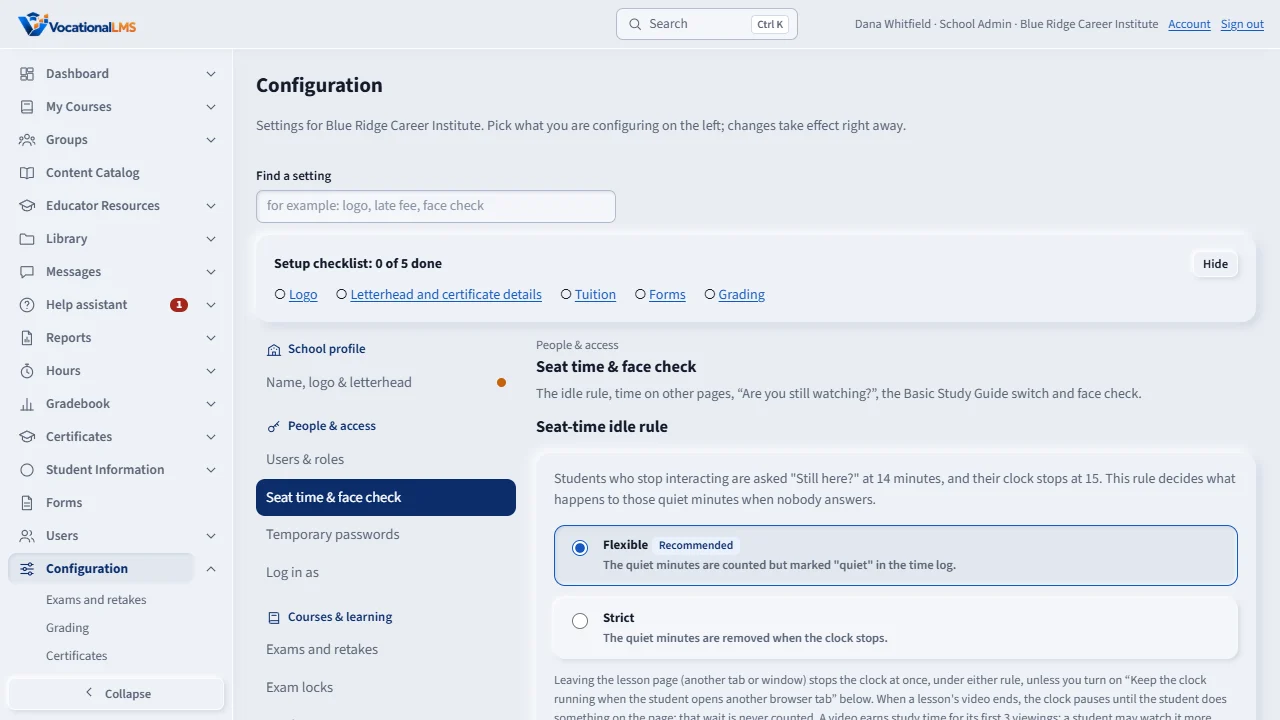
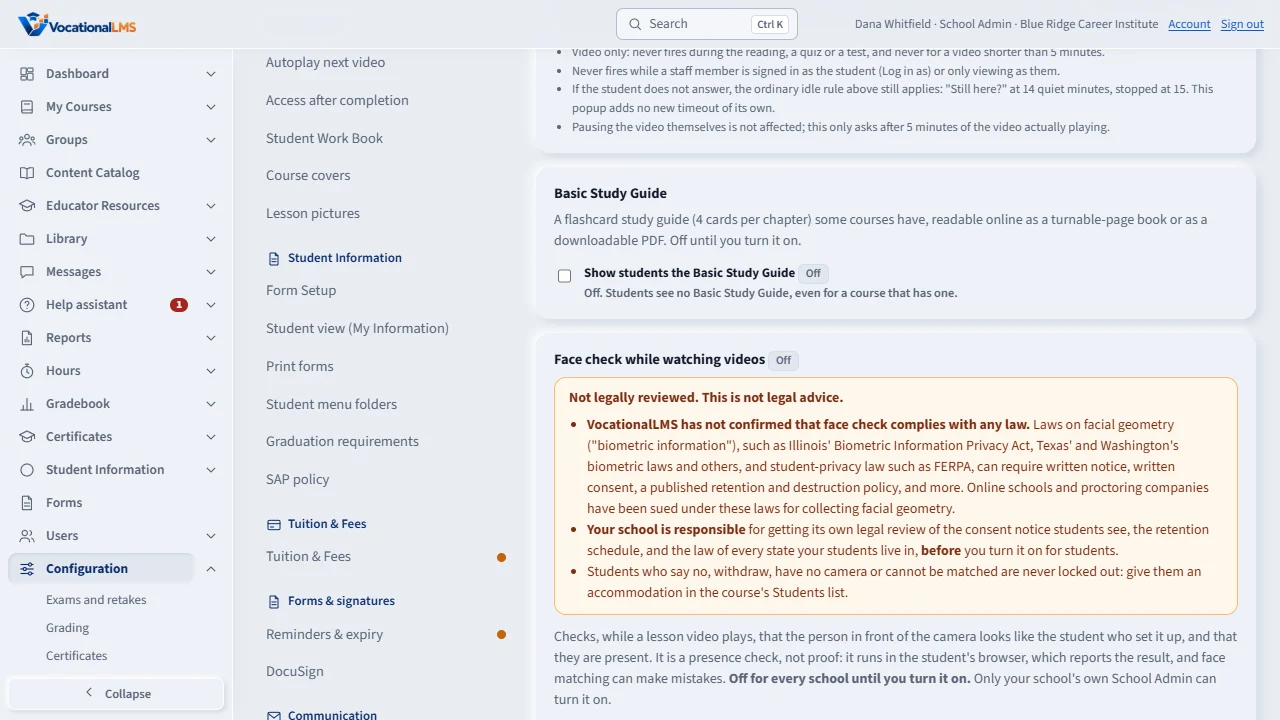
Face check is off for every school until you turn it on. Read the orange warning first. VocationalLMS has not confirmed that face check follows any law, so ask your own lawyer before you use it.
Under Seat-time idle rule, choose the minutes of video between checks, tick the box that says you understand, and click Turn on face check. The label changes to On, with your name and the time.
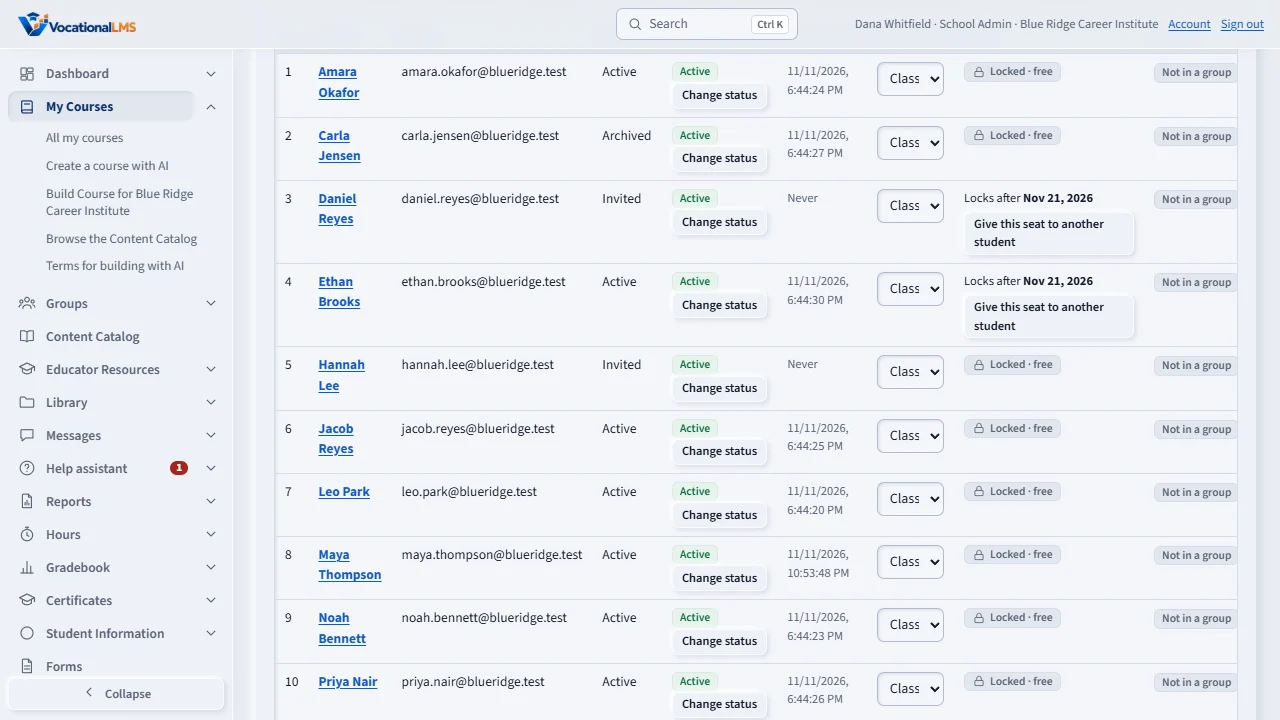
Once it is on, students cannot open any course content until their face is confirmed in that sign-in. The Students list shows a Face check column, and Set up lets you register a student who is sitting with you.
For a student who cannot use the camera, click Accommodation on their row, choose the reason and give it. That student opens content with no check. End accommodation puts the gate back at once.
Seconds that were not covered by a match show in the Time log as Not counted, face check. That is your record of what was and was not counted.
Open this in VocationalLMSDashboard > Seat-time idle rule > Face check while watching videos
Who can do this: The School Admin turns face check on. A School Admin, Director or the student's instructor gives an accommodation. School Admins and Directors see the Time log; instructors see their own students.
What it is for
When your school has face check on (A-77, including its legal warning), students cannot open any course content (lessons, videos, readings, quizzes, tests, exams, study guide, work book) until their face check is confirmed in their current sign-in. The server refuses the content itself, so hiding the page is not the only protection. Dashboard, grades, messages, schedule and profile stay open.
Steps
How seat time is counted
- The student's browser compares the face with their template on their own device about every 8 seconds and sends only a word: match, no match, no face or camera off.
- A match covers the next 15 seconds of study time. Seconds not covered by a match are never counted, even if the lesson page stays open. Camera off pauses the clock at once.
- The Time log shows those seconds as Not counted · face check, and a line says whether face check is required and the last result.
If your school keeps the clock running on other browser tabs (A-107)
- A background tab cannot check the face, so time on another tab counts only for the away grace after the last confirmed face check. It starts at 120 seconds; the School Admin sets it (30 to 600) under Time on other browser tabs.
- When the grace runs out the clock stops, even with the tab open. When the student looks at the lesson tab again, the face check popup returns if their face is not confirmed, and the clock continues once it is.
Give an accommodation
- Open the course's Students list and click Accommodation on the student's row, choose the reason and click Give accommodation (see A-77).
- That student opens content with no check and their clock is never held. End accommodation puts the gate back at once.
Grant it from the Time log (School Admin)
- Open the student's Time log. The line Face check status at the top says whether face check applies and the last result.
- Choose a Reason and click Grant accommodation (exempt from face check). The reason is required. Your name and the time are kept, and it is the same accommodation as in the Students list.
What happens next
A student who declined or withdrew consent cannot open content in that course until you give an accommodation. Turning face check off opens everything again and deletes the templates (A-77).
Common problems
| # | Problem | What to do |
|---|---|---|
| 1 | A student cannot open a lesson. | Their face is not confirmed in this sign-in. Ask them to click Start face check, allow the camera, and face the light. If they have no camera, give an accommodation. |
| 2 | A student's time stops early. | No match arrived for more than 15 seconds or the camera was off. Check the Time log line for the last result. |