
S-31For students
Folders for your own documents and links
Make your own folders in My documents and links, open them, and move your files and website links into them.
How-to video S-31 · 0:50
Read the words of this video
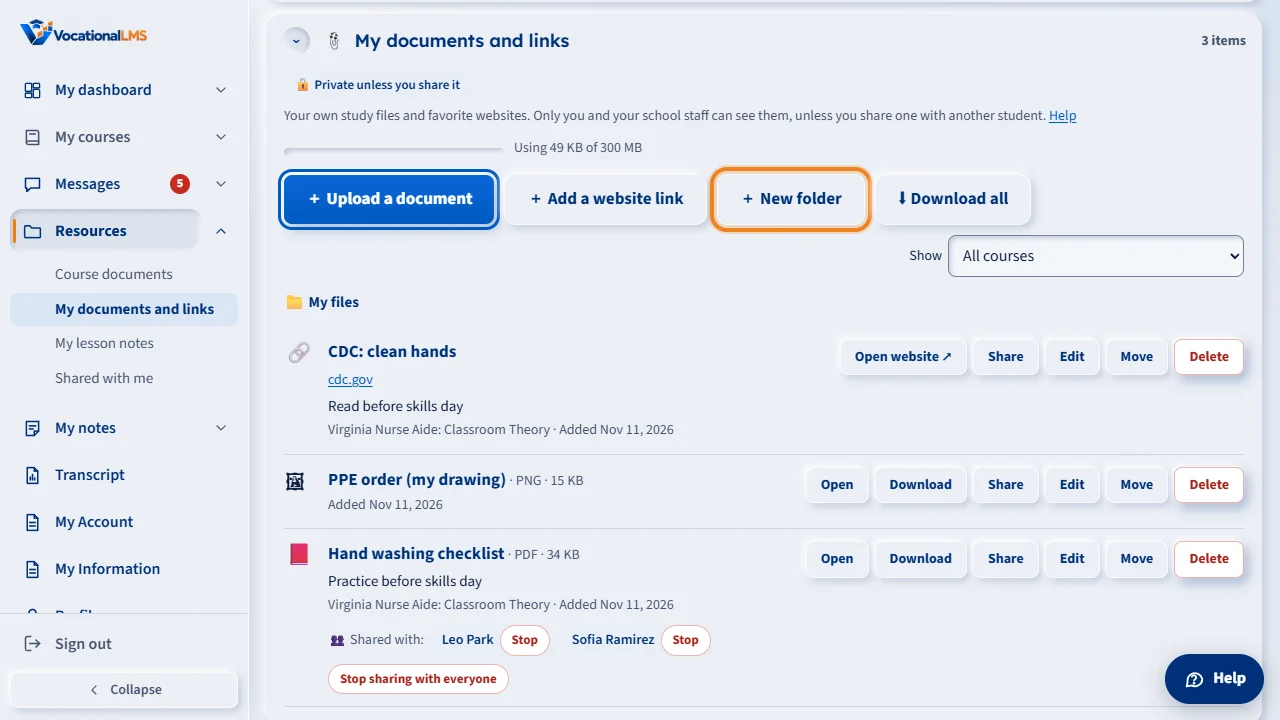
On Resources, in My documents and links, you can keep your files in folders of your own. Click New folder, type a name such as Week 1, and click Create folder.
The folder is made inside the folder that is open. The path at the top shows where you are, starting at My files.
Click a folder's name to open it. While it is open, Upload a document and Add a website link put the new item into it. To move something you already saved, click Move, choose the folder, and click Move here.
Click My files, or any folder in the path, to go back up. A folder can be deleted only when it is empty. Your folders are private: only you and your school's staff can see them, and staff can only look.
Open this in VocationalLMSResources > My documents and links > New folder
What it is for
In My documents and links (on Resources) you can keep your files in folders of your own, and folders inside folders, the way you do on a computer. The path at the top, such as 📁 My files › Week 1 › Labs, shows where you are. Everything you saved before folders existed is at the top level, My files.
Steps
Make a folder
- Click Resources in the menu on the left.
- In My documents and links, click + New folder, type a name such as Week 1, and click Create folder.
- The folder is made inside the folder that is open. To make a folder inside it, open it first.
Open a folder and add to it
- Click the folder's name, or its Open button.
- While it is open, + Upload a document and + Add a website link put the new item into it.
- Click My files, or any folder name in the path at the top, to go back up.
Move, rename or delete
- To move a document, a link or a folder, click its Move button, choose the folder in Move to, and click Move here. Choose My files (top level) to take it out of every folder.
- Click Rename on a folder to change its name.
- Delete on a folder works only when the folder is empty: move or delete what is inside it first. It asks you to click twice.
What happens next
Your folders are private, like your documents: only you and the staff of your school can see them, and staff can only look, never change them. Show (the course list) finds the items for one course in every folder, and shows the folder of each one. ⬇ Download all keeps your folders inside the ZIP file.
Common problems
| # | Problem | What to do |
|---|---|---|
| 1 | “There is already a folder called … here.” | Two folders in the same place can't have the same name. Choose another name, or open the folder that is already there. |
| 2 | A folder can't be deleted. | It still has something inside. Open it, then move or delete what is in it, and try again. |
| 3 | A folder is missing from the Move list. | A folder can't be moved into itself or into one of its own folders, so those are not offered. |
| 4 | “Folders can go 8 levels deep.” | Make the new folder higher up. |