
A-109For School Admins and Directors
Stop AI work on your school's course
A running job on your school's own course has a Stop button; a provider that runs out of credits stops the work by itself and says so.
How-to video A-109 · 0:32
Read the words of this video
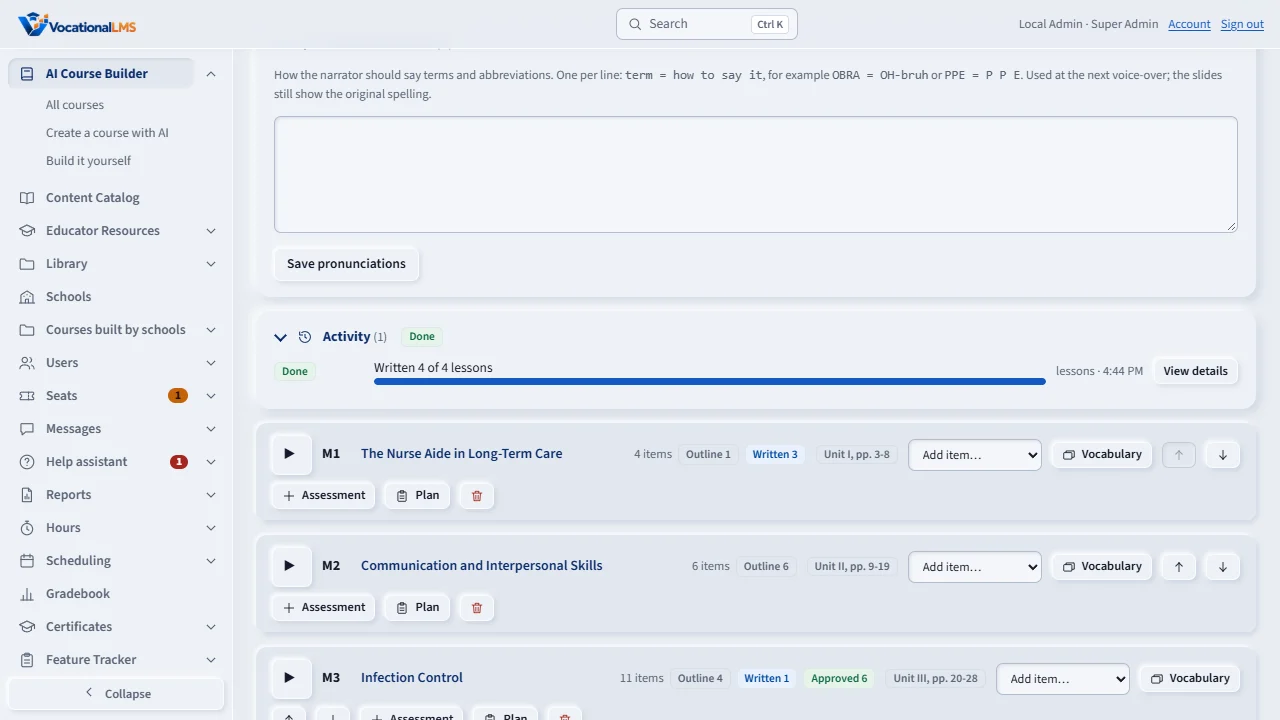
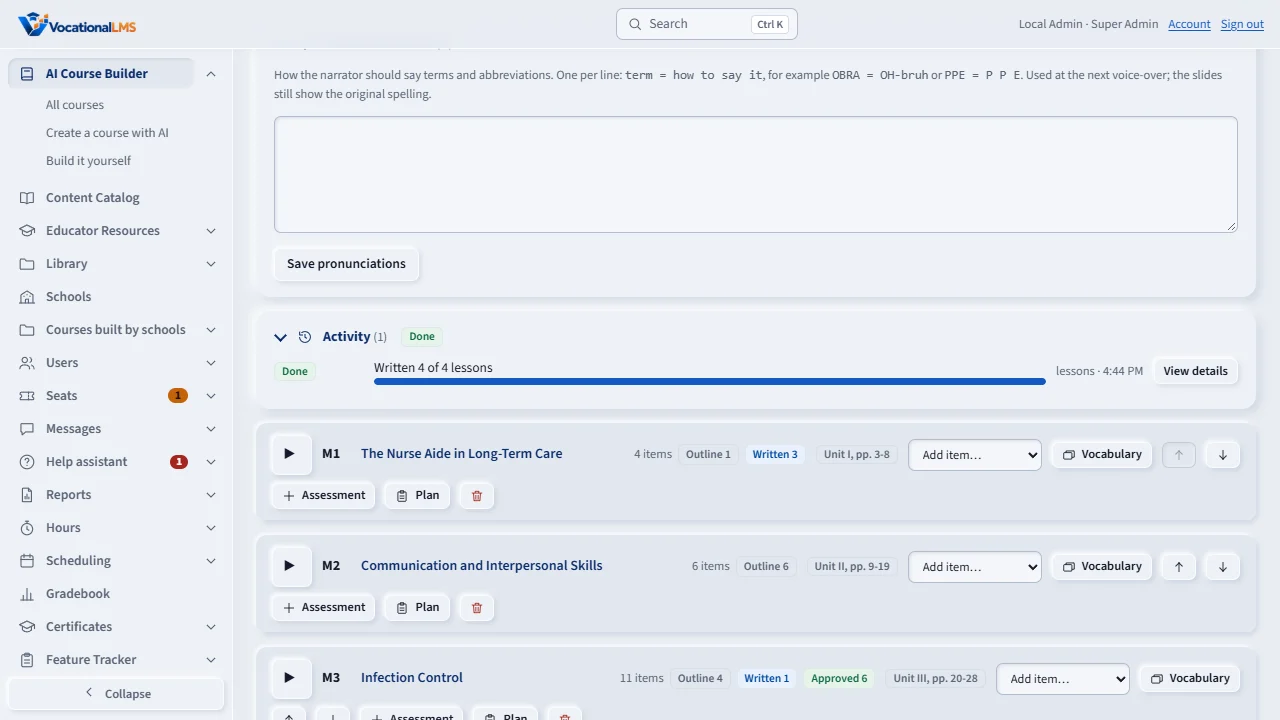
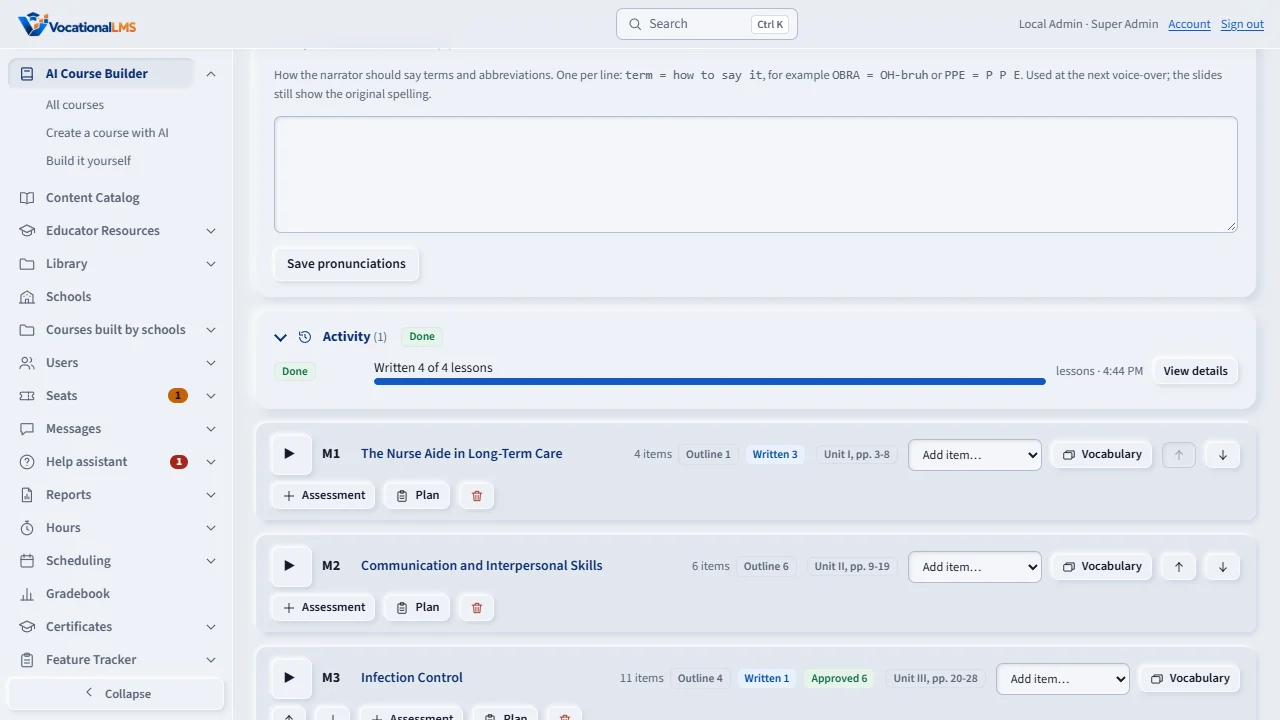
Every job in a course's Activity list can be stopped. A running job has a red Stop button. No job is running in this sample course, so the button is not shown here.
Click Stop and read what will happen. The lesson being made is finished, nothing new starts, and everything already made is kept. Click Yes, stop it.
The row says Stopping, then Stopped. View details shows who stopped it and when.
Open this in VocationalLMSAI Course Builder > a course > Activity > Stop
Who can do this: A School Admin or Director of the school that owns the course. An instructor cannot stop work. VocationalLMS courses assigned to your school cannot be stopped from here.
What it is for
When your school builds a course with AI, every job in the course's Activity list (Spanish versions, readings, tests, Resume build and so on) can be stopped. The lesson being made is finished, nothing new is started, what is made is kept, and the job does not start again by itself.
Steps
Stop a job
- Open your course and find the running job in Activity.
- Click Stop, read what will happen, and click Yes, stop it.
- Wait for Stopping... to become Stopped. View details shows your name and the time.
What happens next
To continue later, start the work again or click Resume build (A-82).
Common problems
| # | Problem | What to do |
|---|---|---|
| 1 | There is no Stop button. | The job has already ended, or the course is a VocationalLMS course assigned to your school. Only the school's own courses can be stopped here. |