
S-47For students
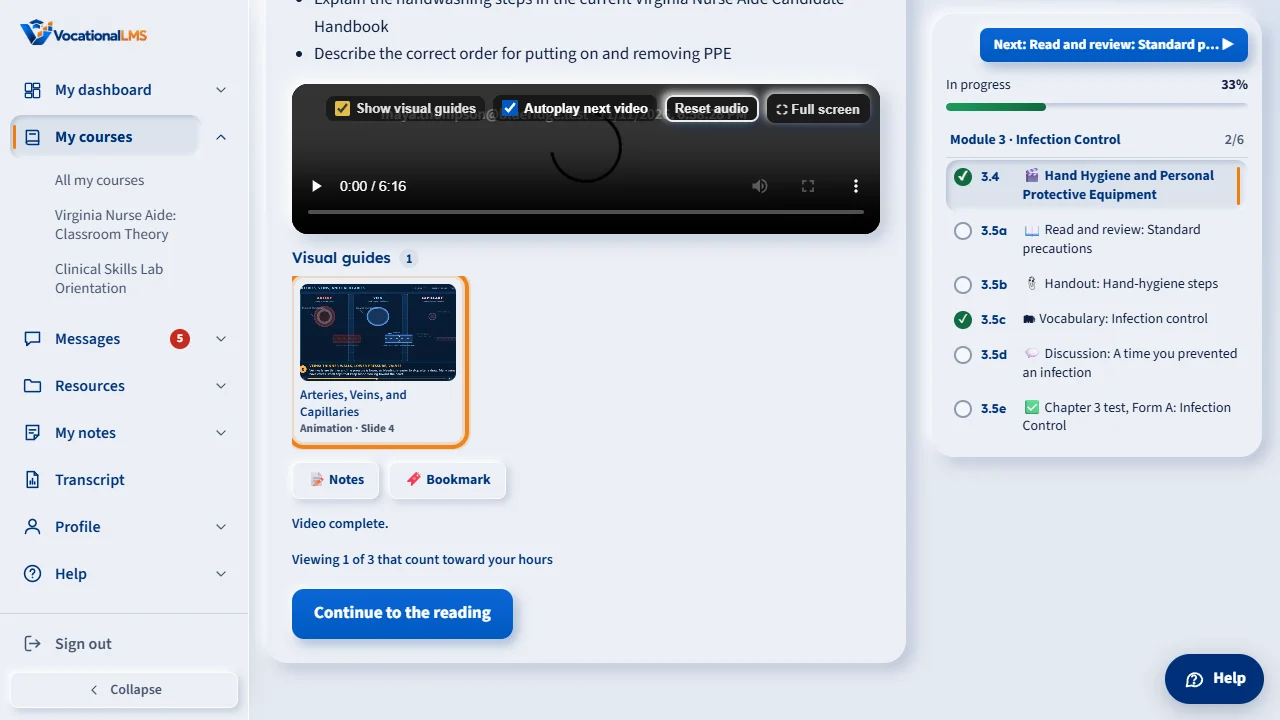
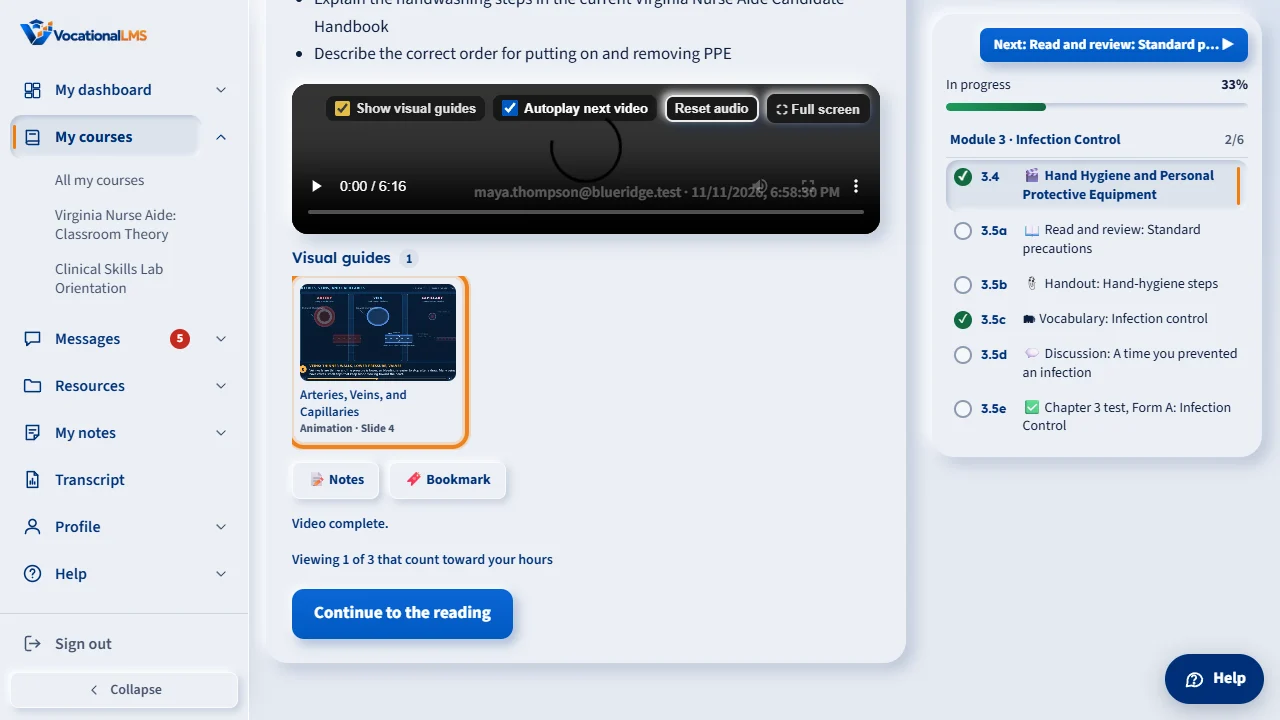
Visual guides: a picture or animation pops out beside the video
Some slides come with a visual guide: a blueprint picture, an animation or a short clip that slides out beside the video, then waits as a tab. How to open, zoom and turn the pop-outs off.
How-to video S-47 · 0:39
Read the words of this video
When the video reaches a slide with a visual guide, a card slides out from the right edge of the video. The video and the narrator never stop.
A small orange tab with a lightbulb stays at the edge. Click the card, the tab, or a picture in the strip under the video to open the guide full size.
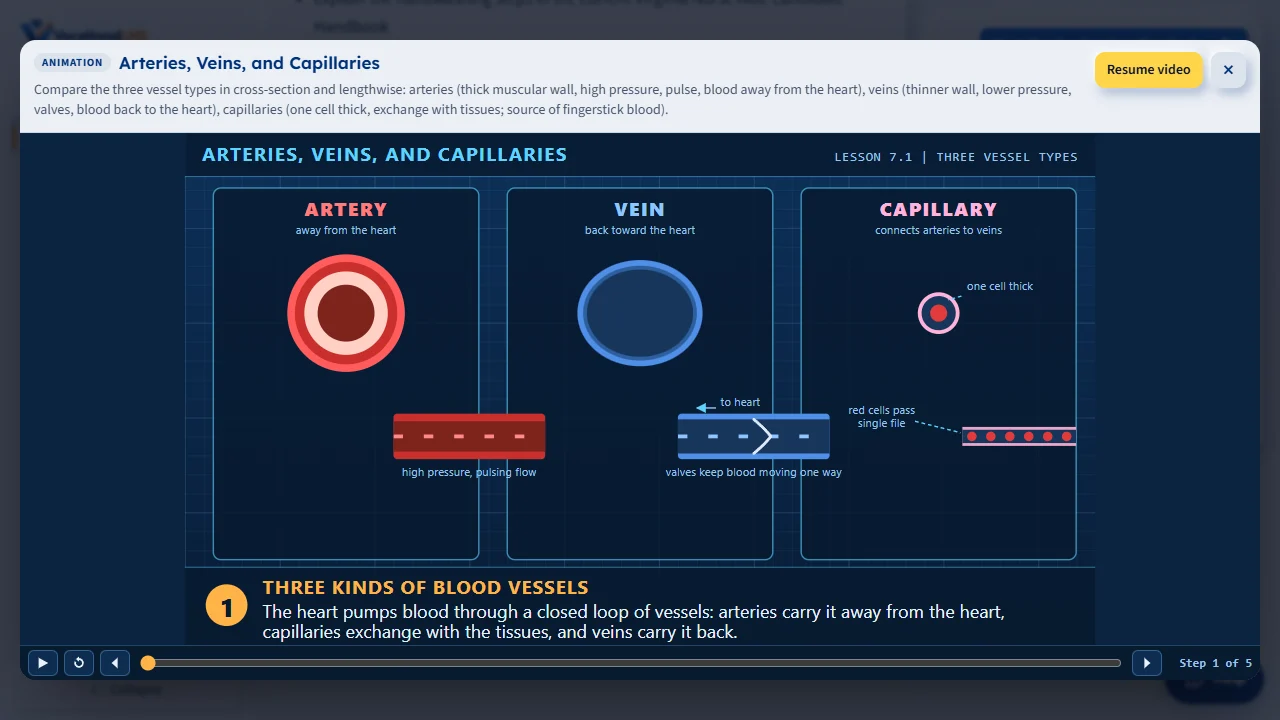
Zoom a picture by scrolling or pinching, or watch an animation play. Click Pause video to stop the lesson while you look, and Resume video to go on. Press Escape to come back.
Open this in VocationalLMSA lesson > Visual guides
What it is for
When the video reaches a slide that has a visual guide, a card slides out from the right edge of the video (below the video on a phone) with the guide and its name. An orange tab with a small lightbulb appears at the right edge of the player at the same moment and blinks twice; after a few seconds the card shrinks into that tab, which stays as long as the part of the video has a guide. The video and the narrator never stop for a guide. Every guide of the lesson is also in a strip under the video and inside the Reading.
Steps
Open a guide
- Click the card while it shows, or the tab at the right edge of the video, or a thumbnail in the Visual guides strip under the video.
- The guide opens full size. For a picture or clip, scroll or pinch to zoom and drag to move around; an animation plays by itself.
- The lesson video keeps playing. Click Pause video to stop it while you look, and Resume video to go on.
- Press Esc or click × to go back to the lesson. A video you paused from the guide starts again.
- In full screen it works the same: the card and the orange tab are on the full-screen video and the guide opens over it. Esc closes the guide first and the video stays full screen; press Esc again to leave full screen. A browser that leaves full screen on Esc closes the guide at the same time, and the video plays on from the same second.
Turn the pop-outs off or on
- In the player's tool bar untick Show visual guides. Nothing pops out beside the video any more; the strip under the video stays, so you can still open any guide.
- Tick it again to get the pop-outs back. Your choice is remembered for your account.
What happens next
Your study clock counts only while the video really plays, exactly as before. Opening a guide never adds or removes time.
Common problems
| # | Problem | What to do |
|---|---|---|
| 1 | A guide popped out and I missed it. | It waits as the orange tab with the lightbulb at the right edge of the video (it blinks twice when a guide appears; if your device is set to reduce motion it stays steady). If you moved to another part of the video, the tab shows the guide for that part. The strip under the video has all of them. |
| 2 | The guide is blank or does not move. | Give it a second to load. If your device is set to reduce motion, pictures stand still with their labels drawn instead of gliding. |
| 3 | Nothing pops out. | Check that Show visual guides is ticked in the player's tool bar. A lesson whose video was uploaded as a file has no slide timing: its guides are in the strip and the tab only. |
| 4 | In full screen the tab does nothing. | Reload the page once: an older copy of the lesson page is still open. On an iPhone, Safari's own full-screen video player cannot show anything of ours: leave full screen and open the guide from the tab or the strip under the video. |