
A-103For School Admins and Directors
Set graduation requirements and mark a student graduated
Choose what a student must complete before graduating, see which items are met, waived or blocking, mark the student graduated, and list the students near graduation.
How-to video A-103 · 0:39
Read the words of this video
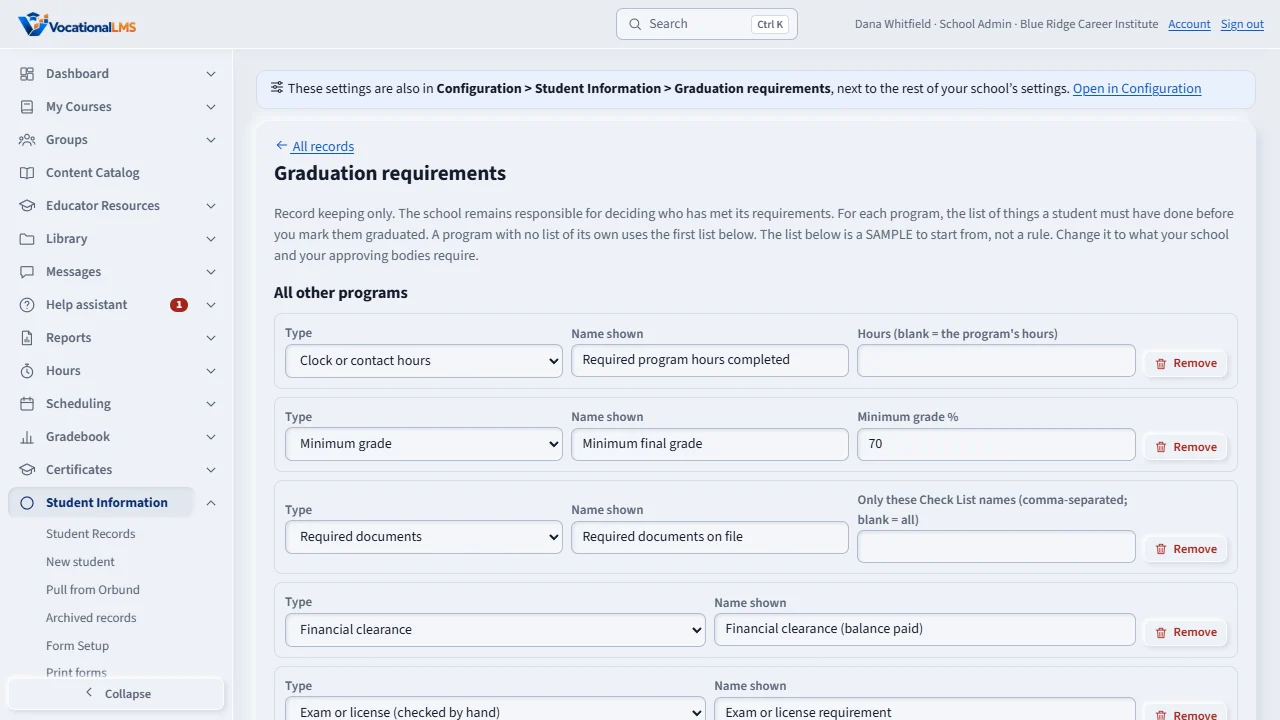
Open Student Information, Graduation requirements. Until you save, a sample list is shown. Change it to your own, and give a program its own list with Add a program.
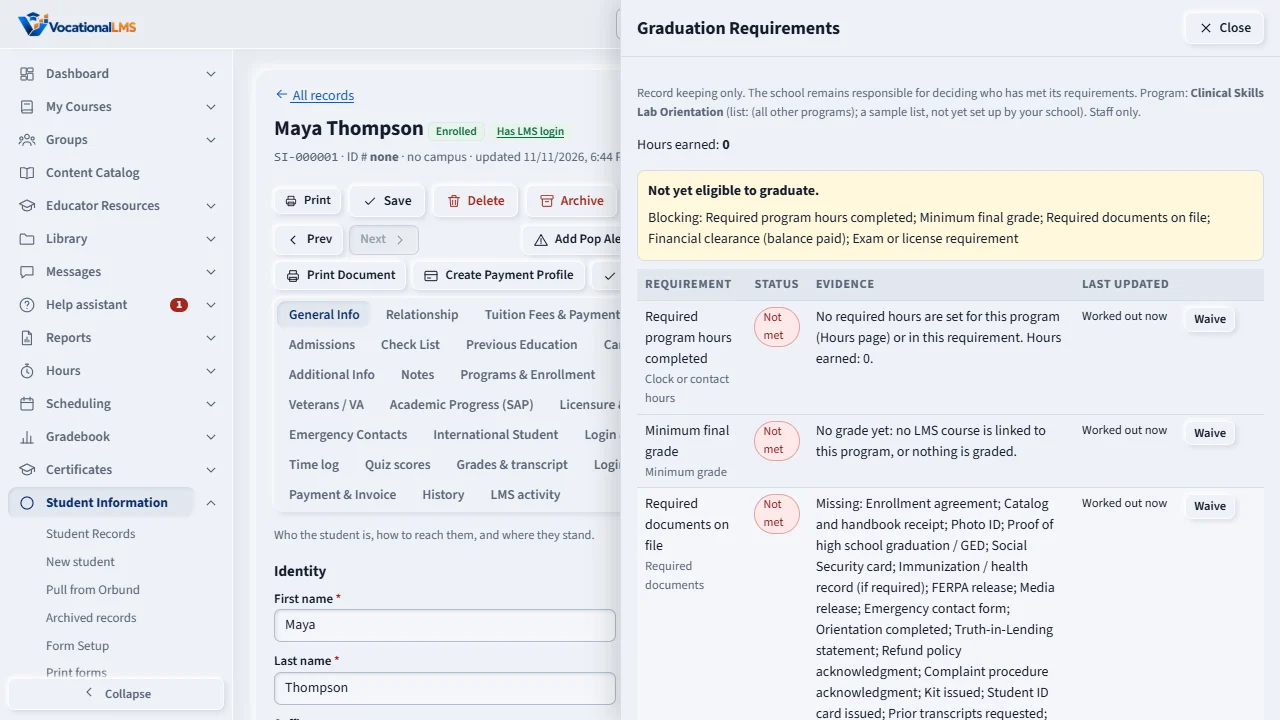
On a student record, press Graduation Requirements. Hours, grades, documents and finance update by themselves. Use Check off for an exam, or Waive with a reason.
When nothing blocks, the student shows as eligible. Mark graduated sets the status to Graduated and writes the graduation date.
Open this in VocationalLMSStudent Information > Graduation requirements
Who can do this: The School Admin sets up, checks off, waives and marks graduated. A Director and an auditor can look. Instructors and students cannot open it. A student sees a short summary only if you switch on Graduation progress (S-43).
What it is for
Graduation Requirements on a student record lists the requirements for the student's program: program hours (from the Hours page), a minimum grade, required documents, an exam or license, financial clearance, exit forms and any other item you add. Each shows Met, Not met or Waived with the evidence. When nothing blocks, the student is shown as eligible to graduate. Mark graduated sets the Student status to Graduated and writes the graduation date. A student can be in two or more programs: each program has its own list, its own Mark graduated and date, and a tab at the top of the panel. Program history lists every program with its dates, state, hours, grade, last SAP status and certificate. A finished program stays visible but cannot be changed. This is record keeping only: your school remains responsible for deciding who has met its requirements.
Steps
Set up the list
- Open Student Information › Graduation requirements. Until you save, a SAMPLE list is shown. Change it to your own.
- Give a program its own list with Add a program (type the program's name). Programs without a list use the first list. Save.
On a student record
- Open the record and press Graduation Requirements in the Student menu.
- Items marked by the system (hours, grade, documents, finance, forms) update by themselves. For an exam or any other item press Check off.
- If an item does not apply to this student press Waive and type the reason. It is kept with your name and the time.
Mark graduated
- Choose the program tab, and when the student is eligible press Mark graduated, enter the date and confirm. That program becomes Graduated. The record's Student status becomes Graduated only when no other program is still active, and a status you set by hand is never overwritten. No certificate is made for you: press Open Certificates to issue it.
- If something is still open you must type a reason to graduate the student anyway. If you marked a student by mistake press Reverse graduation and type why; nothing is erased.
Who is close
- Open Student Information › Near graduation, choose a status and the percent of hours, and read the items still blocking each student. Download CSV saves the list.
What happens next
Everything you do here is a line in the record's Activity Logs.
Common problems
| # | Problem | What to do |
|---|---|---|
| 1 | Hours say not met but the student finished. | Check the program's required hours on the Hours page and that the hours are entered for the same program. |
| 2 | The grade item says no grade yet. | A grade comes from the gradebook of a program the student is enrolled in. For a student with no login, waive it. |
| 3 | Financial clearance is not counted. | It counts only when the student has charges or payments under Payment & Invoice. |