
A-89For School Admins and Directors
Use the Student menu on a student record
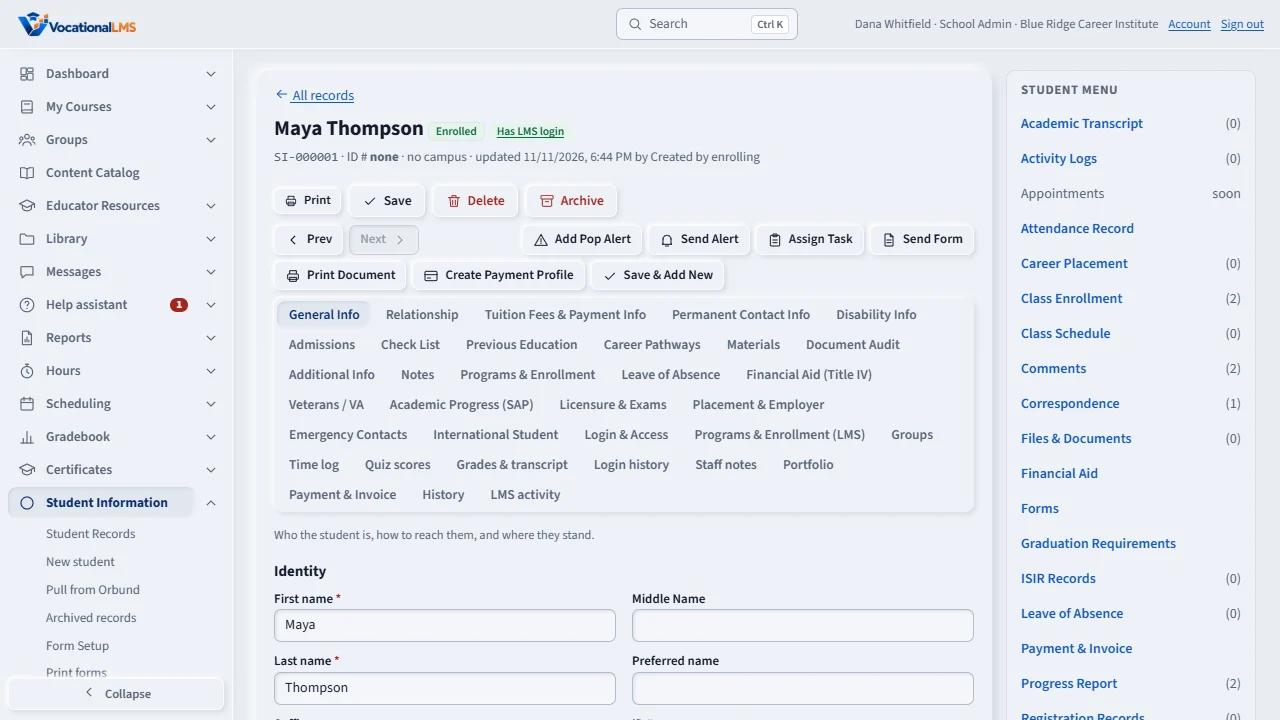
The right-hand Student menu on a record: Academic Transcript, Activity Logs, Class Enrollment, Comments, Files & Documents, Progress Report and more, each with a count, opening in a panel while the record stays visible. Plus the buttons along the top.
How-to video A-89 · 0:33
Read the words of this video
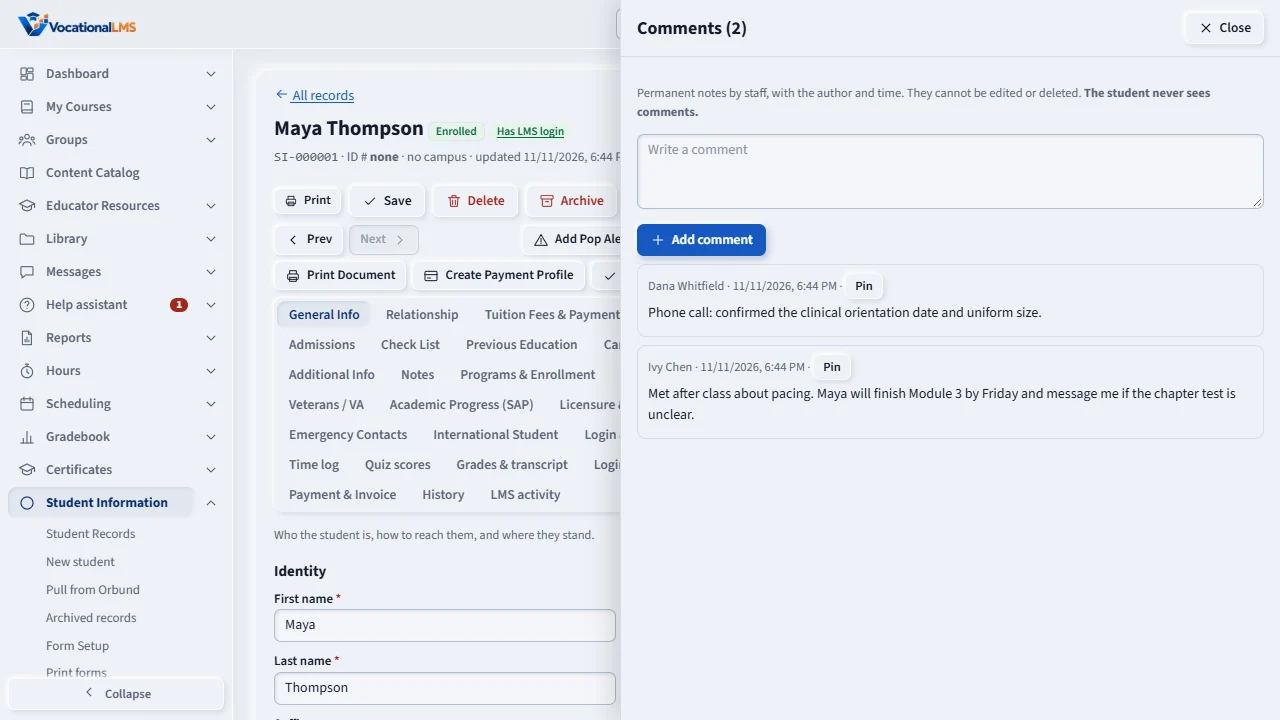
On the right of a student record is the Student menu. Each item shows a count, like Comments five. Click one and a panel slides in from the right while the record stays on the left.
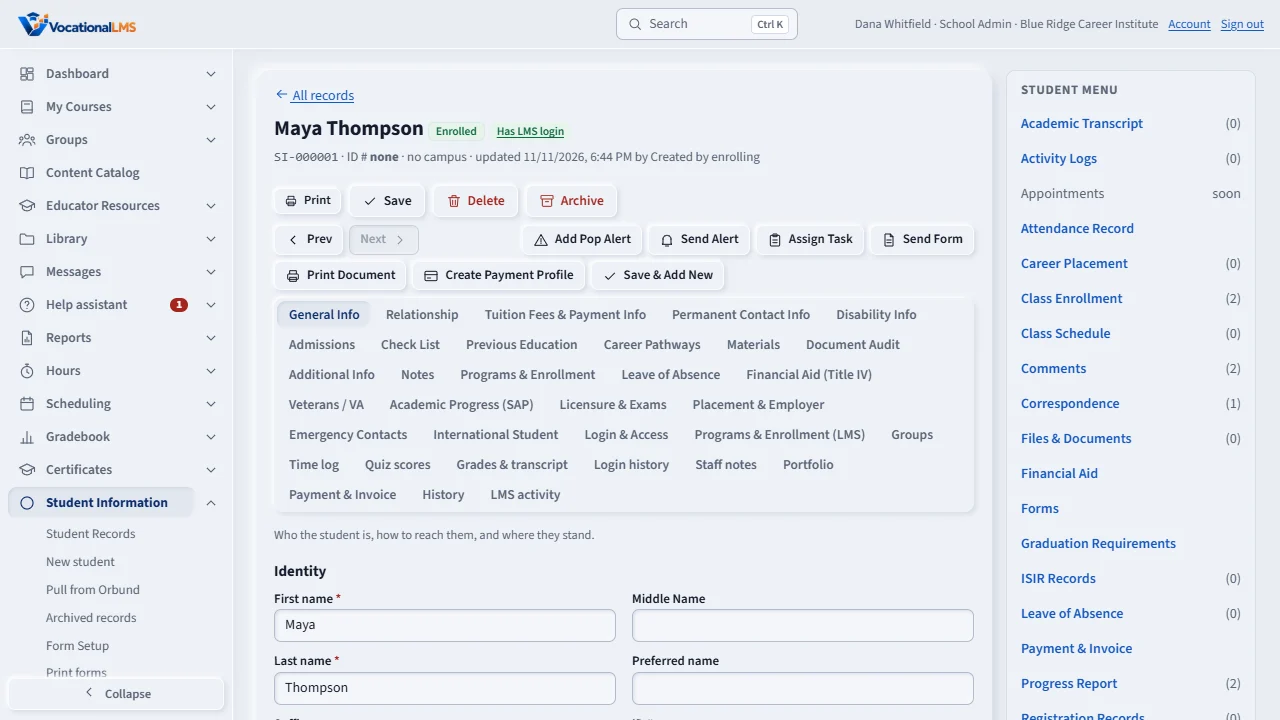
Press Close or the Escape key to put the panel away. Prev and Next at the top go to the previous or next student in your list.
Student's Dashboard opens the student's own pages in a new tab, read only, so you can see what they see.
Open this in VocationalLMSStudent Information > Student menu
Who can do this: The School Admin changes things; a Director and an auditor can look. Instructors and students never see the Student menu.
What it is for
Open a student record in Student Information. On the right is the Student menu (on a phone it is a row of buttons at the top). Each item shows a count, like Comments (5). Click one and a panel slides in from the right; the record stays on the left and nothing reloads. The address of an open panel can be copied and sent: #/student-info/12?panel=files. Items that are not built yet say soon.
Steps
Open an item
- Click Comments, Files & Documents, Activity Logs, Registration Records, Class Enrollment, Progress Report or Academic Transcript. The panel opens on the right. Press Close or the Escape key to put it away.
- Financial Aid, Leave of Absence and SAP open the tab of the record that already holds them. Correspondence, Tasks and Reminders (A-99, A-100), Attendance Record, Attendance History Report and Class Schedule (A-101), and Document Tracking, Career Placement and ISIR Records (A-102) open panels. Appointments and Graduation Requirements are still soon.
- Student's Dashboard opens the student's own pages in a new tab, read only (the same as View as this student). It needs a student login.
- Forms and Payment & Invoice open their own panels once those are built.
The buttons along the top
- Prev and Next go to the previous or next student in the order of your list.
- Add Pop Alert adds a yellow banner to this record (see A-91). Send Form, Create Payment Profile and Print Document (the Print menu) are here too. Send Alert messages the student (A-99) and Assign Task gives staff a task about the student (A-100).
- Save & Add New saves the record and opens a blank New student form.
What happens next
Every action in the panels is a line in the Activity Logs of that record. Comments, Activity Logs, Reminders, Tasks, Correspondence, Document Tracking and Pop alerts are never shown to a student.
Common problems
| # | Problem | What to do |
|---|---|---|
| 1 | An item says soon. | It is planned for a later release. The items already built are in blue. |
| 2 | Student's Dashboard is grey. | The student has no login yet, or your account may not view as the student. |
| 3 | I cannot add anything. | A Director and an auditor read only. The School Admin makes the changes. |