
A-102For School Admins and Directors
Track missing documents, placements and ISIR records; choose what students see
See which documents a student is missing, find every student with missing documents, keep career placements and ISIR records, and switch on the Transcript, Progress Report, Class Schedule and Attendance screens for students.
How-to video A-102 · 0:36
Read the words of this video
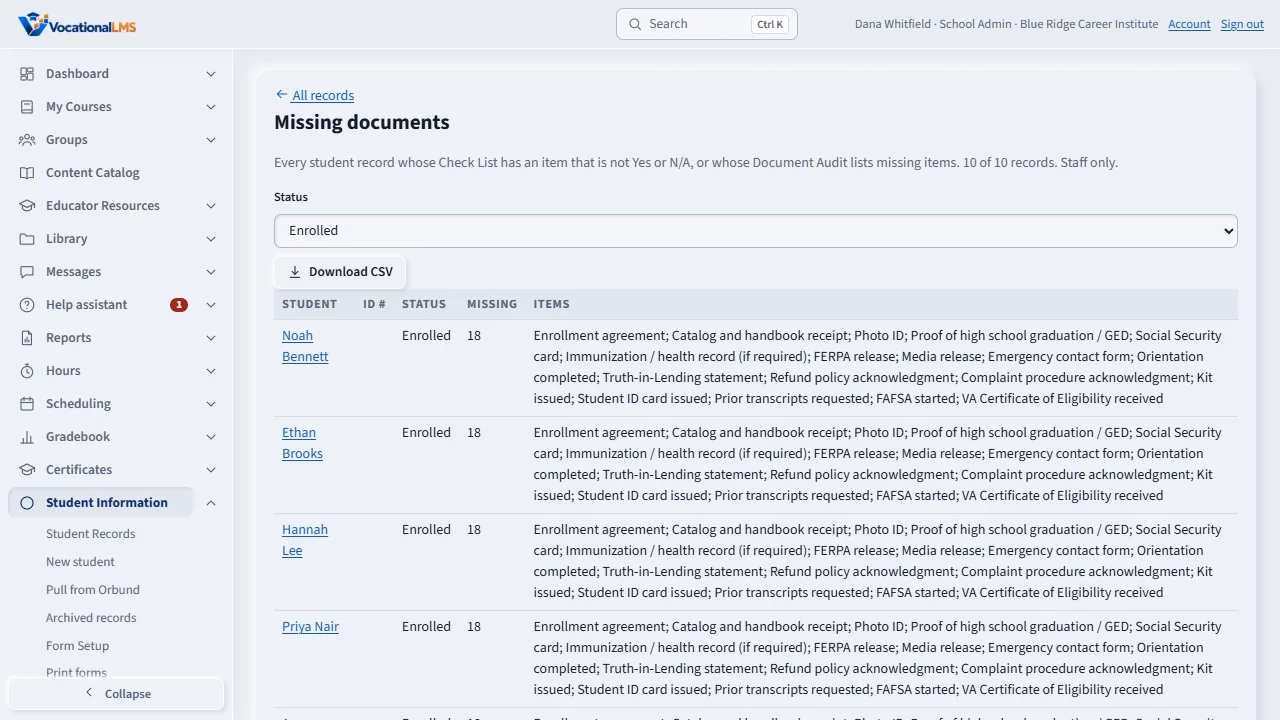
Missing documents lists every student with something missing. Tick the folders that must hold a document and save. Download CSV saves the list as a spreadsheet.
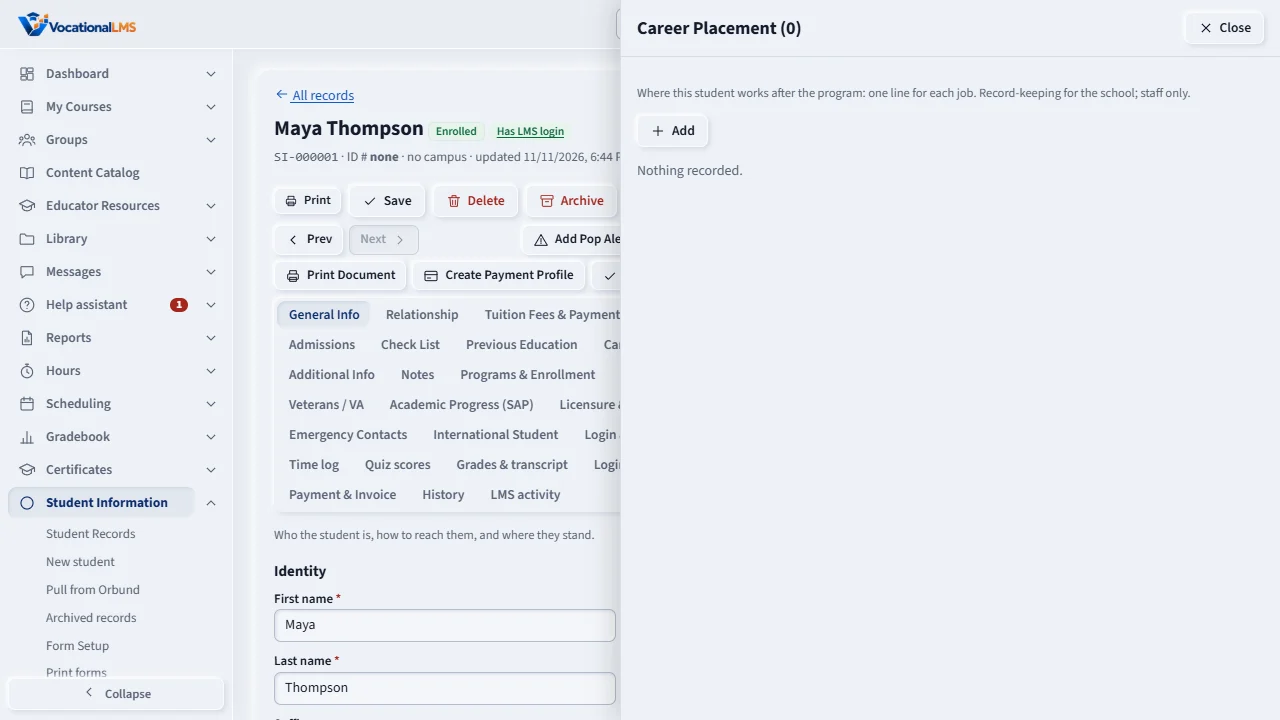
Career Placement and ISIR Records are lists you keep by hand. Press Add, fill in the boxes and Save.
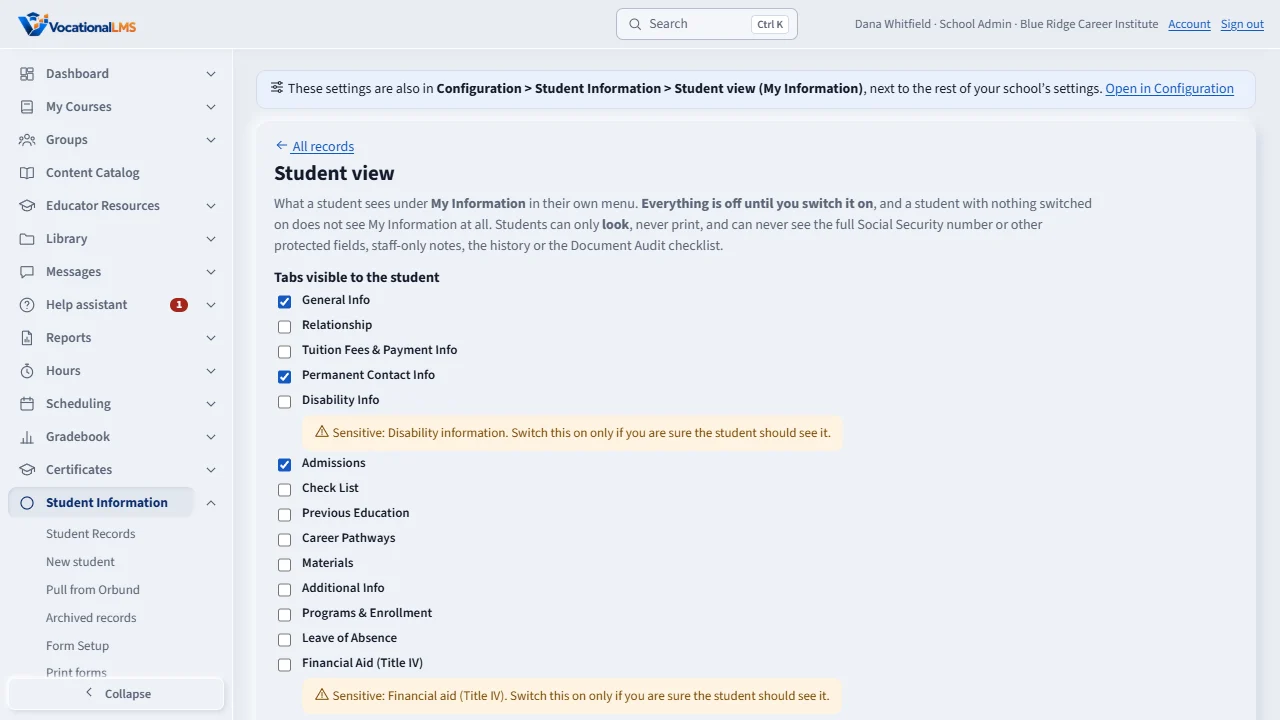
Under Student view, switch on Attendance, Class Schedule, Progress Report or Transcript if you want students to see them. All are off to start.
Open this in VocationalLMSStudent Information > Missing documents
Who can do this: The School Admin changes things; a Director and an auditor can look.
What it is for
Document Tracking lists the items of the record's Check List (Yes = received; No or Not Selected = missing), the Files & Documents folders your school says must hold a document, and the last Document Audit. Student Information › Missing documents lists every student with something missing and downloads as a spreadsheet file. Career Placement and ISIR Records are lists you keep by hand: employer, job title, dates and verified status; award year, transaction, SAI and status. They are record-keeping only; no Social Security number is accepted. An entry is never deleted: Void it with a reason.
Steps
Missing documents
- On the Missing documents page tick the folders that must hold a document, then Save. A record with nothing in a ticked folder shows it as missing.
- Choose a status (for example Enrolled) to narrow the list; Download CSV saves it.
Placement and ISIR
- Open Career Placement or ISIR Records, press Add, fill in the boxes, Save. The pencil changes an entry; the bin voids it.
What students see
- Open Student Information › Student view. Under the extras, switch on Academic Transcript, Progress Report, Class Schedule or Attendance. All are off at the start.
- A student then sees them in My Information: their own data only, on screen. There is no printing or download for students.
What happens next
Comments, Activity Logs, Reminders, Tasks, Correspondence, Document Tracking and Pop alerts can never be switched on for a student.
Common problems
| # | Problem | What to do |
|---|---|---|
| 1 | A document I filed still shows missing. | The Check List item must be set to Yes on the Check List tab, or the file must be in the required folder. |
| 2 | A student cannot see the transcript. | Switch it on under Student view. The final grade shows only after the school finalizes it. |