
A-104For School Admins and Directors
Set the SAP policy and review a student's Satisfactory Academic Progress
Choose your school's evaluation points and minimums, evaluate a student, see the history, record an appeal and a probation plan, and list the students at risk.
How-to video A-104 · 0:33
Read the words of this video
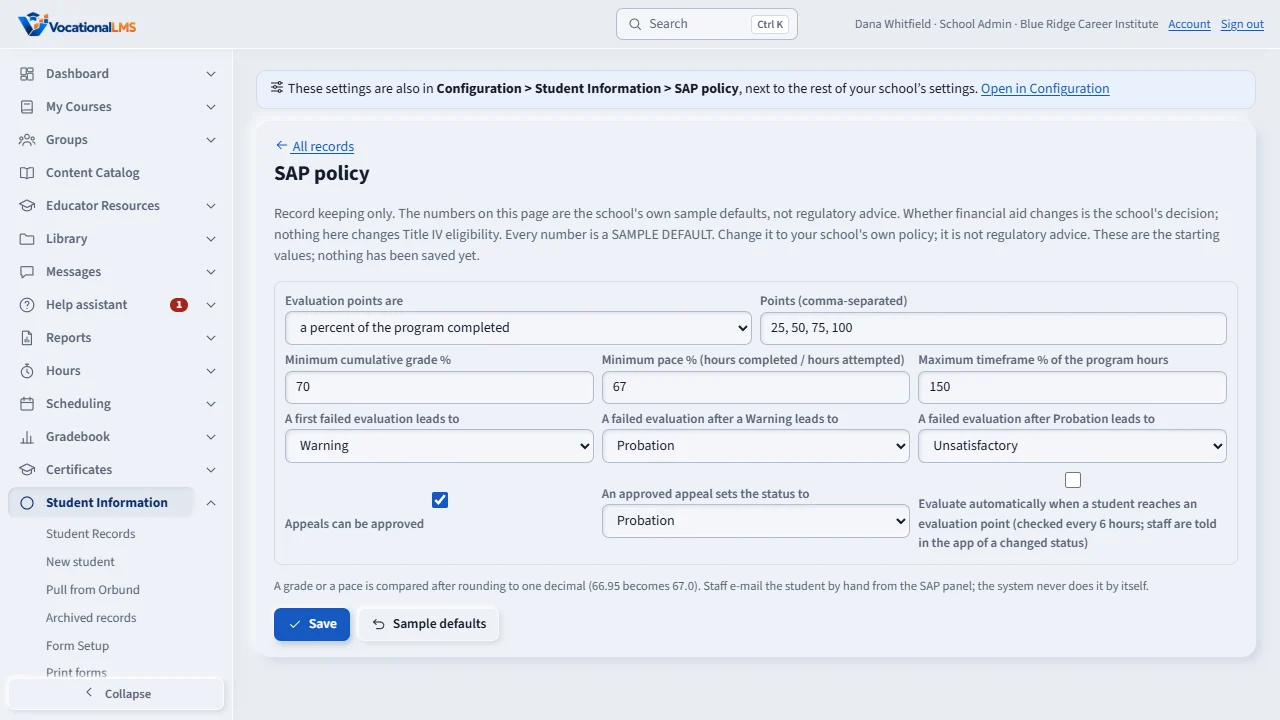
Open Student Information, SAP policy. The numbers shown are samples, so change them to your school's policy: evaluation points, minimum grade and pace, and the maximum timeframe.
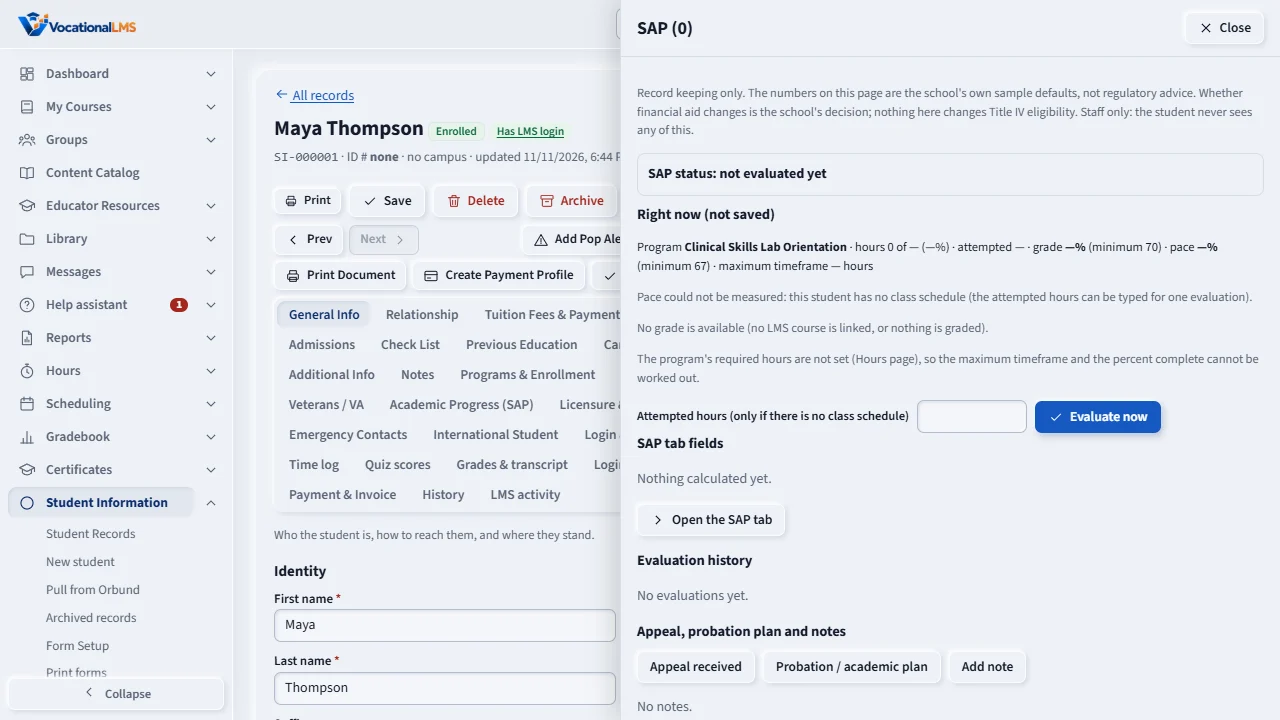
On a student record, press SAP. The panel shows the grade and pace right now. Press Evaluate now to save an evaluation: Satisfactory, Warning, Probation or Unsatisfactory, with the reason.
Open this in VocationalLMSStudent Information > SAP policy
Who can do this: The School Admin sets the policy, evaluates, reverses, e-mails and writes notes. A Director and an auditor can look. Students never see any SAP information: not the tab, not the status, nothing. A finished program keeps its SAP history but cannot be changed. The SAP tab of the record shows the newest active program; the SAP panel has a tab for each program and a Program history.
What it is for
SAP on a student record works out, for each program the student is enrolled in, two things from the gradebook and the hours: the grade and the pace (hours completed divided by hours attempted, with the hours of a leave of absence left out), and checks the maximum timeframe. The result is saved as an evaluation: Satisfactory, Warning, Probation or Unsatisfactory, with the reason. The numbers in SAP policy are SAMPLE defaults, not regulatory advice: change them to your school's policy. This is record keeping only; whether financial aid changes is your school's decision and nothing here changes it.
Steps
Set the policy
- Open Student Information › SAP policy. Choose whether the evaluation points are a percent of the program or hours, the points, the minimum grade and pace, and the maximum timeframe.
- Choose what a failed evaluation leads to (Warning, then Probation, then Unsatisfactory) and whether appeals can be approved. Tick Evaluate automatically only when you want the system to evaluate students as they reach each point. Save.
Evaluate a student
- Open the record and press SAP. The panel shows the numbers right now. Press Evaluate now to save an evaluation.
- A student without a class schedule has no measurable pace. You can type the attempted hours for that one evaluation; it is marked entered.
- The SAP tab is filled for you, but never over something a person typed: you see Entered by a person beside the calculated value, and Use calculated replaces it if you want.
Correct, appeal, tell the student
- A mistake is never edited or deleted: press Reverse, give the reason, and evaluate again if needed.
- Use Appeal received, then Record decision, and Probation / academic plan to keep the paper trail.
- The student is told only when you press E-mail student and confirm.
Who is at risk
- Open Student Information › SAP at risk. Tick the box to also check every enrolled student against the policy now. Download CSV saves the list.
What happens next
School Admins and Directors get a notice in the app when a student's status changes. Every action is a line in the record's Activity Logs.
Common problems
| # | Problem | What to do |
|---|---|---|
| 1 | Pace says it cannot be measured. | The student has no class schedule. Put the student in a group with a schedule, or type the attempted hours for one evaluation. |
| 2 | Nothing is evaluated automatically. | The automatic pass is off until you tick Evaluate automatically in the SAP policy. It checks every 6 hours. |
| 3 | The SAP tab did not change. | A value a person typed is left alone. Press Use calculated on the field to replace it. |