
V-07For the VocationalLMS Super Admin
Review and approve a lesson, and restore an earlier version
Nothing reaches students until a licensed instructor approves it. Every version is kept.
How-to video V-07 · 0:49
Read the words of this video
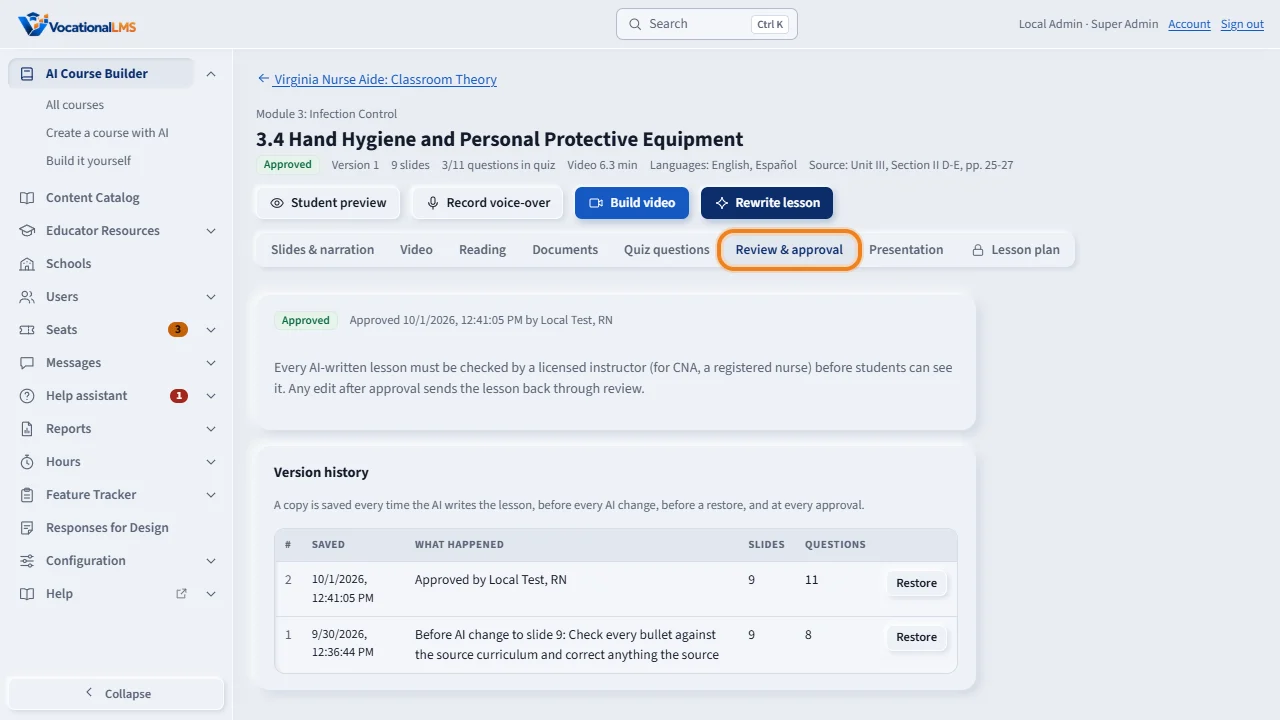
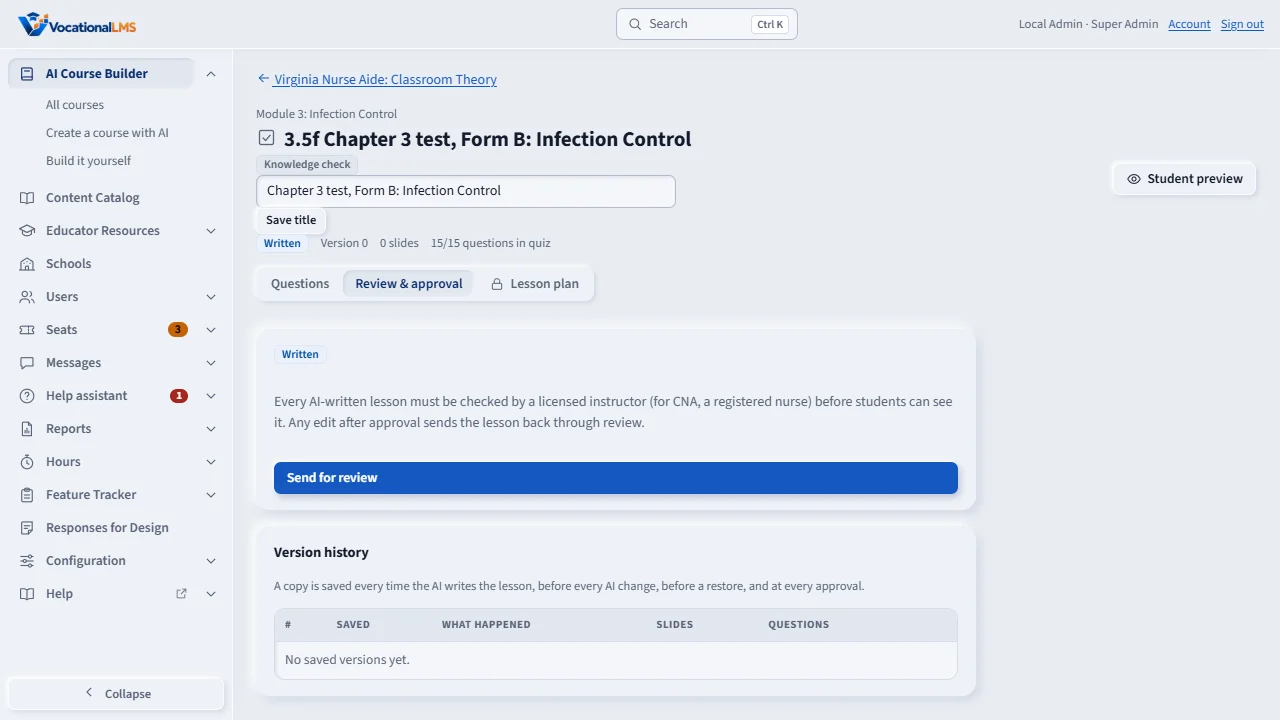
AI-written content is a first draft. Nothing reaches students until a licensed instructor approves it. Open the lesson and click Review and approval.
Click Send for review. The reviewer types their name and license, and clicks Approve lesson, or sends it back with a note that says what to fix.
Version history keeps a copy of the lesson: when the AI writes it, before every AI change, before a restore, and at every approval. Click Restore to go back to a copy. The current version is saved first.
An approved lesson is visible to students at every school that has the course. Any edit after approval sends the lesson back through review.
Open this in VocationalLMSCourses > a lesson > Review
What it is for
AI-written content is a first draft. A licensed instructor checks each lesson and approves it with their name, or sends it back with notes. A copy of the lesson is saved at every important moment, and any copy can be restored.
Steps
- Open the lesson and click Review & approval.
- Click Send for review.
- The reviewer types their name and license (for example Nora Whitaker, RN) and clicks Approve lesson, or sends it back with a note.
- Under Version history, find the copy you want and click Restore.
What happens next
An approved lesson is visible to students at every school that has the course. Any edit after approval sends it back through review. A copy is saved when the AI writes the lesson, before every AI change, before a restore and at every approval.
Common problems
| # | Problem | What to do |
|---|---|---|
| 1 | Students cannot see a lesson. | It is not approved, or its video is not built. |
| 2 | You restored the wrong version. | The version you replaced was saved first. Restore that one. |