
S-44For students
The face check popup and your time clock
If your school uses face check: why a popup opens before your lesson, how to start it, what the floating clock and the status line mean, and what to do when the camera is blocked.
How-to video S-44 · 1:17
Read the words of this video
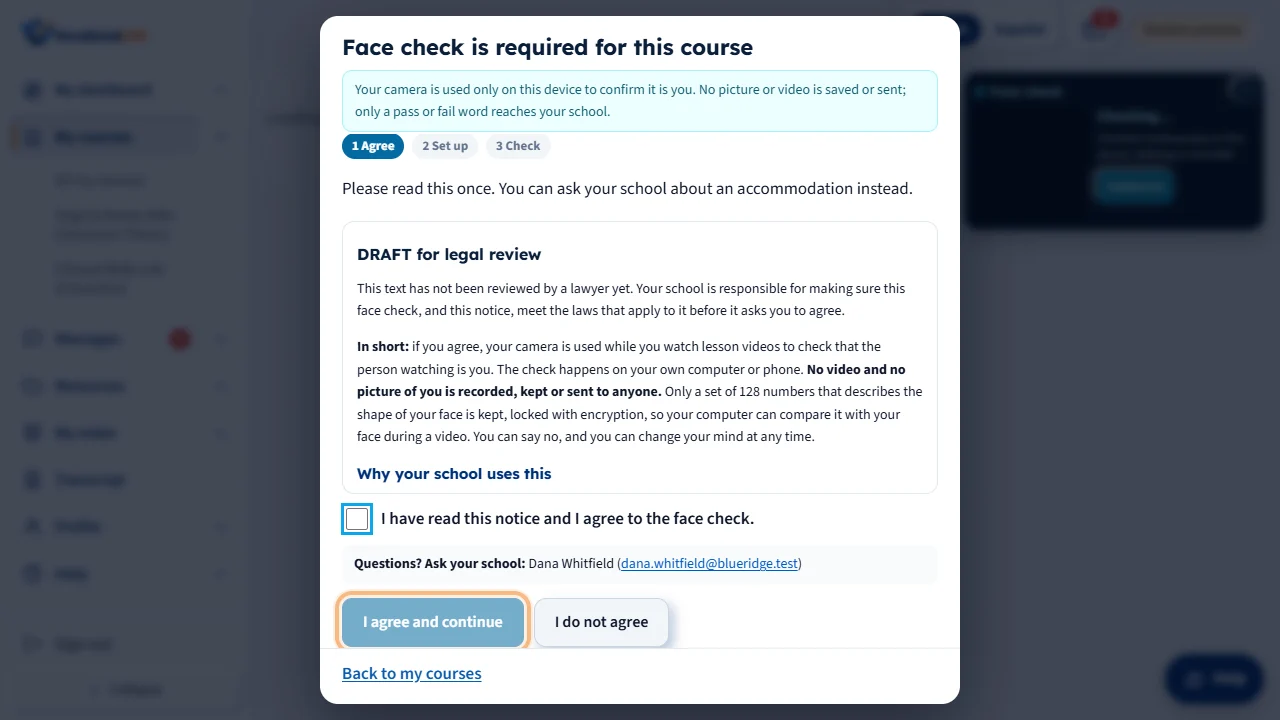
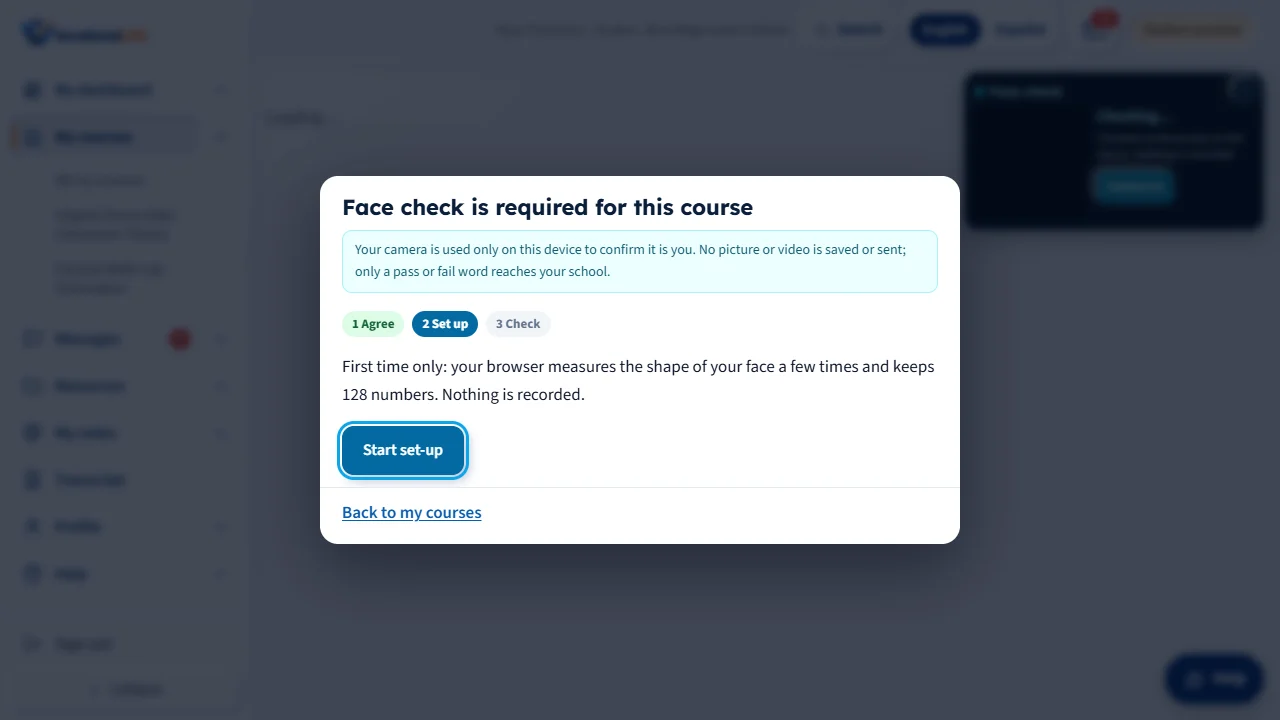
If your school uses face check, you must be confirmed before any lesson, video, reading or test opens. When you open a lesson, a window called Face check is required opens. Your dashboard, grades and messages never need the camera.
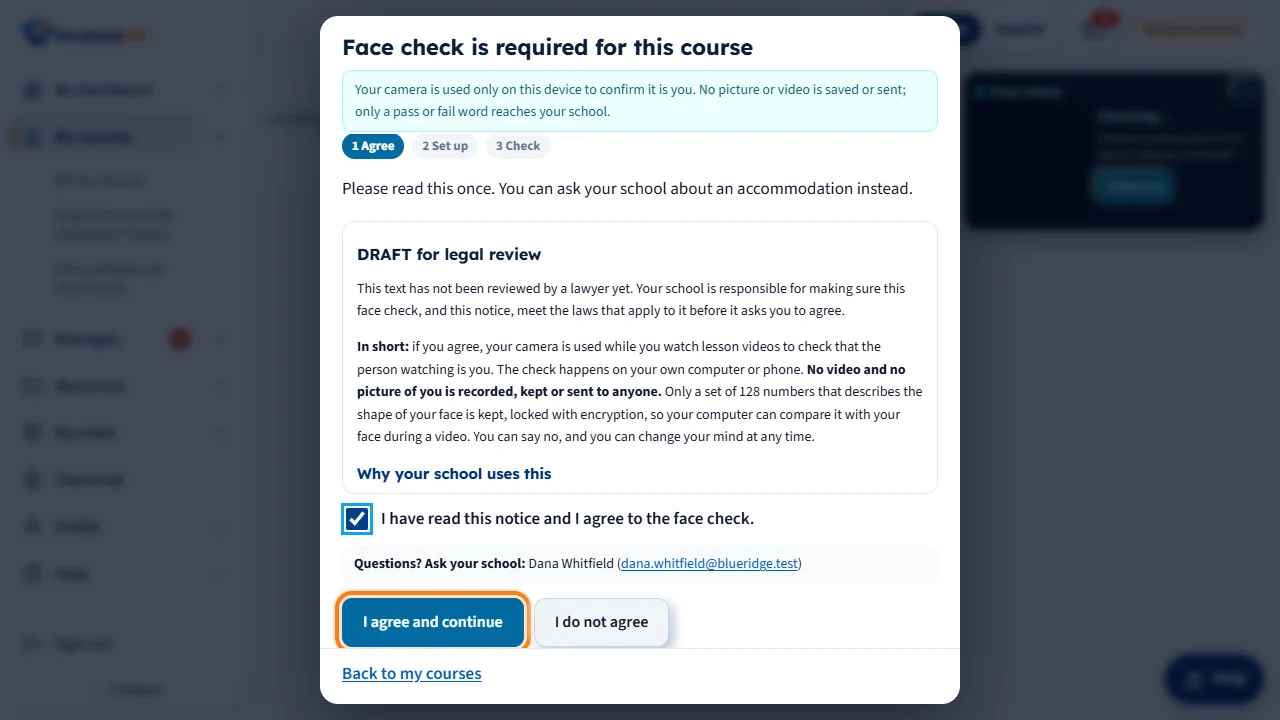
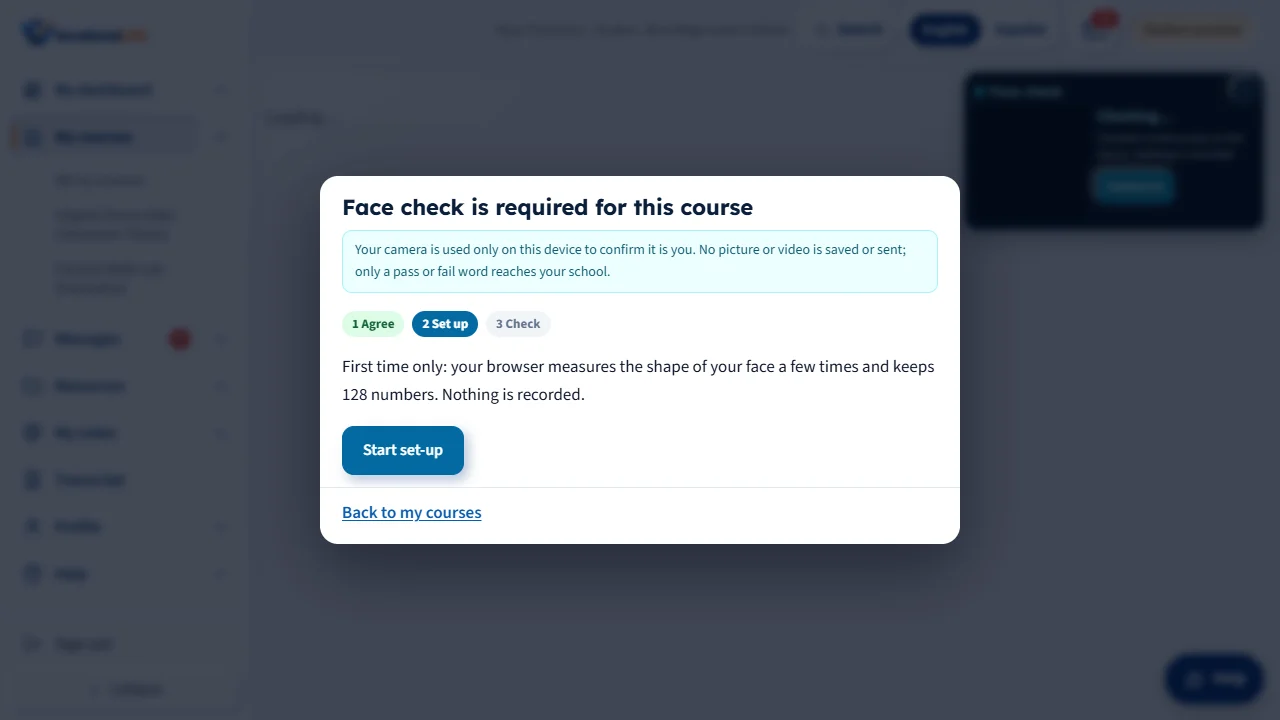
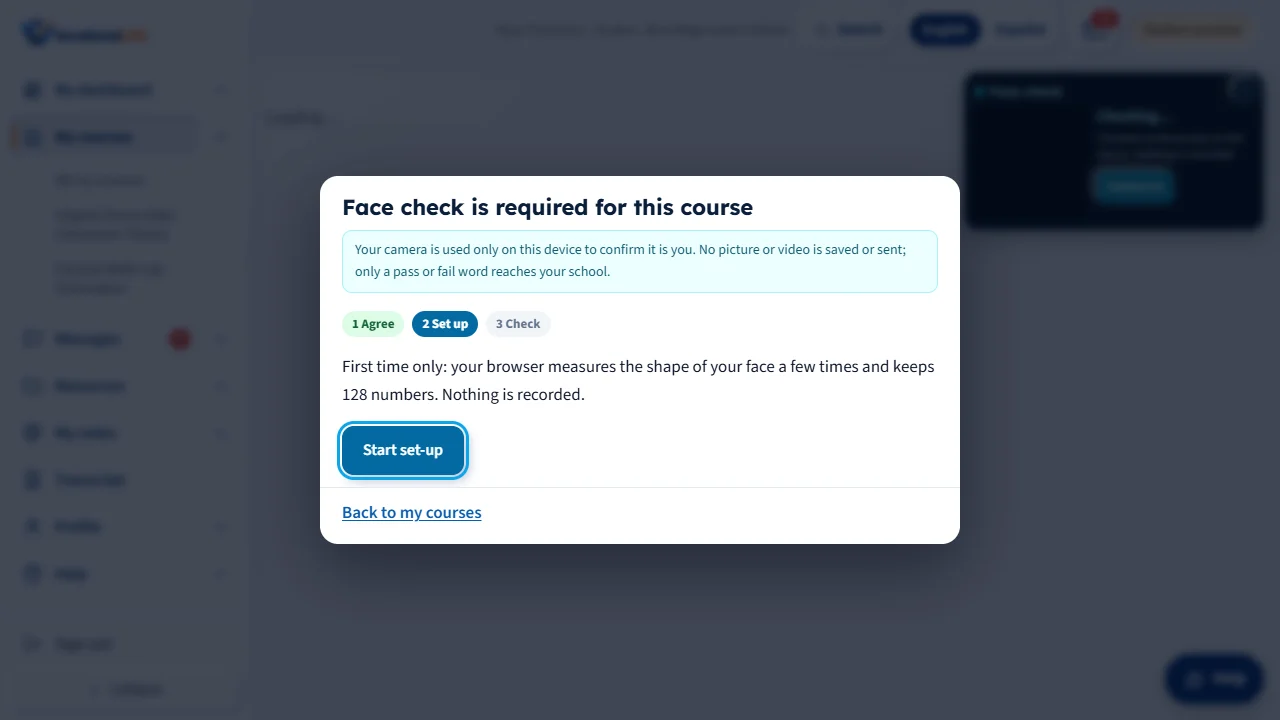
The first time, read the notice, tick the box that says you agree, and click I agree and continue. Then click Start set-up and Turn on the camera. Your browser asks to use the camera. Choose Allow.
Follow the hints on the screen: come closer, find more light, look straight at the camera. When it says Good, click Save face template. Nothing but a short list of numbers is saved. No picture or video is kept. The camera view itself is not shown in this video.
Every later time, just click Start face check. When it says Face confirmed, the window closes and your lesson starts.
While you study, a small box stays at the top right with your time clock. If your face is not confirmed for fifteen seconds, your clock stops, the video pauses and the window comes back. Look at the camera and it carries on by itself. The camera box is not shown in this video.
Open this in VocationalLMSA lesson > Face check is required popup
What it is for
If your school uses face check, no lesson, video, reading, quiz or test opens until your face is confirmed. A window called Face check is required for this course opens when you open course content. Your camera is used only on your own device. No picture or video is saved or sent; only a pass or fail word reaches your school. Your dashboard, grades, messages and profile never need the camera. Your course cards show a Face check required badge so it is never a surprise.
Steps
The first time
- Open a lesson. The window Face check is required for this course opens. Read the notice, tick I have read this notice and I agree and click I agree and continue.
- Click Start set-up, then Turn on the camera. Your browser asks to use the camera: choose Allow. Follow the hints (closer, more light, look straight) and click Save face template when it says Good.
- Click Start face check. When it says Face confirmed the window closes and your lesson starts.
Every later time
- Open a lesson and click Start face check in the window. The click lets the browser use the camera.
- When it says Face confirmed the window closes by itself and the lesson starts.
The floating box while you study
- At the top right (the top of the screen on a phone) a box stays in view while you scroll. The time clock is on top and the Face check box is under it.
- The status line says Face confirmed, Checking…, Face not seen or Face not recognized. Your face is checked all the time on your device, about every 8 seconds.
- If your face is not confirmed for 15 seconds, your clock stops (even if the page stays open), the video pauses and the window comes back. Look at the camera and it continues by itself.
- Camera off turns the camera off and pauses the clock and the lesson. Click Camera on to continue.
If your school counts time on other tabs (S-45)
- While you research on another tab, your last confirmed face check keeps your clock running for a short time (2 minutes at most, unless your school chose another number).
- When you come back, the face check looks at your face again; if it is not confirmed, the window returns until it is.
What happens next
Study time counts only for the seconds when your face was confirmed. Nothing else about your progress changes.
Common problems
| # | Problem | What to do |
|---|---|---|
| 1 | It says my browser is blocking the camera. | Click the camera or lock icon next to the web address, set Camera to Allow, then click Try again. On a phone: Settings, your browser, Camera, Allow. |
| 2 | It says it could not confirm it is me. | Face a lamp or a window, look at the camera, and make sure only you are in the picture. If it keeps happening, ask your school for an accommodation. |
| 3 | I said no to face check. | Your school must approve an alternative before you can continue: contact your school office. If you would rather use the face check, click Change my answer. |
| 4 | My clock stopped. | Your face was not confirmed for more than 15 seconds, or the camera was off. It starts again when the window says Face confirmed. |