
A-99For School Admins and Directors
Keep a student's correspondence and send an alert
Every e-mail and text the system sent a student is logged on the record automatically; staff also log letters, calls and meetings, and can send the student a message from the record.
How-to video A-99 · 0:46
Read the words of this video
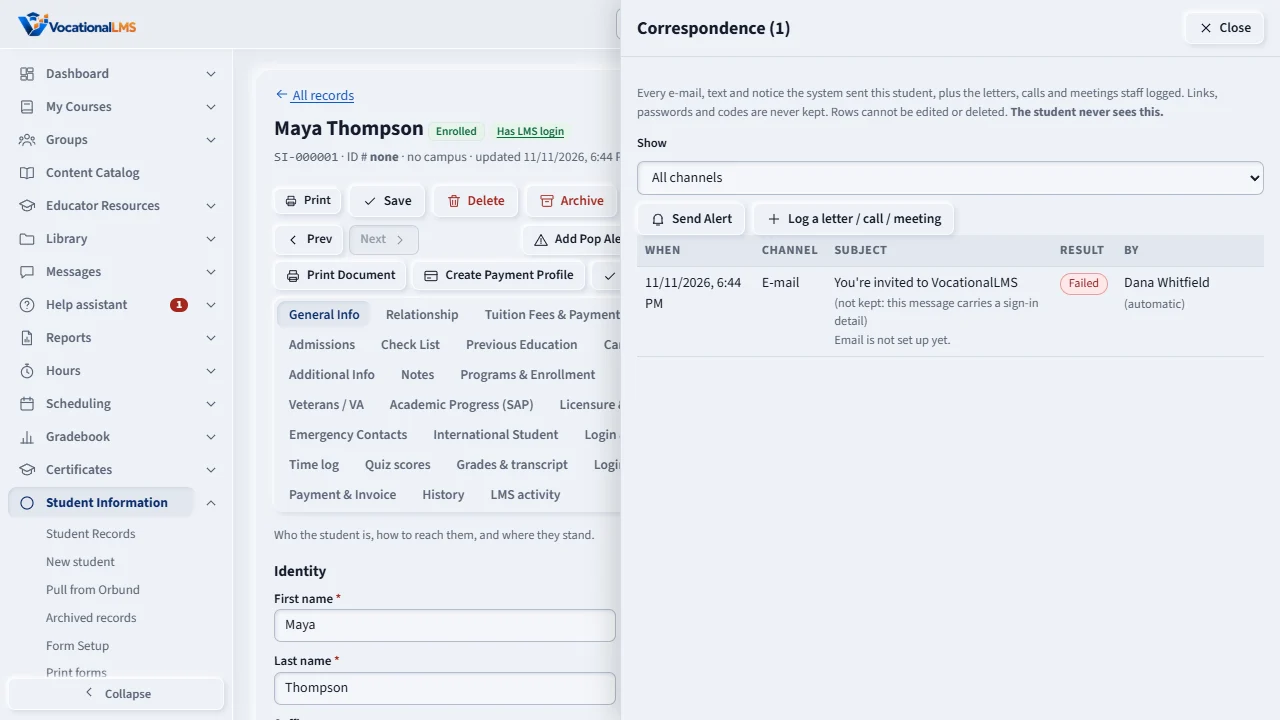
Correspondence is the record's communication log. Every e-mail or text the system sends is added by itself. You can also log a letter, a call or a meeting.
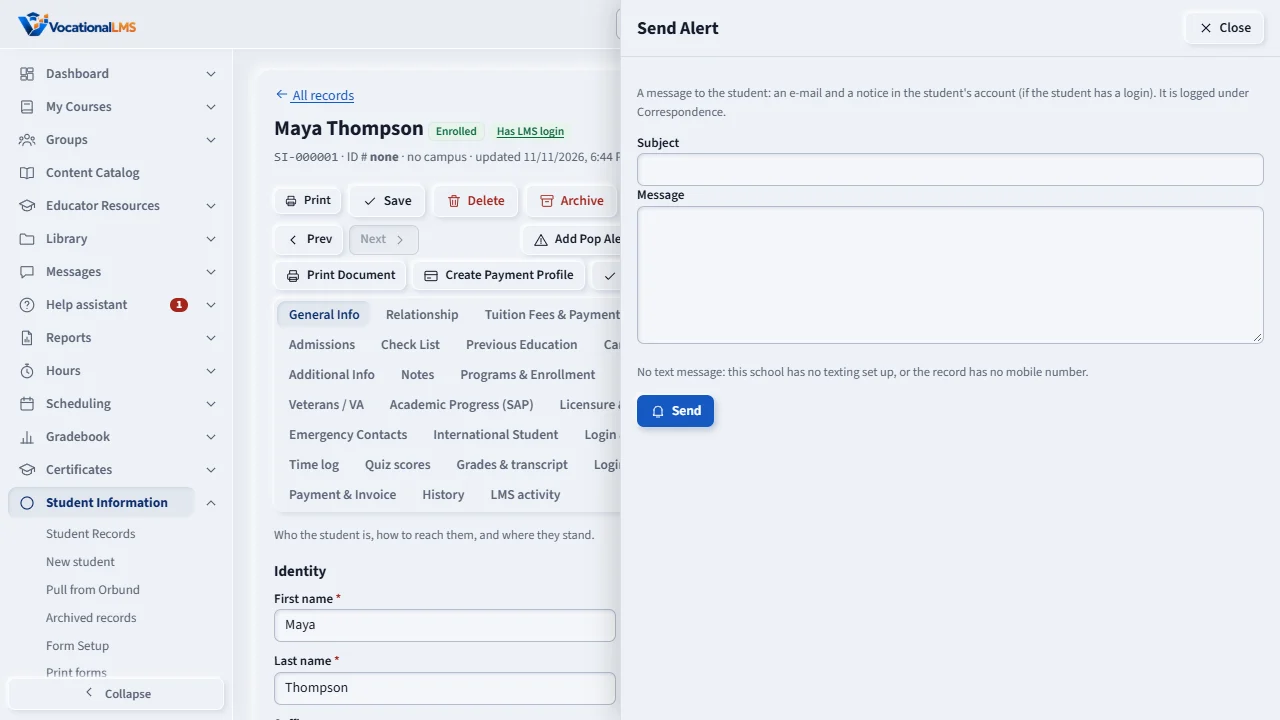
Press Send Alert, type a subject and a message, and confirm. It goes by e-mail and as a notice in the student's account, and it is logged.
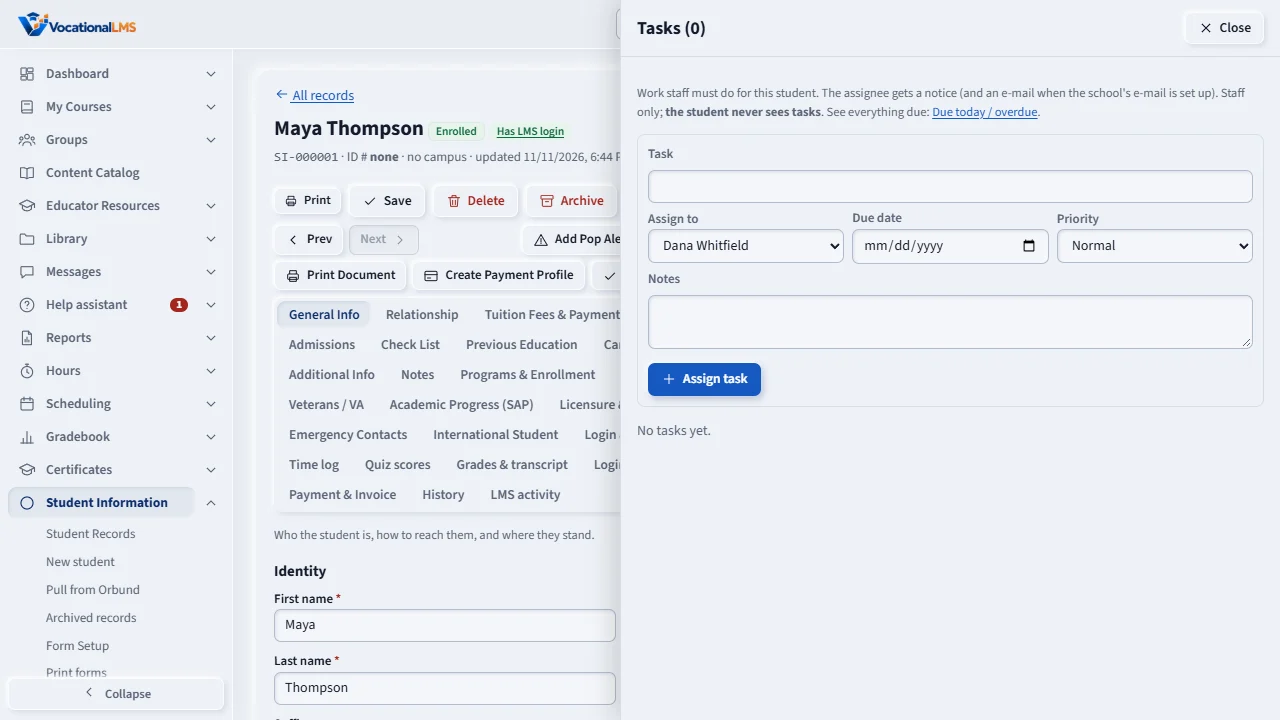
Tasks are things staff must do for a student. Press Assign Task, type the task, choose who does it, the due date and the priority.
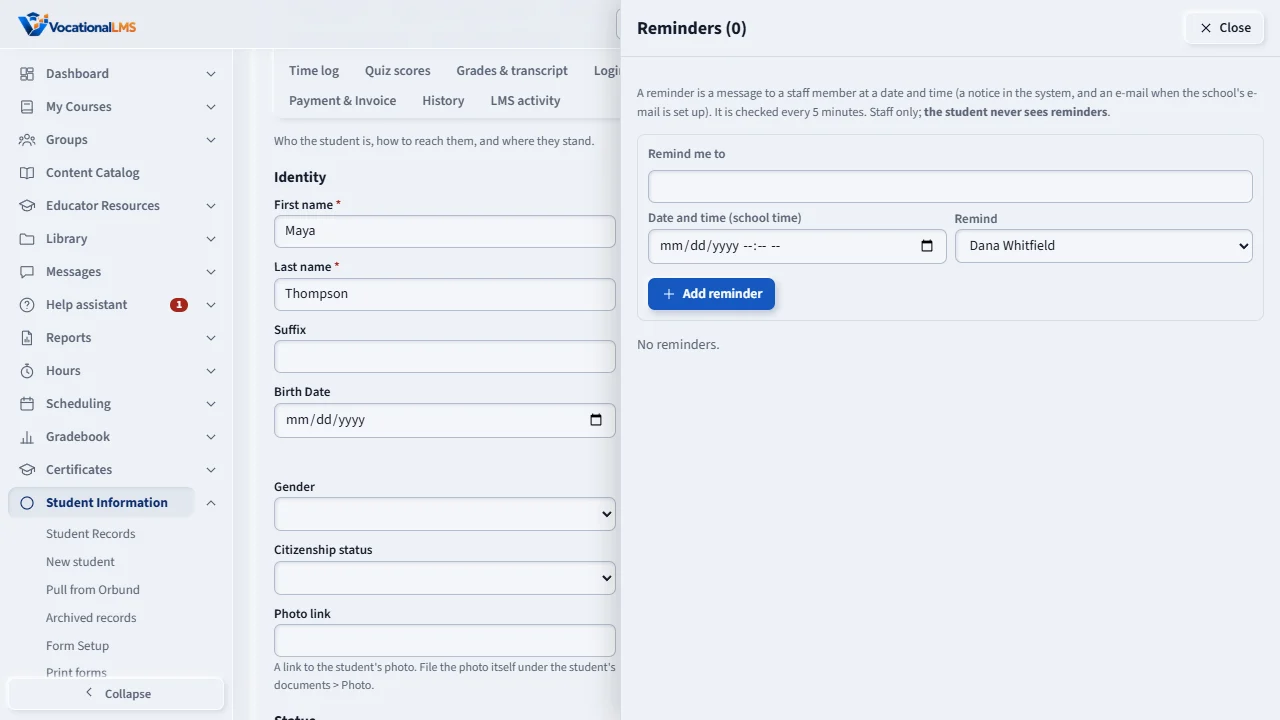
A reminder sends a message to a staff member at a date and time you choose. Open Student Information, Due today, to see what is due or overdue.
Open this in VocationalLMSStudent Information > Due today / overdue
Who can do this: The School Admin logs and sends; a Director and an auditor can read.
What it is for
Correspondence on the Student menu is the record's communication log. When the system e-mails or texts a student (an invitation, a form, a reminder, an alert), a line is added by itself with the channel, the subject, a short preview, whether it was sent, and who sent it. Links, passwords and codes are never kept: a message that carries one shows (not kept). You can also log a letter, phone call or meeting that happened outside the system. Rows cannot be edited or deleted. The student never sees this log.
Steps
Read the log
- Open Correspondence on the Student menu. Use Show to see only e-mail, text messages, in-app messages, letters, calls or meetings.
Log a letter, call or meeting
- Press Log a letter / call / meeting. Choose what it was, who started it, the date (not in the future), the subject and your notes, then Save entry.
Send an alert to the student
- Press Send Alert (in the Correspondence panel or along the top of the record). Type a subject and a message.
- The message goes by e-mail through your school's e-mail, and as a notice in the student's account when the student has a login. A text goes only if your school already has texting set up, the record has a mobile number, and you tick Also send a text message.
- Press Send and confirm. The alert is logged in Correspondence.
What happens next
Each log entry and each alert is also a line in the record's Activity Logs.
Common problems
| # | Problem | What to do |
|---|---|---|
| 1 | Send Alert is missing. | The record has no e-mail address and no login, or you are a Director or auditor (read only). |
| 2 | A message shows (not kept). | It contained a link, a code or the word password. Only the fact that it was sent is kept, to protect the student. |
| 3 | The e-mail shows Failed. | Your school's e-mail is not set up or was refused. See the e-mail setting under Configuration. |