
A-98For School Admins and Directors
Charge a student, record a payment, make a payment plan and print finance reports
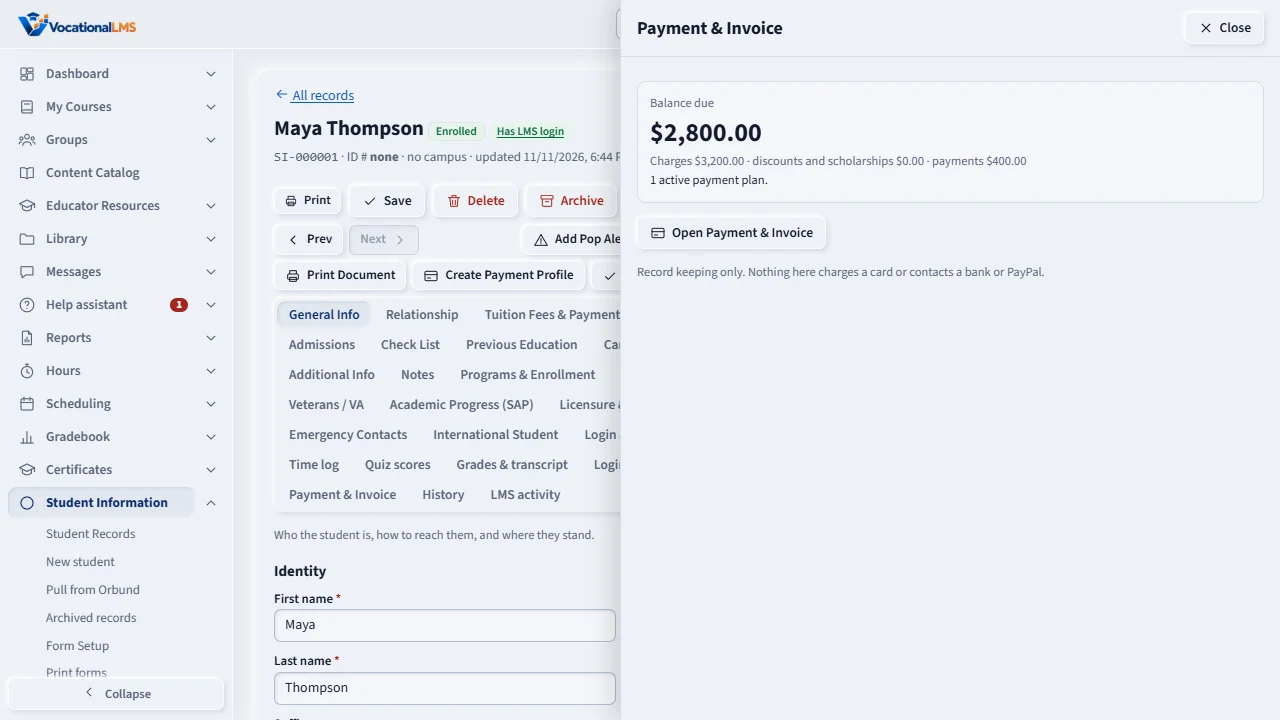
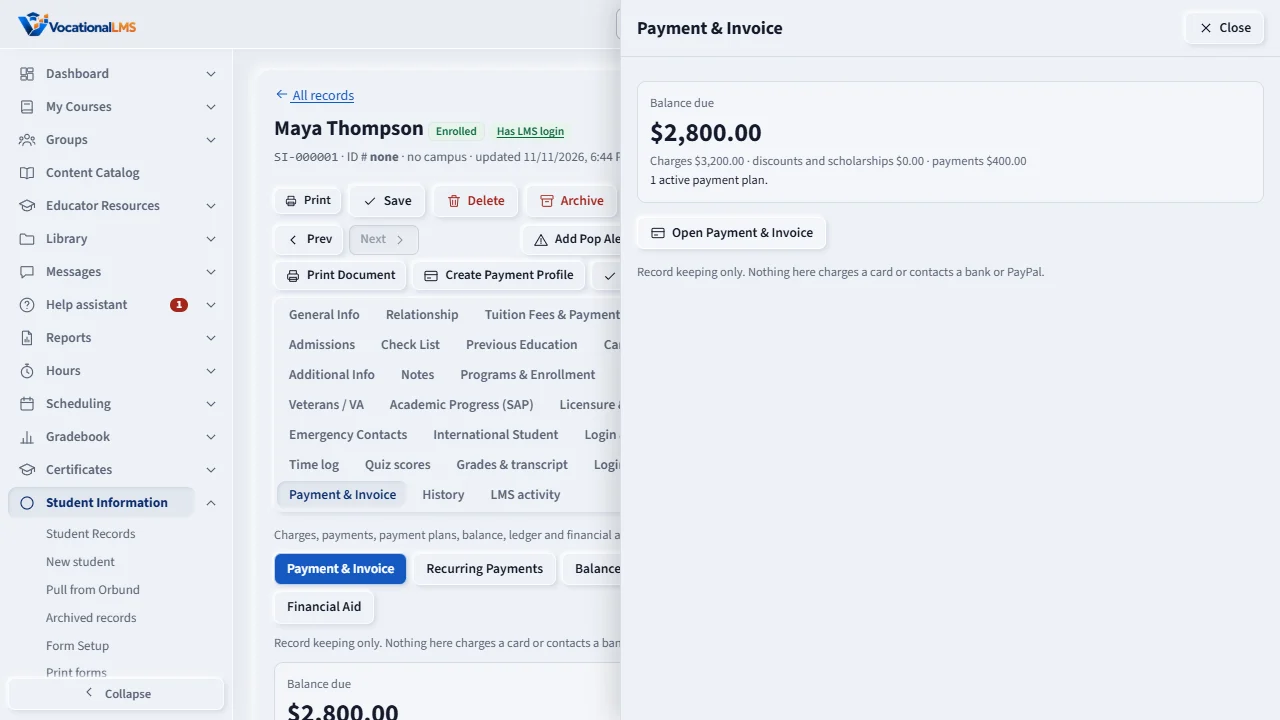
On a student record, the Payment & Invoice tab: apply program fees after a preview, record payments, discounts and scholarships, make a payment plan with a table of installments, see the balance, the ledger and the audit, record financial aid, and print.
How-to video A-98 · 0:57
Read the words of this video
Open a student, then Payment and Invoice. Press Apply program fees, choose the program and press Show the lines. Tick the lines and press Charge the ticked lines.
Add charge adds a single charge, and Add discount or scholarship lowers the balance. A mistake is never edited. Press Void and give a reason, and the ledger keeps both entries.
To record a payment, press Enter payment. Type the amount, method, date and a reference like a check number. This only records that the school received the money.
Open Recurring Payments and press New Recurring Payment to make a payment plan. Choose the program, the total and the number of installments.
Finance reports print with your letterhead from Student Information.
Open this in VocationalLMSStudent Information > a student > Payment & Invoice
Who can do this: The School Admin makes entries and prints. A Director and an auditor can look but not change or print. Instructors and students have no access (students can be shown their own balance: see S-41).
What it is for
Student Information › a student › Payment & Invoice keeps the student's money record. Record keeping only: nothing here charges a card. Money is entered in dollars and kept to the cent.
Steps
Charge
- Press Apply program fees, choose the program and press Show the lines: tuition, the program, universal and one-time fees, and the tax on fees marked Tax. Tick the lines and press Charge the ticked lines. Nothing is charged until you confirm. Lines already charged are marked.
- Add charge adds a single charge. Add discount / scholarship lowers the balance.
- A mistake is never edited: press Void and give a reason. The ledger keeps the original entry and adds a reversal; add the right charge again if needed.
Record a payment
- Press Enter payment: amount, method, date, a reference (check number, Zelle name, PayPal transaction) and an optional GL code. This only records that the school received the money.
- To pay an installment of a plan, press Enter payment on that installment's row.
Make a payment plan
- Open Recurring Payments and press New Recurring Payment. Choose the program and the total, the interest rate (simple interest on the original amount; 0 for none), either the number of installments or the amount per installment, the start date, whether it is due at the beginning of the period, the effective date and a minimum payment.
- Press Recalculate to see the table: due date, amount due, amount paid, date paid and balance. The last installment takes any rounding so the table adds up exactly. Press Save.
- On the plan: Enter payment against an installment, Add signature (the name the student gave on paper or in person; recorded with your name, the time and your IP), Cancel Remaining Installments (the paid ones stay) and Delete, which voids the plan with a reason and keeps it on file. A signature is recorded but never required.
Late fees
- If the late fee rule is on (A-97), press Late fees: the installments past due plus the grace days are listed. Tick the ones to charge and press Post ticked late fees. An installment can only get one.
Balance, ledger, audit and financial aid
- Balance Details adds up charges, discounts and payments. Account Ledger lists every entry with its running balance; it only ever grows. Account Ledger Audit adds who did what, when and why.
- Financial Aid: add an award (expected amount), then record each disbursement received; a disbursement is also recorded as a payment. This is record keeping only: your compliance staff remains responsible for financial aid.
- Every view has a Print button that opens a PDF with your logo and letterhead, a title and the student on every page, and a footer with the print date and who printed it. The School Admin and the Director can print.
What happens next
Every action is in the Account Ledger Audit with the person, the time and the reason.
Common problems
| # | Problem | What to do |
|---|---|---|
| 1 | I do not see the buttons to add or void. | Only the School Admin makes entries. A Director or auditor can only look. |
| 2 | A payment is refused as too large. | A payment against an installment cannot be more than the installment still owes. Record the extra as a separate payment. |
| 3 | There is no Print button. | Printing is for the School Admin and the Director. An auditor account is read only. |