
A-100For School Admins and Directors
Assign tasks and set reminders about a student
Give a task to a School Admin or Director with a due date and priority, set a reminder for a date and time, and see everything due today or late on one page.
How-to video A-99 · 0:46 (the same video as A-99)
Read the words of this video
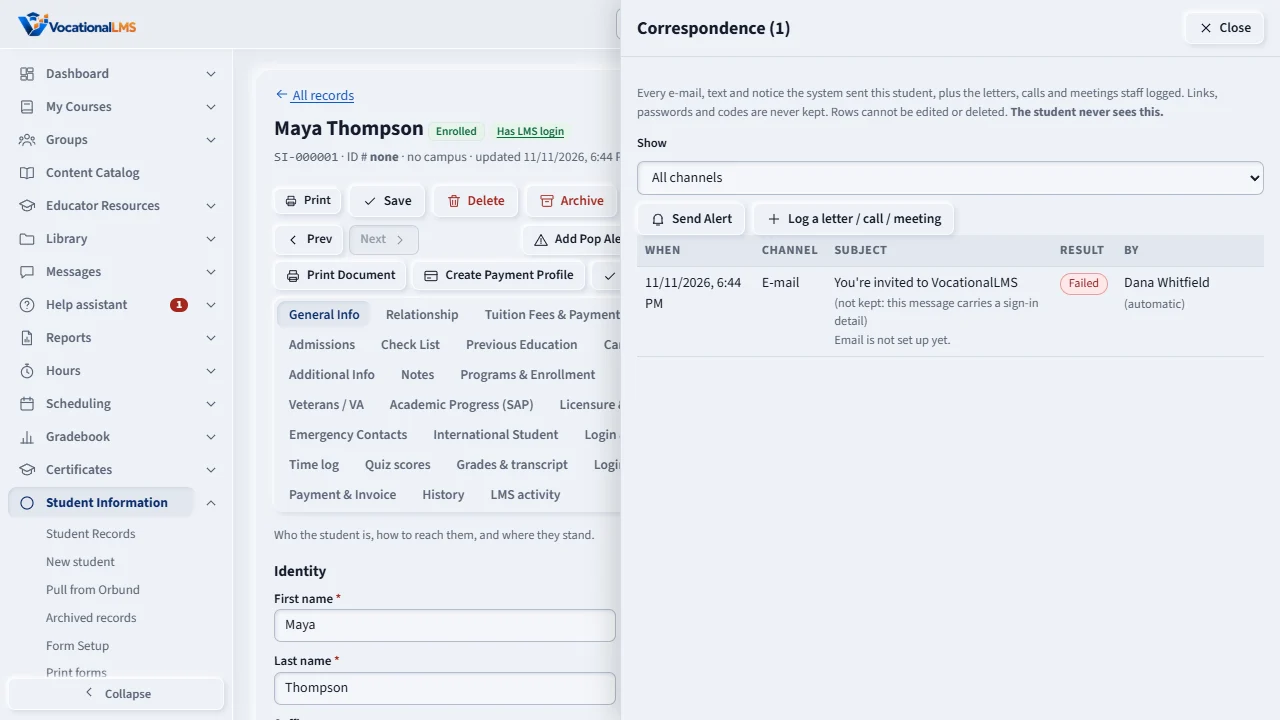
Correspondence is the record's communication log. Every e-mail or text the system sends is added by itself. You can also log a letter, a call or a meeting.
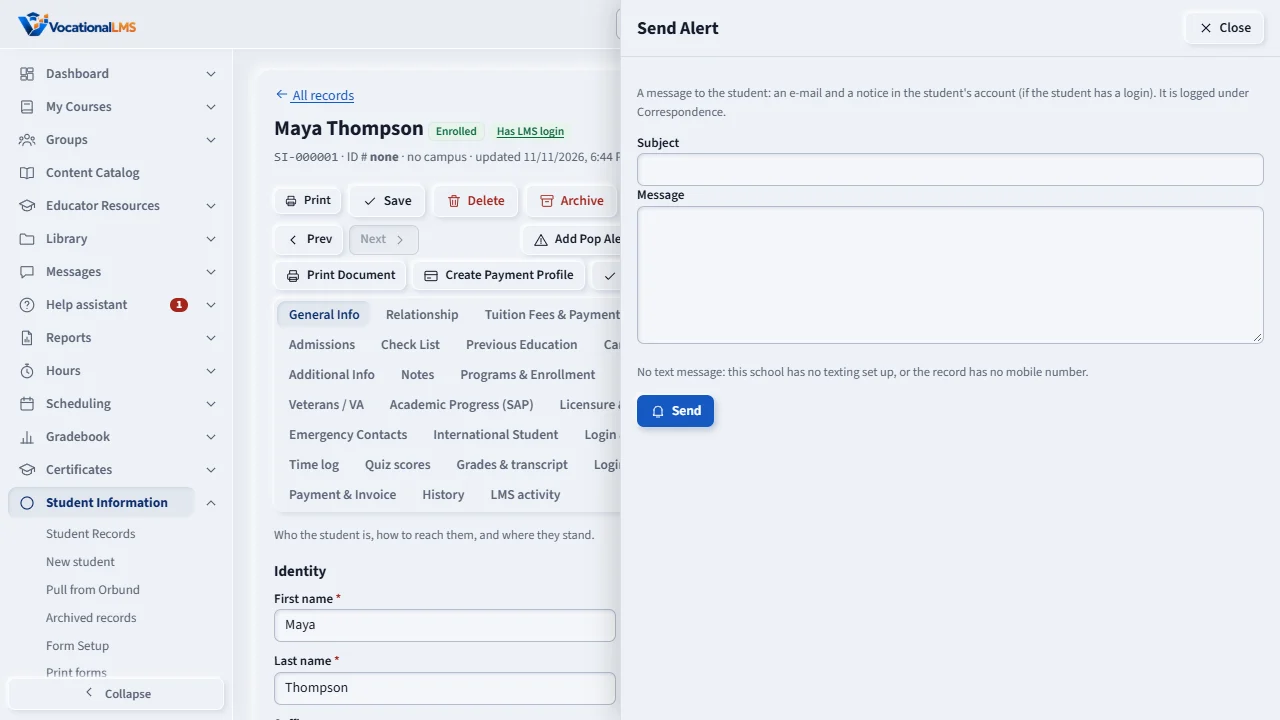
Press Send Alert, type a subject and a message, and confirm. It goes by e-mail and as a notice in the student's account, and it is logged.
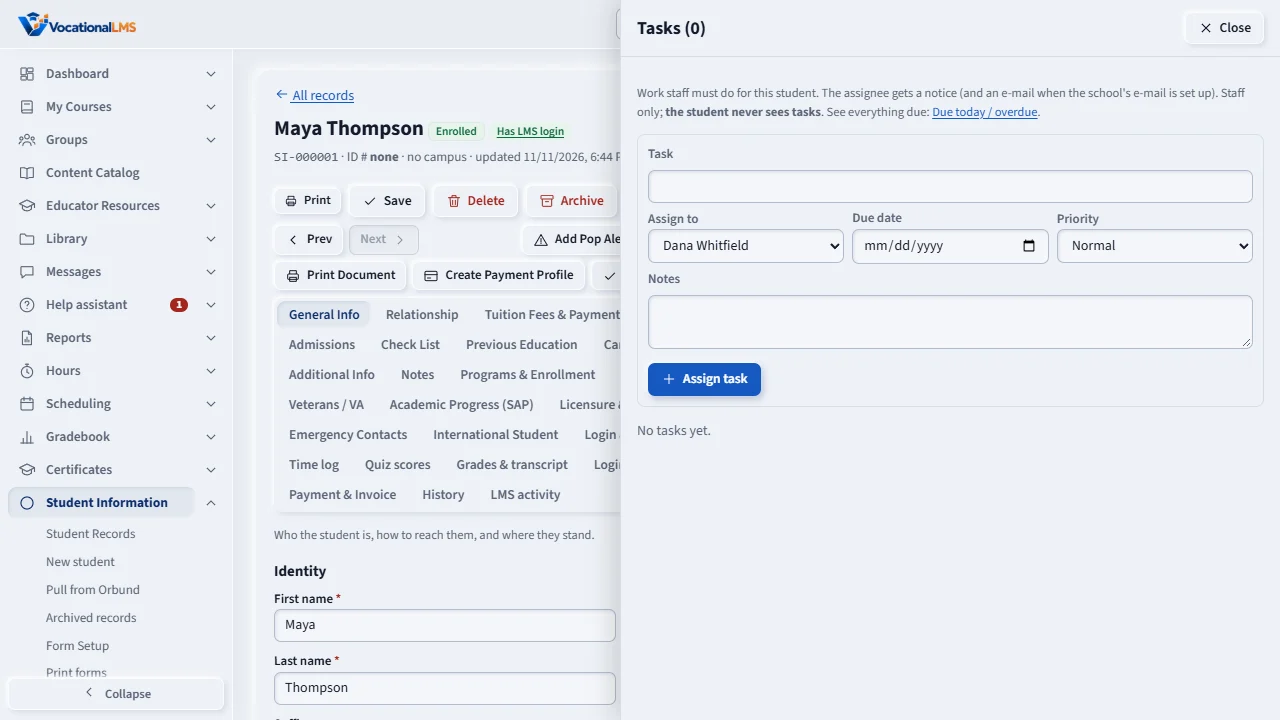
Tasks are things staff must do for a student. Press Assign Task, type the task, choose who does it, the due date and the priority.
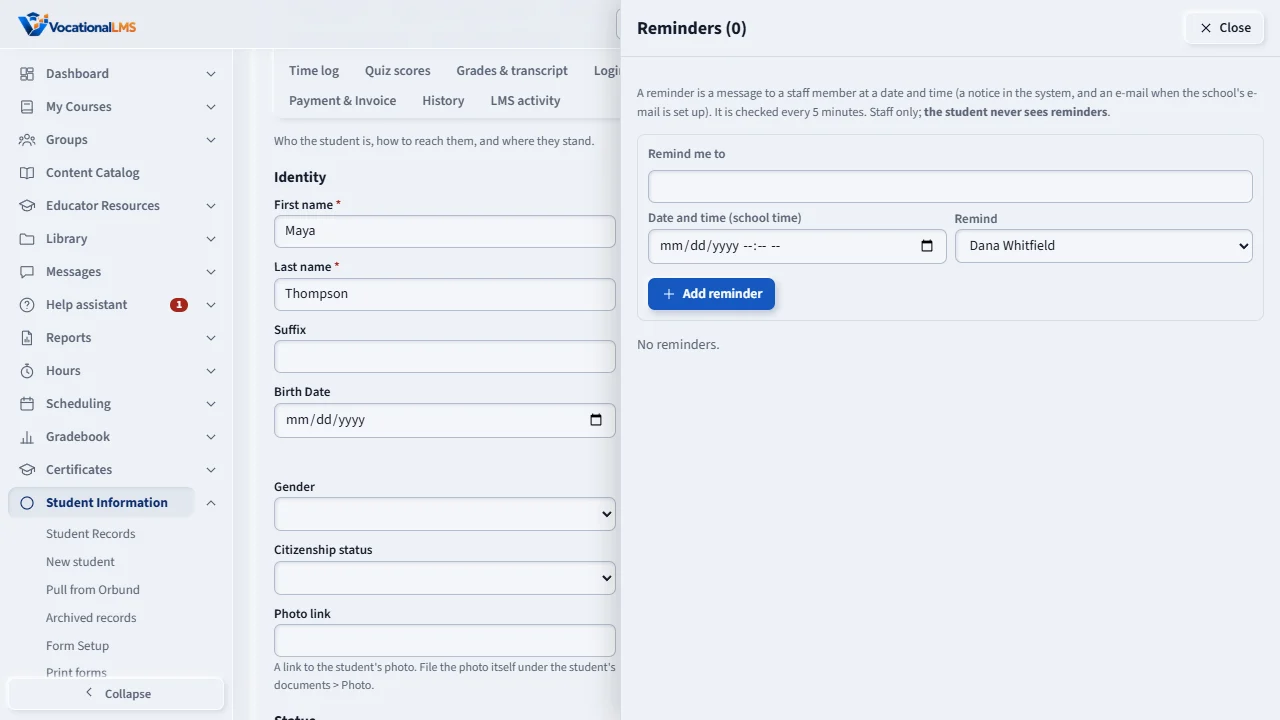
A reminder sends a message to a staff member at a date and time you choose. Open Student Information, Due today, to see what is due or overdue.
Open this in VocationalLMSStudent Information > Due today / overdue
Who can do this: The School Admin creates and changes; a Director and an auditor can read. Tasks and reminders can be given to a School Admin or a Director of your school.
What it is for
Tasks are things staff must do for a student: a title, notes, who does it, a due date, a priority (Low, Normal, High) and a status (Open, In progress, Done, Canceled). Reminders are messages to a staff member at a date and time. Both are for staff only; the student never sees them. The person they are given to gets a notice in the system and an e-mail when your school's e-mail is set up.
Steps
Assign a task
- Press Assign Task along the top of the record (or open Tasks). Type the task, choose who does it, the due date and priority, then Assign task.
- Use Start, Done, Cancel or Reopen on a task. A task past its due date shows Overdue; one due today shows Due today.
Set a reminder
- Open Reminders, type what to be reminded of, choose the date and time (your school's time) and who to remind, then Add reminder.
- The system checks every 5 minutes. When the time has come the person gets the notice and the e-mail once. Dismiss cancels a reminder.
See what is due
- Open Student Information › Due today / overdue. Mine shows what is given to you; Whole school shows everyone's. Click a student to open the task.
What happens next
Counts show on the Student menu: open tasks and pending reminders. Everything is logged in the record's Activity Logs.
Common problems
| # | Problem | What to do |
|---|---|---|
| 1 | I cannot choose a teacher. | Only School Admins and Directors can be given tasks, because only they can open Student Information. |
| 2 | The reminder did not e-mail. | Your school's e-mail may not be set up. The notice in the system is always made. |
| 3 | A reminder says that time has passed. | Choose a time in the future. |