
A-97For School Admins and Directors
Set tuition, fees, taxes, the late fee, payment methods and your logo
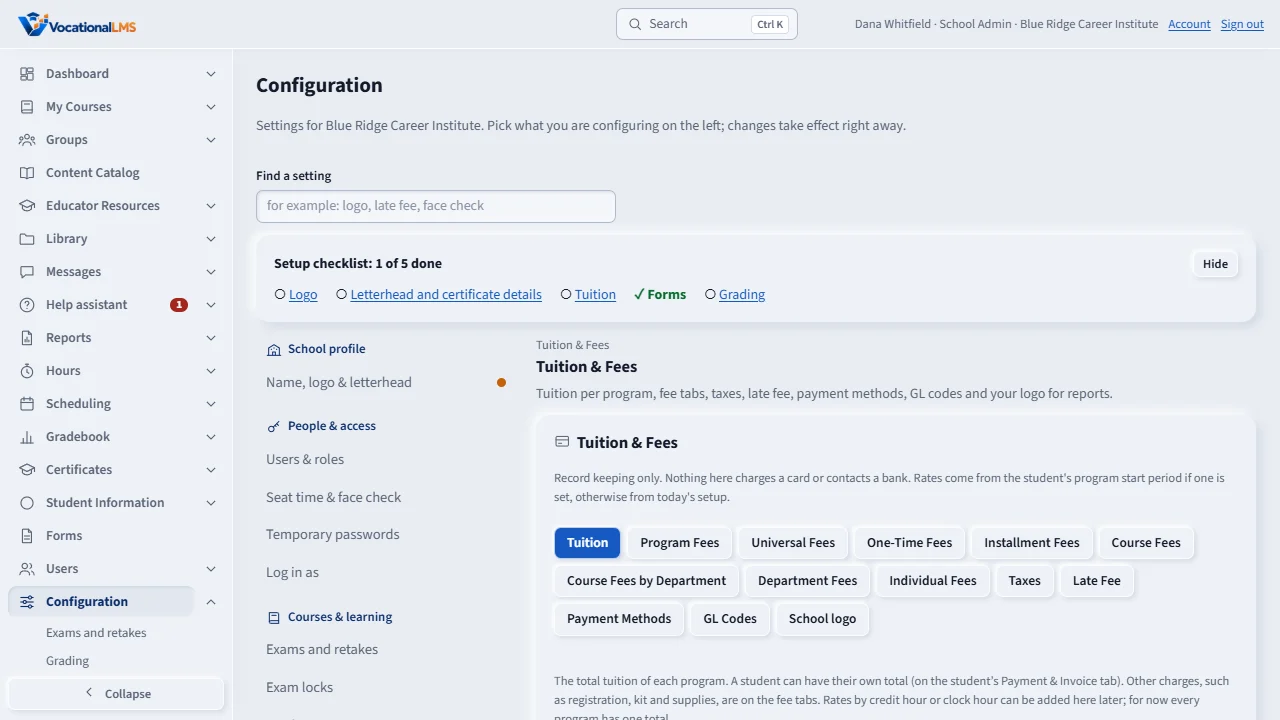
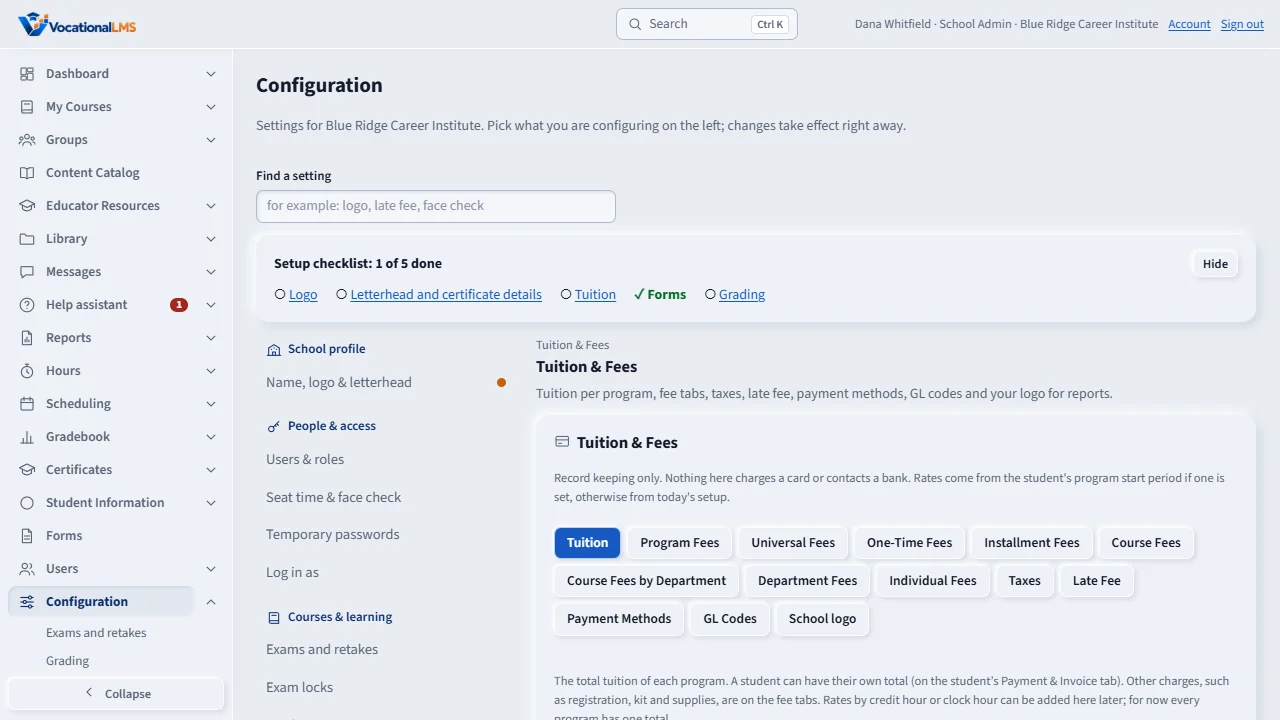
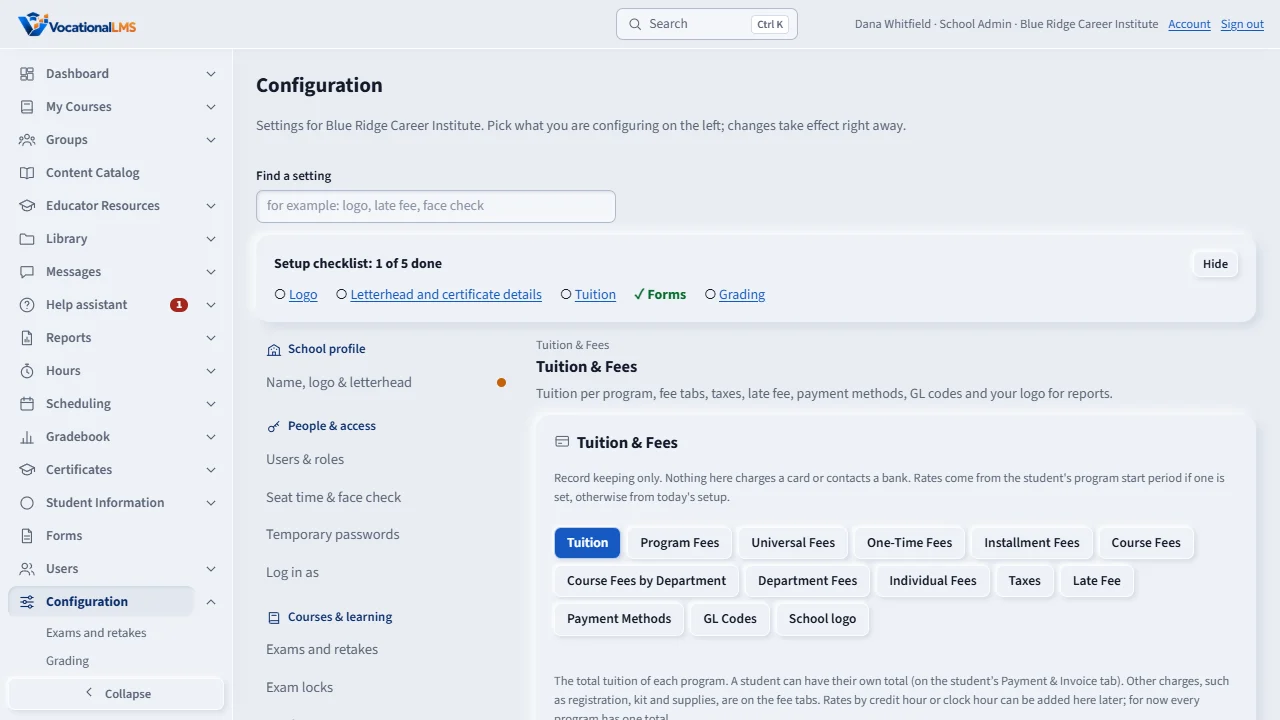
Configuration, Tuition & Fees: the tuition of each program, the fee tabs, taxes, the late fee rule, payment methods (PayPal is a recorded method only), GL codes and the logo printed on finance reports.
How-to video A-97 · 0:43
Read the words of this video
Everything the Payment and Invoice tab of a student needs is set once here. This is record keeping only. Nothing here charges a card.
Open Configuration, Tuition and Fees, Tuition. Type the total tuition of each program and press Save tuition.
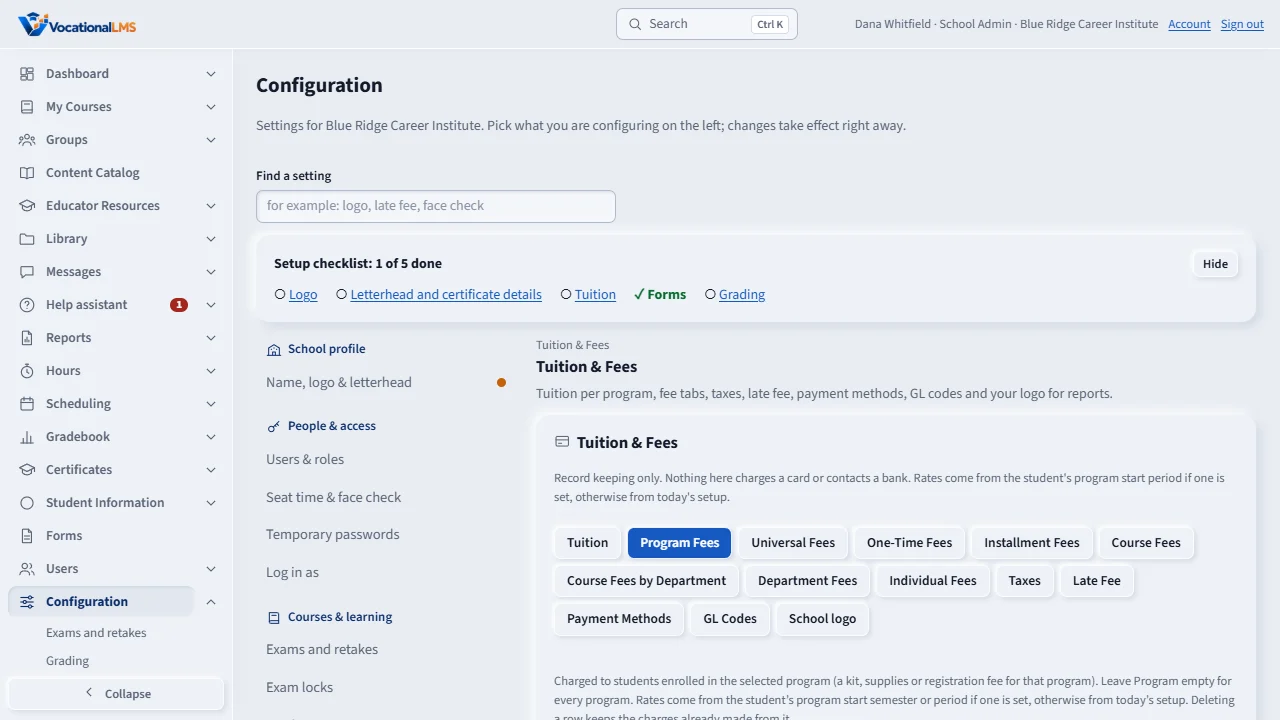
The fee tabs work the same way: one row per fee. Program fees go to students of that program, universal fees go to everyone, and one-time fees are charged once.
Set the tax rate, the late fee, your payment methods and your logo here too.
Open this in VocationalLMSConfiguration > Tuition & Fees
Who can do this: The School Admin changes it; a Director and an auditor can look.
What it is for
Everything the Payment & Invoice tab of a student record needs is set once, here. Record keeping only: nothing in Student Finance charges a card or contacts a bank or PayPal.
Steps
Tuition
- Open Configuration › Tuition & Fees › Tuition. Type the total tuition of each program and press Save tuition. A program that no longer exists shows (Deleted); its history is kept.
- A single student can have their own total on their Payment & Invoice tab (Student's own tuition), with a reason.
Fees
- The tabs Program Fees, Universal Fees, One-Time Fees, Installment Fees, Course Fees, Course Fees by Department, Department Fees and Individual Fees work the same way: one row per fee with GL code, pay period, campus, program, name, standard amount and the flags One-Time, Separate, Tax, 1098-T, RPP and FA. Press Add a fee, fill the row, press Save.
- Program fees go to students of that program (an empty program means every program). Universal fees go to everyone. One-time fees are charged once. Installment fees are added to each installment of a payment plan. Individual fees are picked by hand for one student.
- Delete removes a row from the setup; charges already made from it stay on the student's account.
Taxes and the late fee
- Taxes: a name, a rate in percent and a GL code. A tax is added, as its own charge line, to every fee marked Tax.
- Late Fee: an amount or a percent, the grace days and a GL code. Nothing is charged by itself: the student's tab lists the late installments and you choose which late fees to post.
Payment methods, GL codes, logo
- Payment Methods is the list used when you record a payment: Zelle, cash, card, check, bank transfer, financial aid and PayPal. PayPal is only a label for how the money arrived.
- GL Codes is a short list that starts marked pending approval; tick Approved when your accountant agrees.
- School logo: choose a PNG, JPEG or WebP picture. It is printed with your letterhead at the top of every finance report.
What happens next
Open a student record and its Payment & Invoice tab to charge, record payments and make payment plans (A-98).
Common problems
| # | Problem | What to do |
|---|---|---|
| 1 | I cannot change anything. | Only the School Admin changes the setup. |
| 2 | A fee does not appear for a student. | Check its program, campus and department on the row, and that it is not an Individual or Installment fee, which are not charged to the invoice by program. |
| 3 | The GL code is refused. | Pick a code from the GL Codes list. |