
A-91For School Admins and Directors
Write comments and add pop alerts on a student record
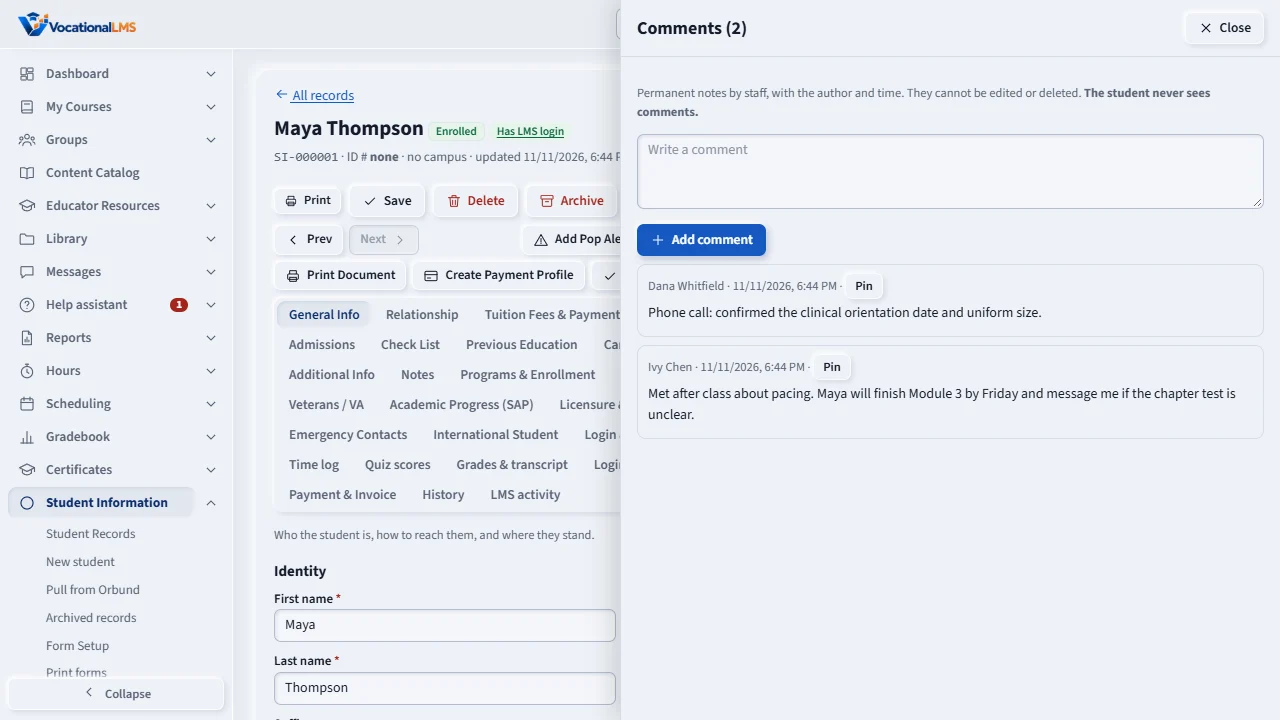
Comments are permanent staff notes with the author and time, and can be pinned to the top. A pop alert is a yellow banner at the top of the record that only staff see.
How-to video A-91 · 0:30
Read the words of this video
Comments are staff notes about the student. Type your note and press Add comment. Notes cannot be edited or deleted, and each shows who wrote it and when. Pin puts one at the top.
A pop alert is a short yellow banner at the top of the record for something the next person must not miss. Press Add Pop Alert, type the message, optionally choose an end date, and add it.
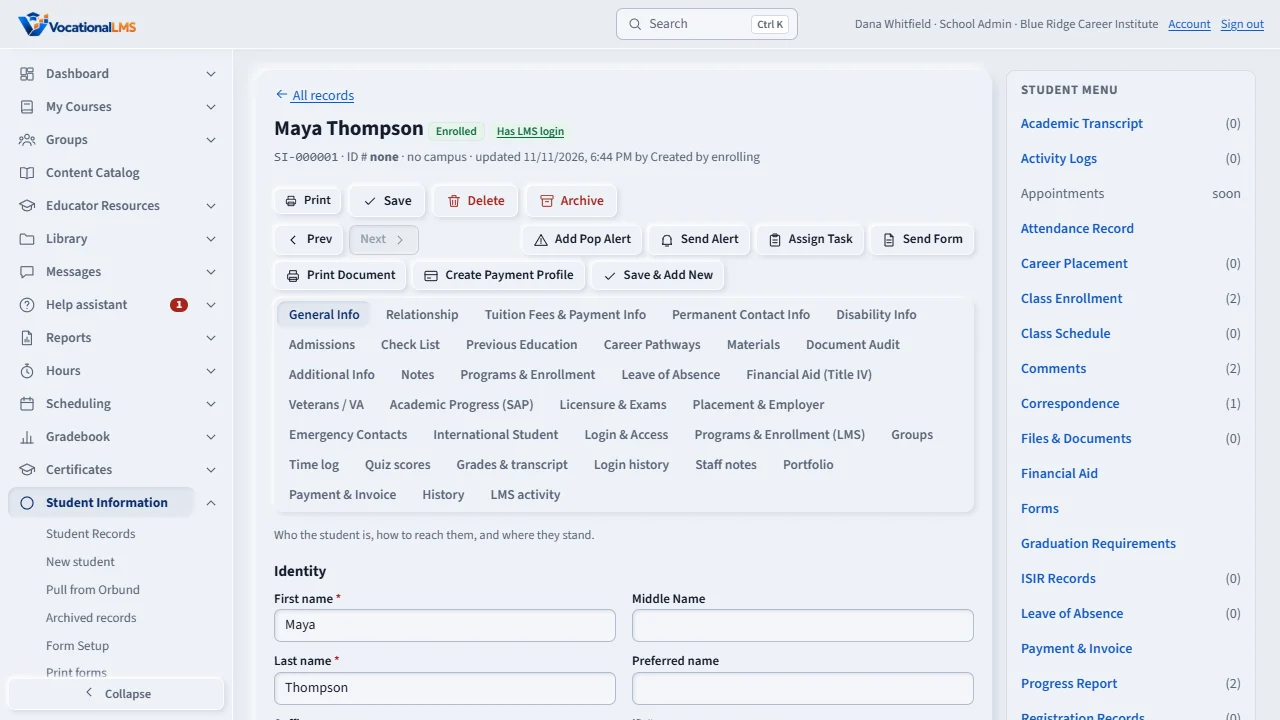
Open this in VocationalLMSStudent Information > Student menu
Who can do this: The School Admin writes and closes; a Director and an auditor can read.
What it is for
Comments are notes about the student by staff. They cannot be edited or deleted, and each shows who wrote it and when. A student with a login has the same notes on the Staff notes tab. Pop alerts are short messages (300 characters) shown as a yellow banner at the top of the record, for something the next person to open it must not miss.
Steps
Comments
- Open Comments on the Student menu, type, press Add comment.
- Pin puts a comment at the top (shaded yellow); Unpin lets it sink back.
Pop alerts
- Press Add Pop Alert at the top of the record, type the message, optionally choose Show until a date, then Add alert.
- The banner shows on the record with who added it and the date. Press the x to close it. An alert with an end date goes away by itself after that day.
What happens next
Pop alerts show only on the staff record, never to students, and comments are never shown to students. Adding, pinning and closing are in the Activity Logs.
Common problems
| # | Problem | What to do |
|---|---|---|
| 1 | I do not see Add Pop Alert. | Only the School Admin can add one. |
| 2 | I need to fix a comment. | Comments are permanent. Add a new comment that corrects it. |