
A-90For School Admins and Directors
Keep a student's files in folders (Files & Documents)
Each student record has private folders for its documents: upload, rename, move and archive files, see how many files each folder holds, and choose whether a file is shown to the student.
How-to video A-90 · 0:39
Read the words of this video
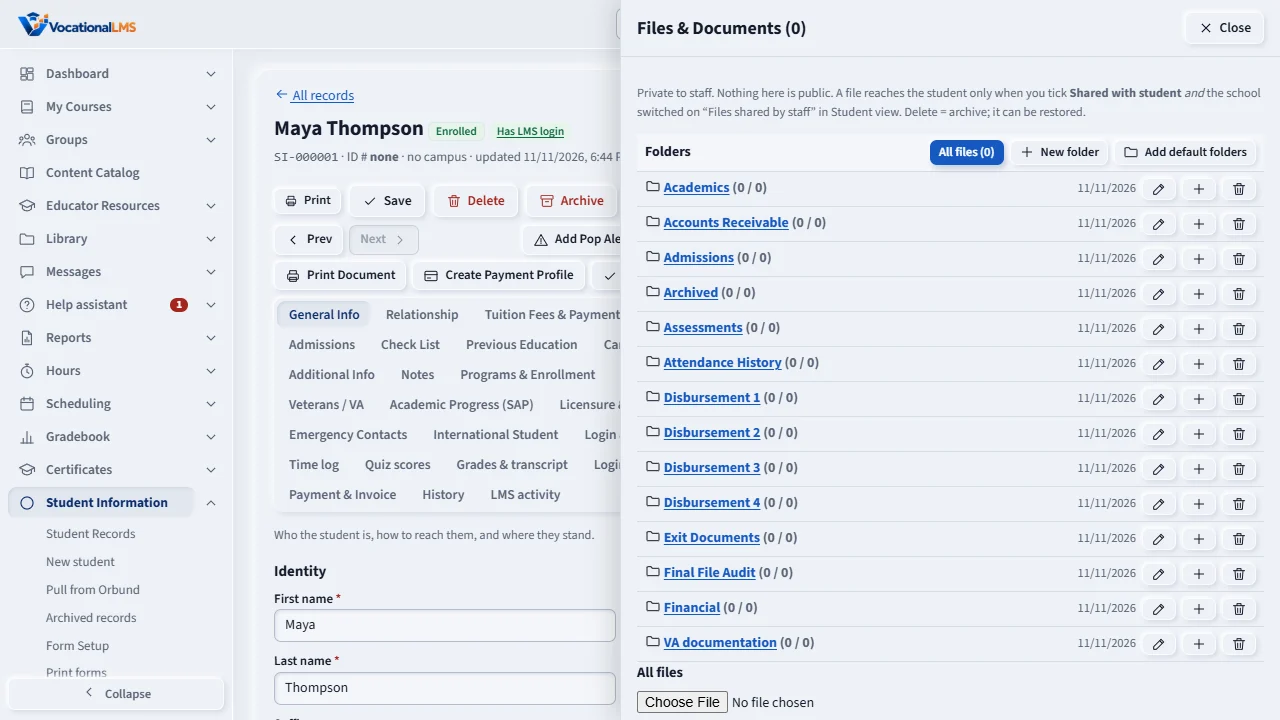
Files and Documents is the record's file cabinet. A new record starts with your school's folders. Each shows how many files it holds.
To add a file, choose it, choose the folder and press Upload. Use the eye to view, the arrow to download, the pencil to rename and the folder icon to move. Delete only archives the file.
New folder adds a folder, and the plus beside a folder adds one inside it. Add default folders puts back any standard folder the record is missing.
Open this in VocationalLMSStudent Information > Student menu
Who can do this: The School Admin uploads and changes; a Director and an auditor can open and download.
What it is for
Files & Documents on the Student menu is the record's file cabinet. A new record starts with your school's folders (the standard ones are Academics, Accounts Receivable, Admissions, Archived, Assessments, Attendance History, Disbursement 1 to 4, Exit Documents, Final File Audit, Financial and VA documentation). Each shows (files / total): files in the folder, and files in it and the folders inside it. Everything is private to staff.
Steps
Add files
- Open Files & Documents, choose a file, choose the folder, press Upload. PDF, Word, Excel, PowerPoint, pictures and plain text are accepted, up to 25 MB each. A file whose content does not match its type is refused.
- Use the eye to view a file, the arrow to download it, the pencil to rename it, the folder icon to move it, the bin to delete it. Delete only archives the file: tick Show archived files to bring it back.
Folders
- New folder adds one; the + beside a folder adds one inside it (four levels at most). The pencil renames, the bin deletes an empty folder.
- Add default folders puts back any of your school's standard folders this record is missing.
Choose your school's folders
- Open Student Information › Student menu: rename, add or remove the folders every new record starts with, then Save. Records that already have folders keep theirs.
Shared with student
- Each file has a Shared with student box, off for every new file. A student sees a file only when its box is ticked and your school switched on Files shared by staff under Student Information › Student view (also off at the start). An archived file is never shown.
What happens next
Uploads, renames, moves, deletes, restores, sharing changes and every file opened are lines in the record's Activity Logs.
Common problems
| # | Problem | What to do |
|---|---|---|
| 1 | The upload was refused. | Check the type (PDF, Word, Excel, PowerPoint, picture, text), the size (25 MB) and that the file opens on your computer. |
| 2 | The student does not see a file I shared. | Also switch on Files shared by staff in Student view. |
| 3 | A folder will not delete. | It must be empty. Move or archive what is in it first. |