
A-87For School Admins and Directors
Choose what students see in My Information, and manage students in Student Information
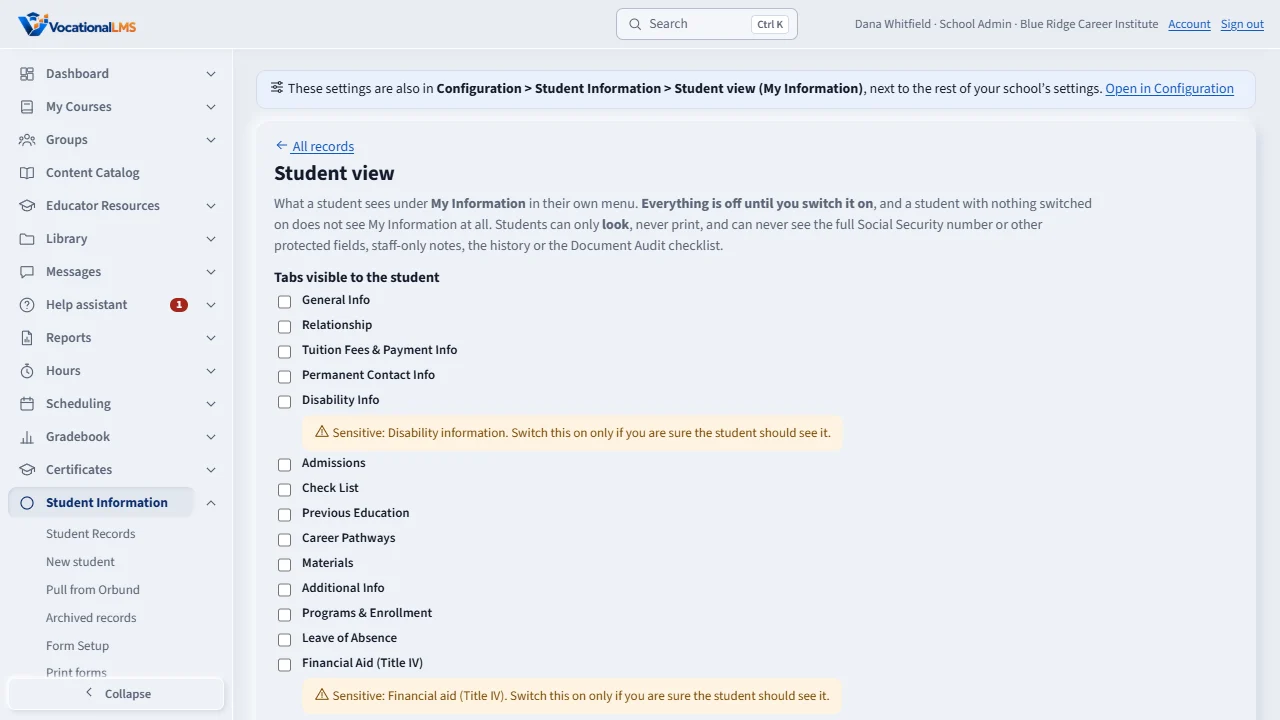
Student Information, Student view: one switch for each tab of the student record, all off until you turn them on; three switches to let students edit phone, e-mail and address; and the switch that moves student creation out of the Users page.
How-to video A-87 · 0:43
Read the words of this video
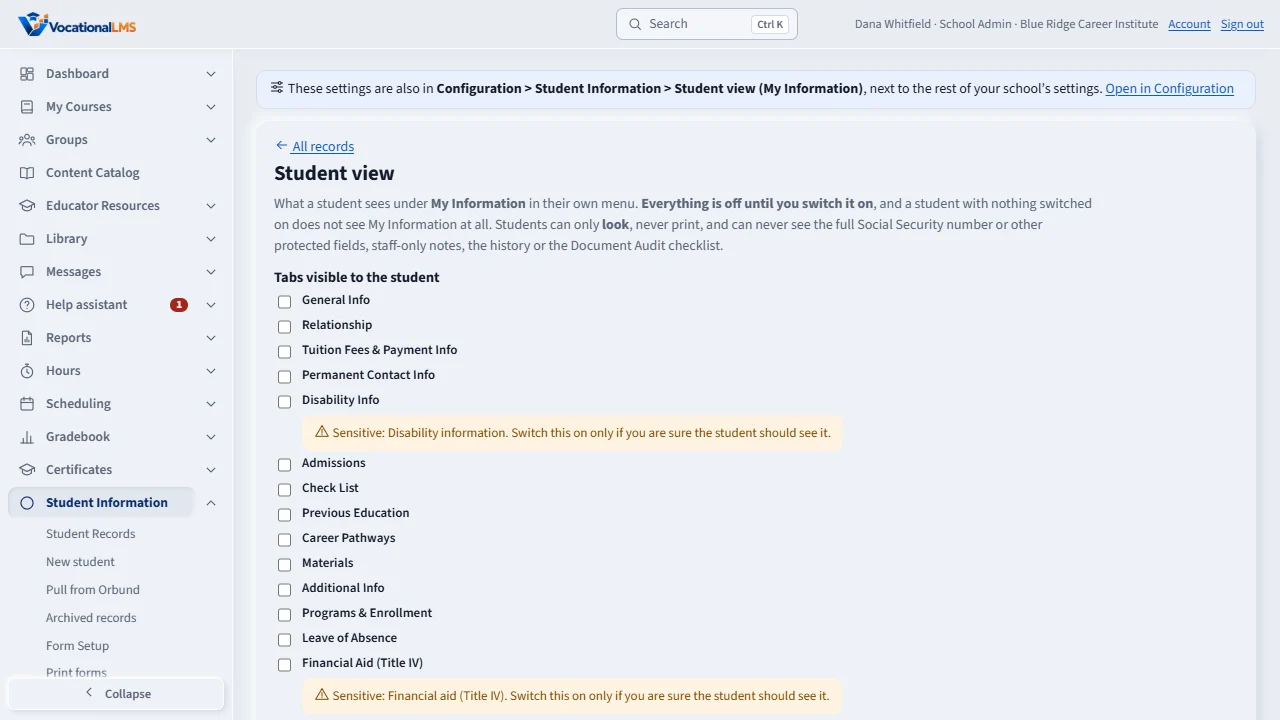
Students get a My Information item in their menu, read only. Everything is off to start. Open Student Information, then Student view, and switch on each tab you want students to see.
Some tabs, like Disability and Financial Aid, show a warning. Switch them on only if you are sure. The Social Security number and staff notes are never shown to a student.
Under May the student edit, you can let students change their phone, e-mail and address. Nothing else can be edited. Every change is saved at once and kept in the audit trail.
Open this in VocationalLMSStudent Information > Student view
Who can do this: The School Admin changes the switches; a Director and an auditor can look.
What it is for
Students get a My Information item in their menu showing the tabs you switch on, read only. Everything is off at the start, and a student sees no My Information at all until you switch on at least one tab. These are never shown to a student whatever you choose: the Social Security number and any protected field, staff-only Notes, the history, the Other Orbund columns and the Document Audit checklist. Students cannot print.
Steps
Choose the tabs
- Open Student Information › Student view.
- Switch on each tab you want students to see. Disability, Financial Aid, Academic Progress and Veterans show a warning: switch them on only if you are sure.
- Each change is saved at once and is in the audit trail.
Let students edit three things
- Under May the student edit?: Phone number(s), E-mail and Address (street, city, state, zip). A detail is editable only when its tab is visible and its switch is on. No other field can ever be edited by a student.
- A student's e-mail is also their login. Changing it sends a confirmation link to the new address and nothing changes until the student opens it; the new e-mail must not be used by anyone else. The old address gets a notice.
- Every edit is in the audit trail with the old and the new value.
Manage students in Student Information
- At the bottom, switch on Students are created in Student Information, not on the Users page. The Users page then no longer lists students or offers Student when adding a person, and refuses to create one (Create students in Student Information). Instructors, Directors and admins stay on Users. Switch it off to put everything back; nothing is deleted.
What happens next
The student's own page (programs, time, grades) stays one click away from the student record, on its learning tabs.
Common problems
| # | Problem | What to do |
|---|---|---|
| 1 | A student says they do not see My Information. | Nothing is switched on for students, or the student has no record or it is archived. |
| 2 | The edit switch is on but the student cannot edit. | The tab that holds the detail (General Info for phone and e-mail, Permanent Contact Info for address) must also be switched on. |
| 3 | The student never got the confirmation e-mail. | Check the spelling. The link works for 24 hours; they can ask again from My Information. |