
A-88For School Admins and Directors
Print a student record or a form from the printer icon
The Print button on a student record makes a PDF of the whole record or of an application, admission request or other form, filled in from the record, with the school's letterhead. Choose which forms are in the menu.
How-to video A-88 · 0:37
Read the words of this video
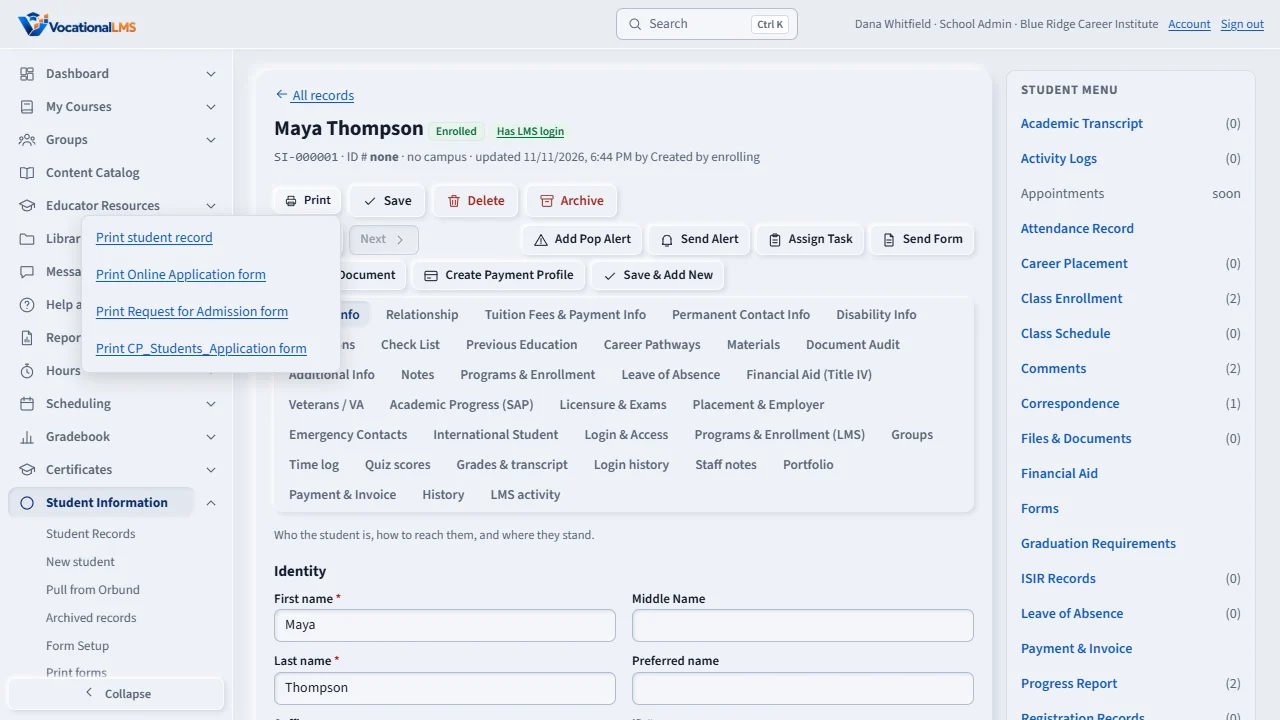
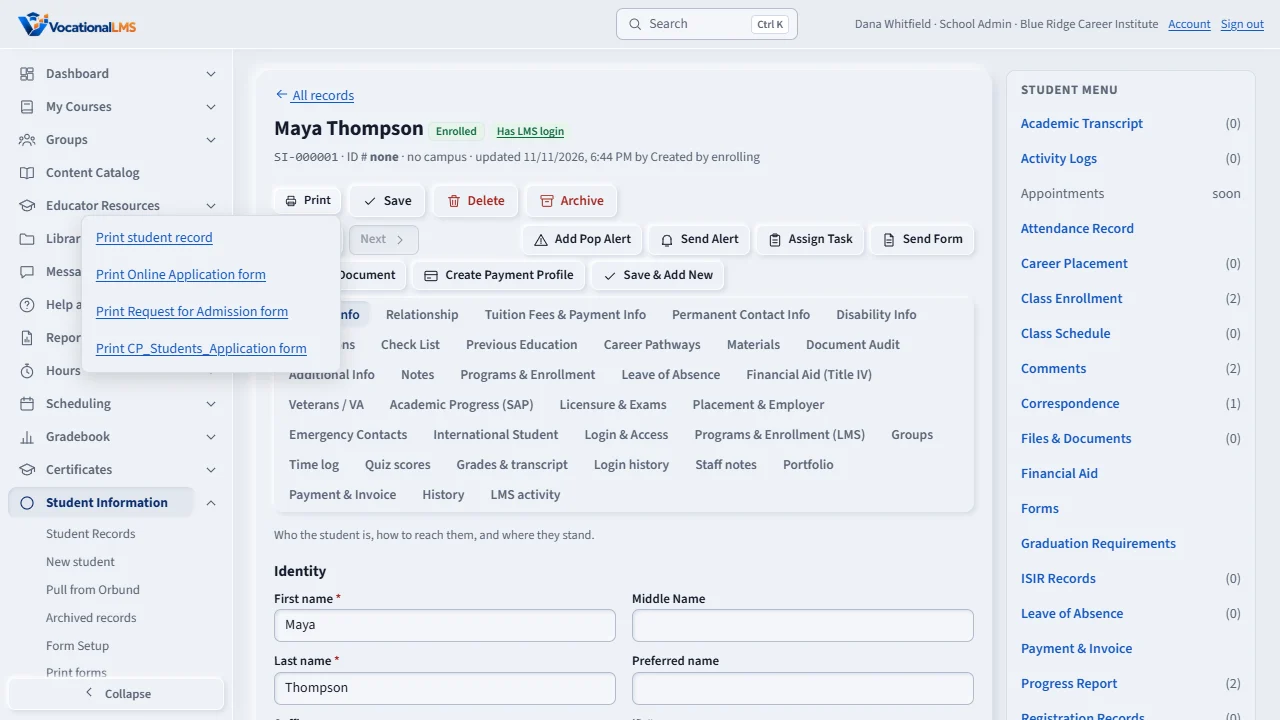
Open a student record. At the top right, the Print button opens a menu: the student record, the Online Application, the Request for Admission, and the student application form.
Your choice opens a PDF in a new tab with your school's letterhead. The record prints every tab that has information, and the Social Security number is always hidden.
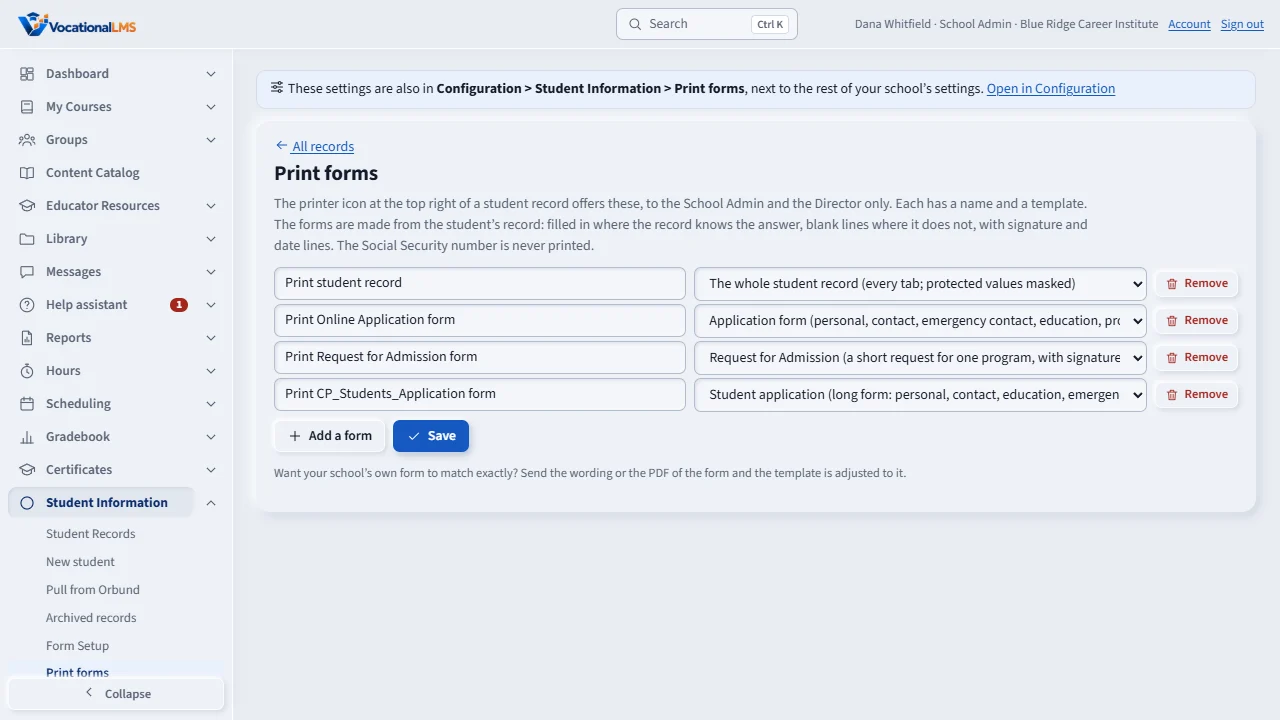
To change the list, open Student Information, Print forms. Rename a form, remove one, or add another, then Save.
Open this in VocationalLMSStudent Information > Print forms
Who can do this: The School Admin and the Director. Students, instructors and auditors do not see the button, and the server refuses them.
What it is for
Open a student record in Student Information. At the top right, the Print button (a printer) opens a menu: Print student record, Print Online Application form, Print Request for Admission form and Print CP_Students_Application form. Choosing one opens a PDF in a new tab, with your school's letterhead, ready to print or save.
Steps
- Open the record and click Print at the top right.
- Print student record prints every tab that has information, with the programs and leaves. The Social Security number and other protected values are masked (***-**-1234) and are never printed in full.
- The three forms are clean, generic forms made from the record: filled in where the record knows the answer, blank lines where it does not, with signature and date lines. The Social Security number is never printed on a form. Your school's own form wording can be matched on request.
Choose the forms in the menu
- Open Student Information › Print forms. Each line is a name and a template (the whole record, application, request for admission, or the longer student application).
- Rename a form, remove one, or click Add a form to add another with a template, then Save. The list must keep one form that prints the student record.
What happens next
Every print is a line in the Student Information audit trail on Form Setup: who printed which form for which student.
Common problems
| # | Problem | What to do |
|---|---|---|
| 1 | I do not see the Print button. | Only the School Admin and the Director print. An auditor's account is read only. |
| 2 | The form has blank lines. | The record does not have that answer yet. Fill it in on the record, then print again. |
| 3 | I want our exact form. | Send the wording or the PDF of your form; the template is adjusted to match it. |