
A-86For School Admins and Directors
Reset a student's password, turn their sign-in off, and archive or delete the login
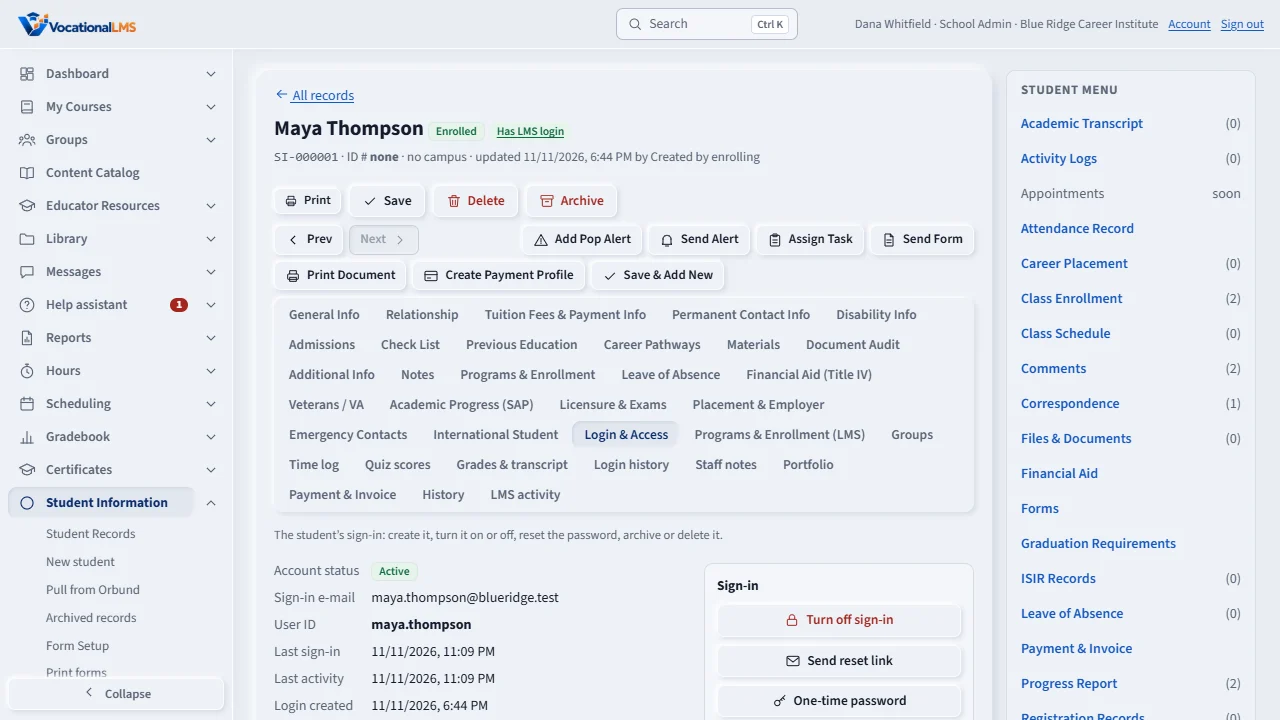
On a student's Login & Access tab: send a reset link or invitation, set a one-time password, turn sign-in off or on, sign out everywhere, change the User ID or the SIS ID, archive (with the record) or delete the login.
How-to video A-85 · 1:07 (the same video as A-85)
Read the words of this video
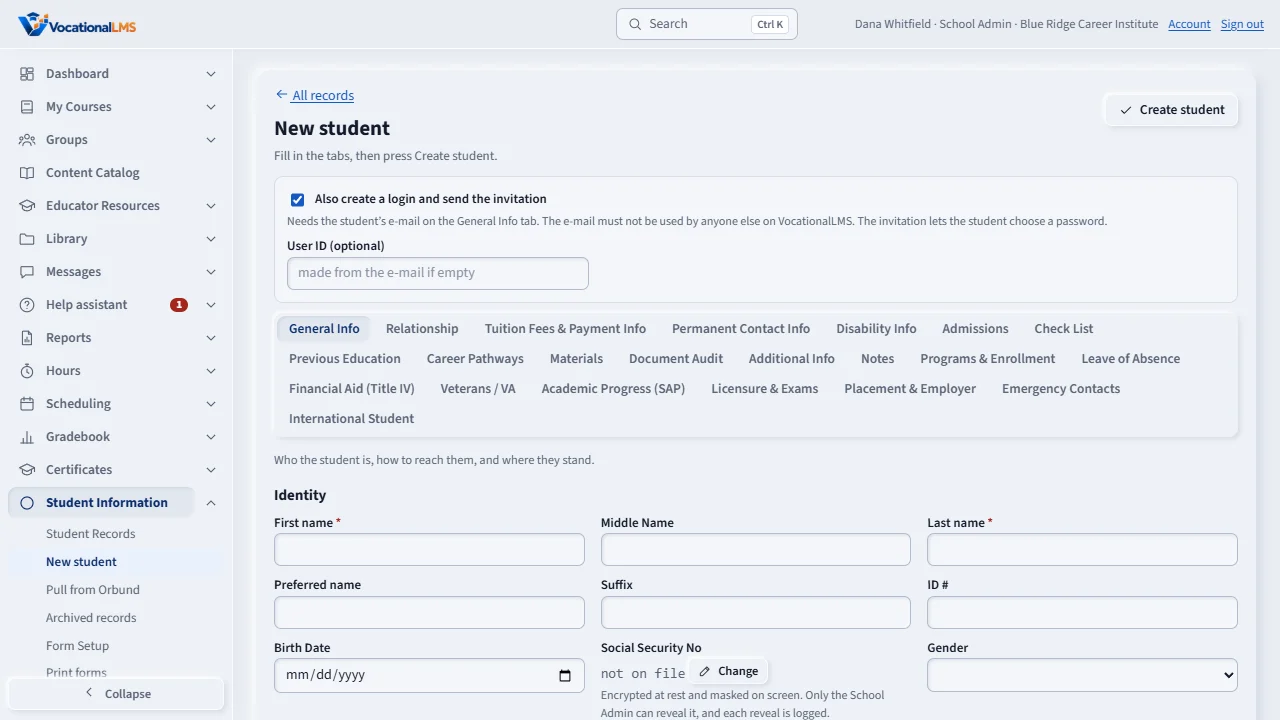
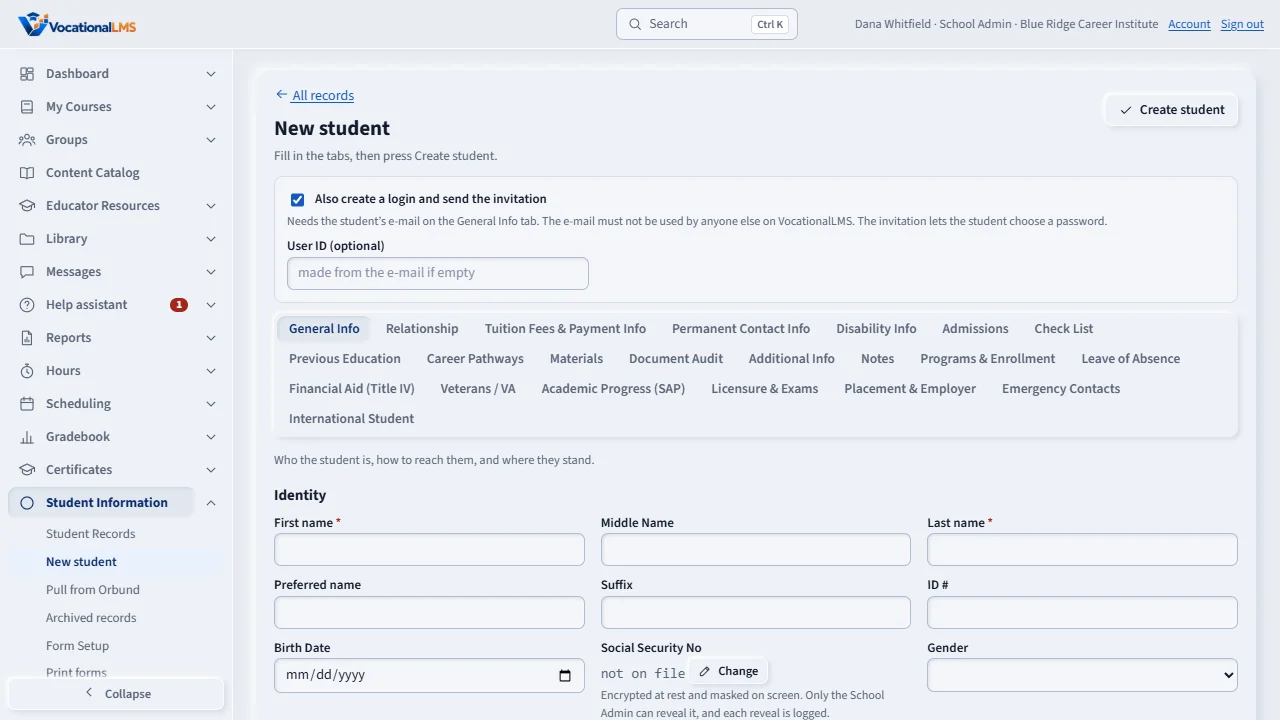
A student has a record, which is who they are, and a login, which lets them learn here. Open Student Information, then New student. Fill in the name, the status and the student's e-mail.
Leave Also create a login and send the invitation ticked, and press Create student. The student gets an e-mail to choose a password. If the e-mail cannot be sent, the one-time link is shown for you to send yourself.
For a record with no login, open the Login and Access tab. It says No login yet. Click Create login and send invitation.
To reset a password, click Send reset link, or One-time password to give a temporary one in person. Turn off sign-in blocks the student at once and signs them out everywhere. Nothing is deleted.
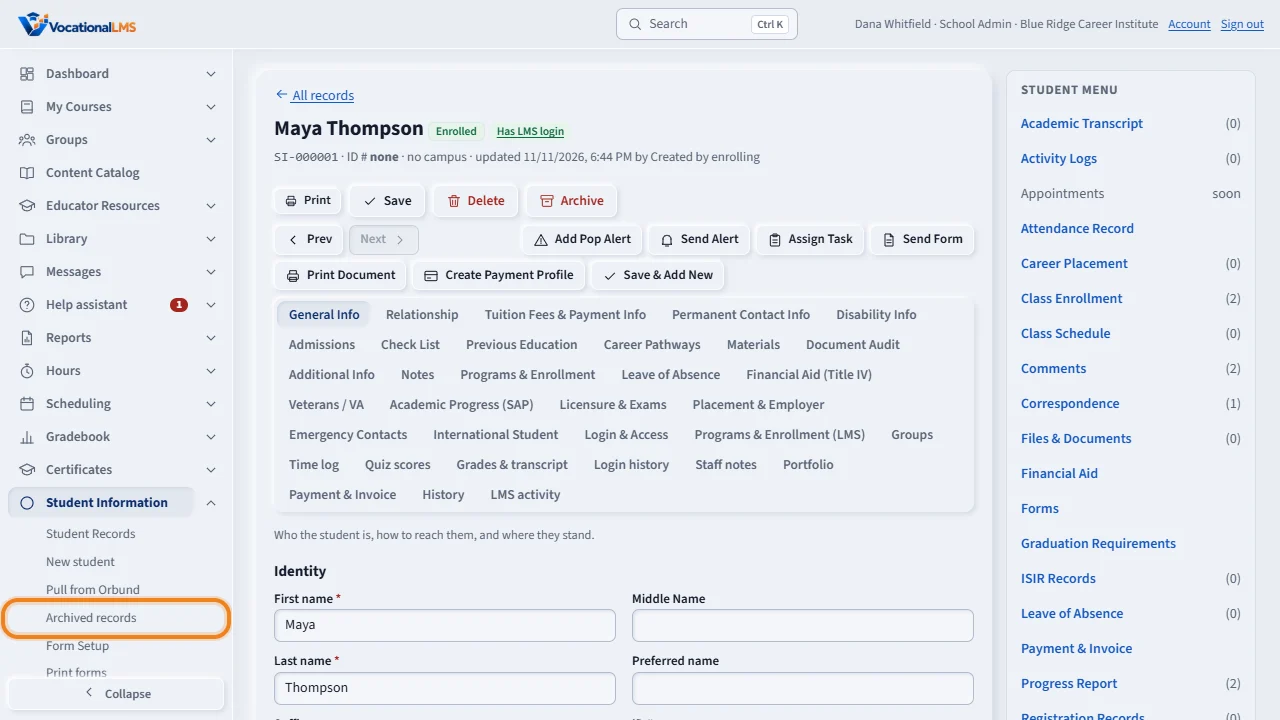
Archive at the top of the record archives the record and the login, and Restore brings both back. Deleting a login needs a one-time code from VocationalLMS support.
Open this in VocationalLMSStudent Information > a student > Login & Access
Who can do this: The School Admin. A Director or an auditor sees the tab and no buttons.
What it is for
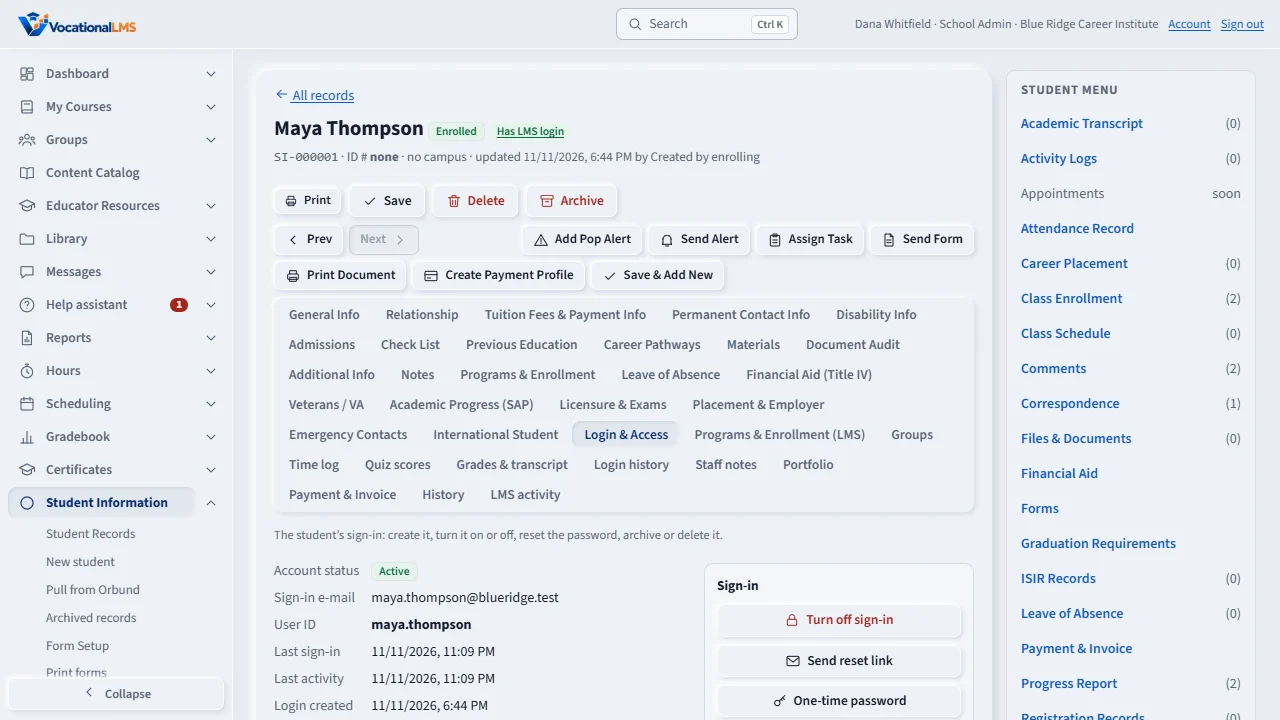
The Login & Access tab of a student record shows the account status, the last sign-in, the User ID, the Student ID and the SIS ID, with the buttons below. They do exactly what the same buttons do on the student's page under Users, with the same rules.
Steps
Everyday
- Send reset link (or Resend invitation if the student never chose a password) makes a one-time link; the old one stops working.
- One-time password sets a temporary password to tell the student in person or by phone. Type the reason, tick the box, and it is shown once. The student must choose their own at the first sign-in.
- Turn off sign-in blocks the student at once and signs them out everywhere; nothing is deleted. Turn on sign-in lets them back. Sign out everywhere ends every session and changes nothing else.
- Change User ID and Change SIS ID change the names the student signs in with and the ID in your own system.
Archive and delete
- Archive (top of the record) archives the record and the login; Restore brings both back. Nothing is lost.
- Delete login is separate and needs the one-time authorization code from VocationalLMS support, as on the Users page. It erases the student's learning records. The student record stays, without a login.
What happens next
Every one of these writes a line in the Student Information audit trail: who, which student, what. A temporary password itself is never written there.
Common problems
| # | Problem | What to do |
|---|---|---|
| 1 | Delete login asks for a code. | Call VocationalLMS support for the one-time authorization code for that student. |
| 2 | The buttons are gray. | The sign-in is off or the record is archived. Turn sign-in on or restore the record first. |
| 3 | I only see the information, no buttons. | Only the School Admin changes a login. |