
A-137For School Admins and Directors
Why a VocationalLMS course shows Written or Ready for review, and why you can't approve it
A note on a course VocationalLMS gave your school: its tests and lessons are approved by VocationalLMS, and students only see approved items.
How-to video A-08 · 1:03 (the same video as A-08)
Read the words of this video
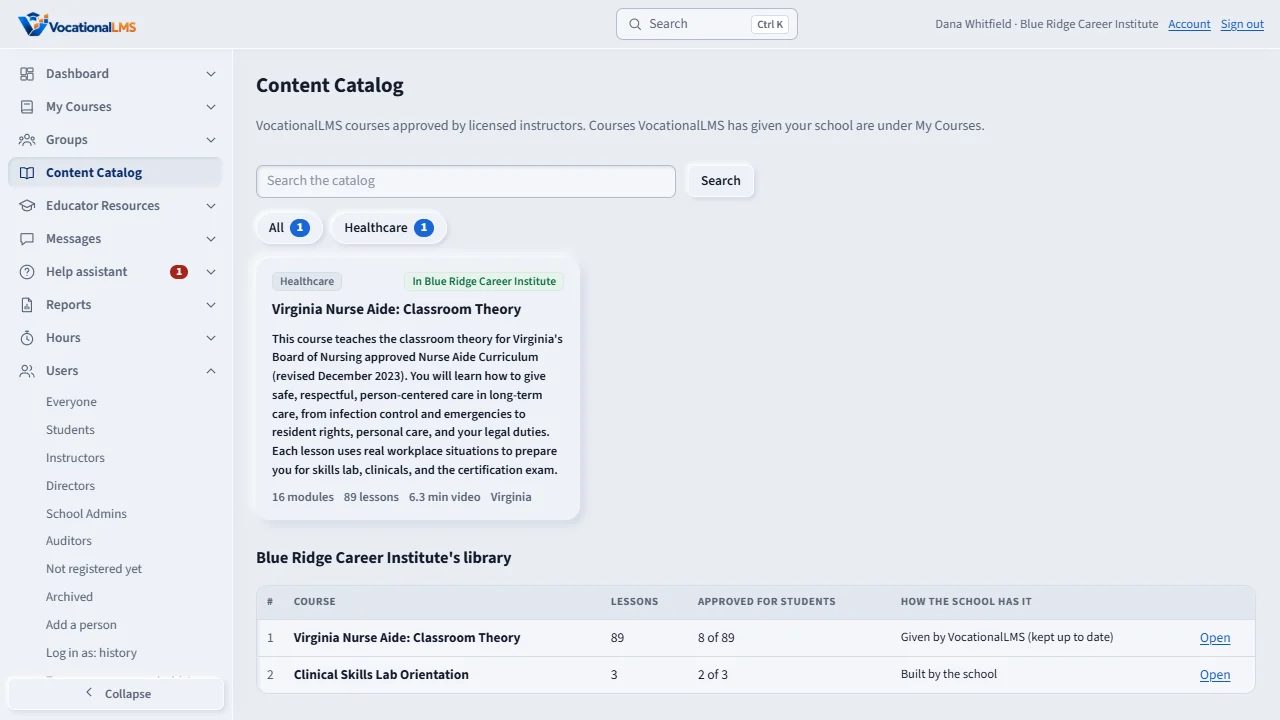
The Content Catalog lists the VocationalLMS master courses, approved by licensed instructors. You can search by title or pick a category. A course marked with your school's name has been given to you.
Your school's library, at the bottom, lists every course you have: its lessons, how many are approved for students, and how you have it, either given by VocationalLMS or built by the school. Click Open to go to the course.
The courses VocationalLMS gave your school are also under My Courses and on your dashboard. VocationalLMS keeps them up to date. Students see only lessons that a licensed instructor has approved.
To get a course you do not have, contact VocationalLMS. The Super Admin gives it to your school, and it appears under My Courses at once. You cannot change its lessons, but you can add your own items to it.
Open this in VocationalLMSMy Courses > a VocationalLMS course > the note under the course header
What it is for
On a course VocationalLMS gave your school, some items show Written or Ready for review. They are not approved yet. VocationalLMS reviews and approves the tests and lessons of its own courses, so there is no Approve button for you on them. A note under the course header says so: This is a VocationalLMS master course. VocationalLMS reviews and approves its tests and lessons, so you can't approve them here. Students only see approved items. The note shows only while the course still has items that are not approved, and only to people who cannot approve them. The course header also says estimated study time: that is a guess of how long the lessons take to study, not a number of required hours. Credited hours are tracked from the time students actually spend.
Steps
- Click My Courses and open a course marked Assigned by VocationalLMS.
- Read the note under the course header, and point at a status such as Written to see the same reason in a tooltip.
- To use an item your school wrote itself, open it and approve it as usual (A-10). Items of your own school are never held by this note.
What happens next
Nothing to do. When VocationalLMS approves an item its status changes and students can see it; students never see an unapproved item.
Common problems
| # | Problem | What to do |
|---|---|---|
| 1 | You want a Written item approved sooner. | Contact VocationalLMS support. Only VocationalLMS can approve a master course's items. |
| 2 | The note is gone. | Every item in the course is approved, so there is nothing to explain. |