
A-105For School Admins and Directors
Configure your school in one place: the Configuration tabs
Every school setting is on one Configuration page, in separate tabs grouped by what you are setting up, with a search box and a setup checklist.
How-to video A-105 · 0:49
Read the words of this video
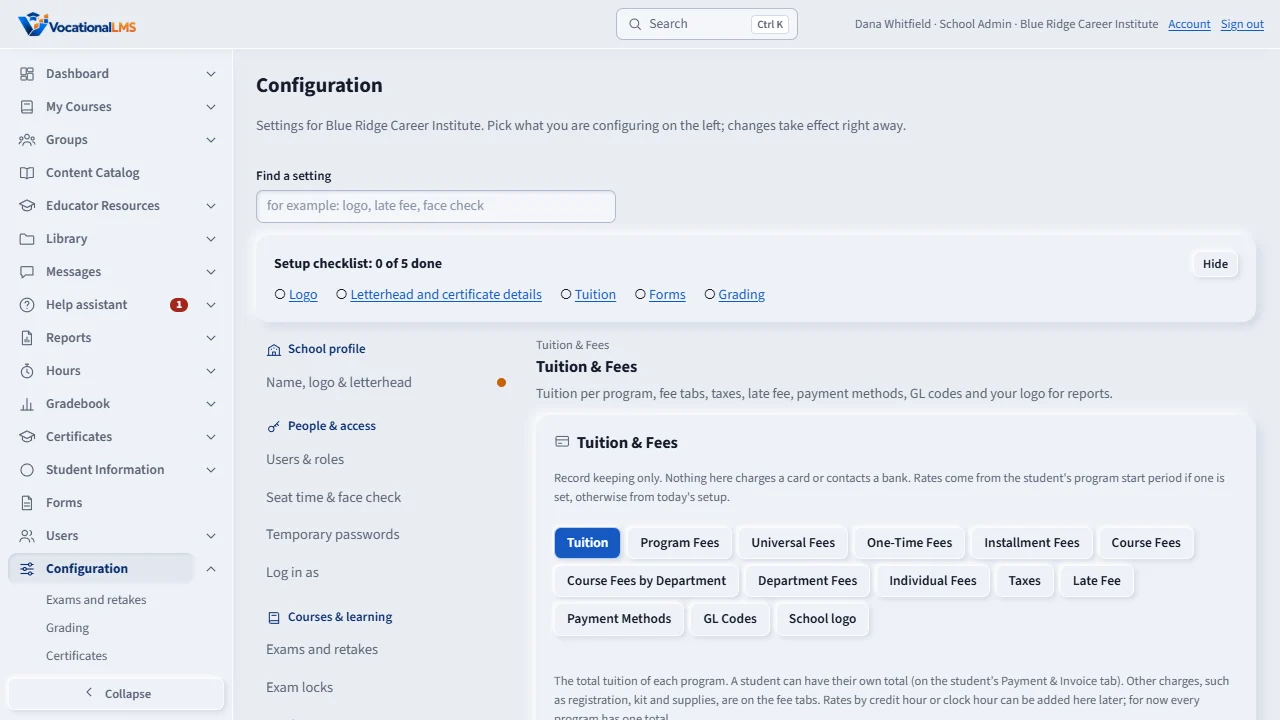
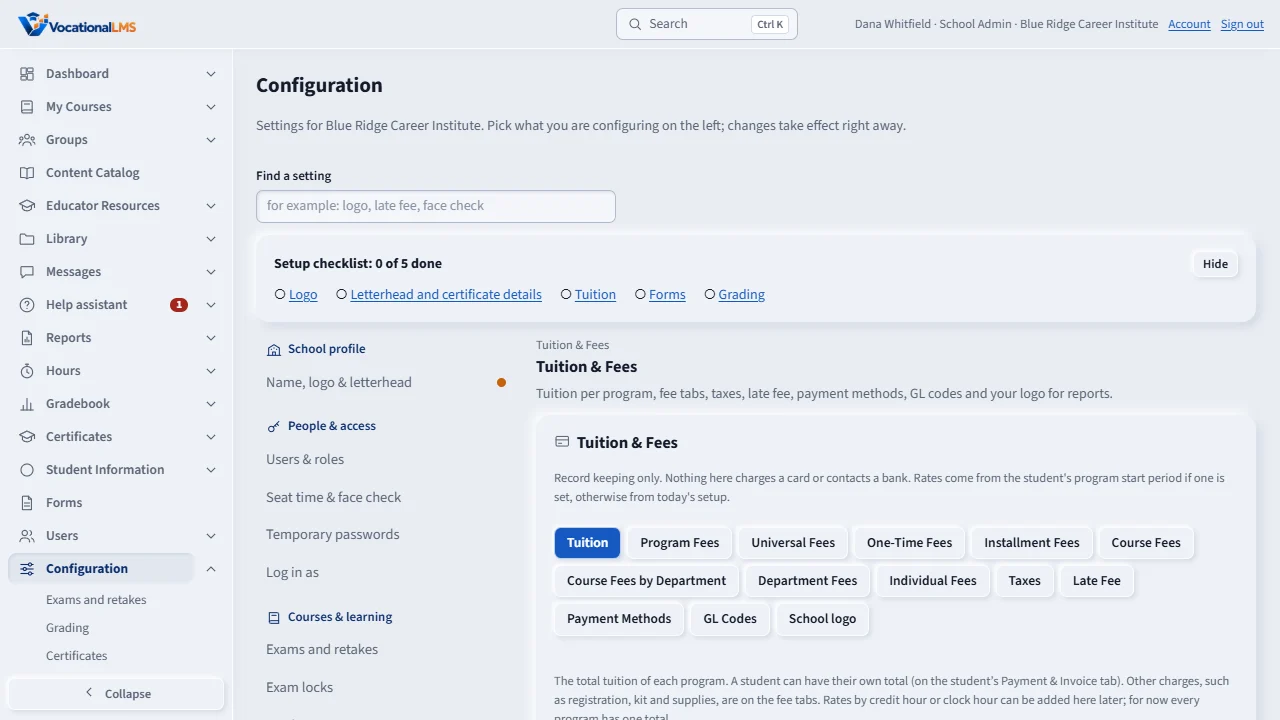
Configuration holds the settings that used to be spread around. Pick a group on the left: School profile, People and access, Courses and learning, Tuition and Fees, and more. Each tab starts with a line that says what it is for.
Type a word in Find a setting, like logo or late fee, and press Enter to go straight to it.
Make a change and press the tab's own Save. Saved, with the time, appears beside the title. A tab marked View only can be read but not changed with your role.
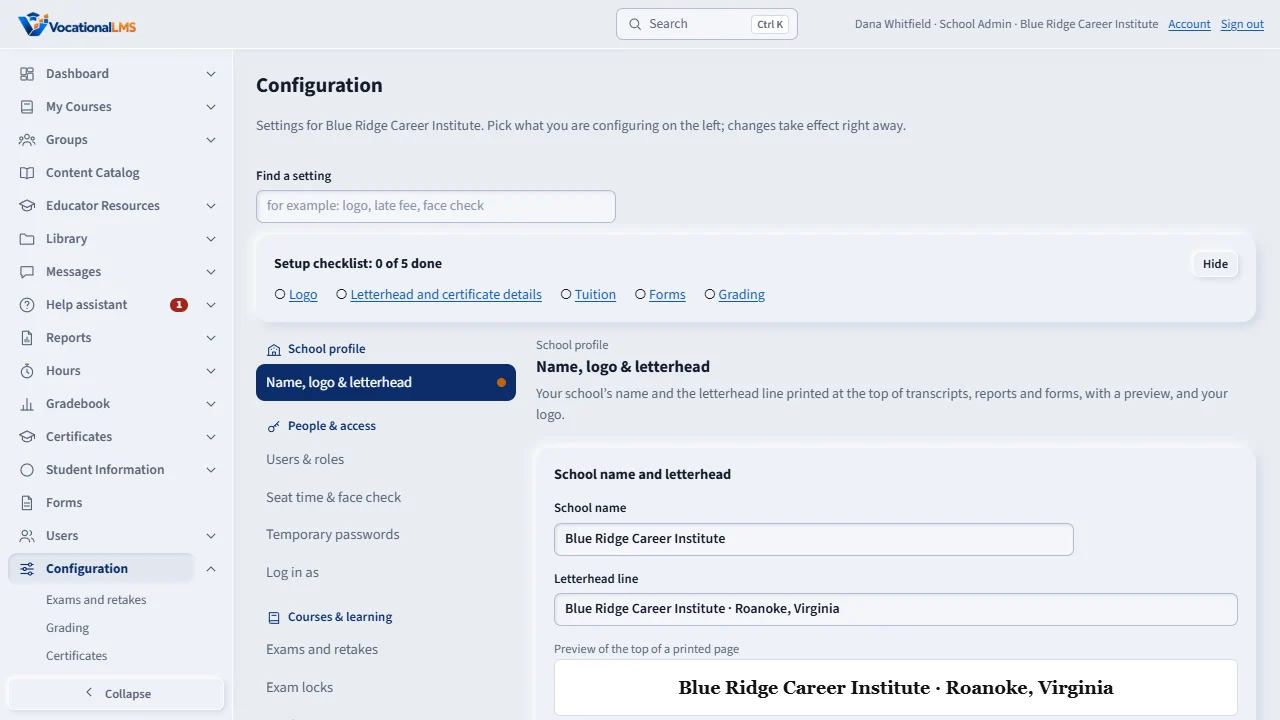
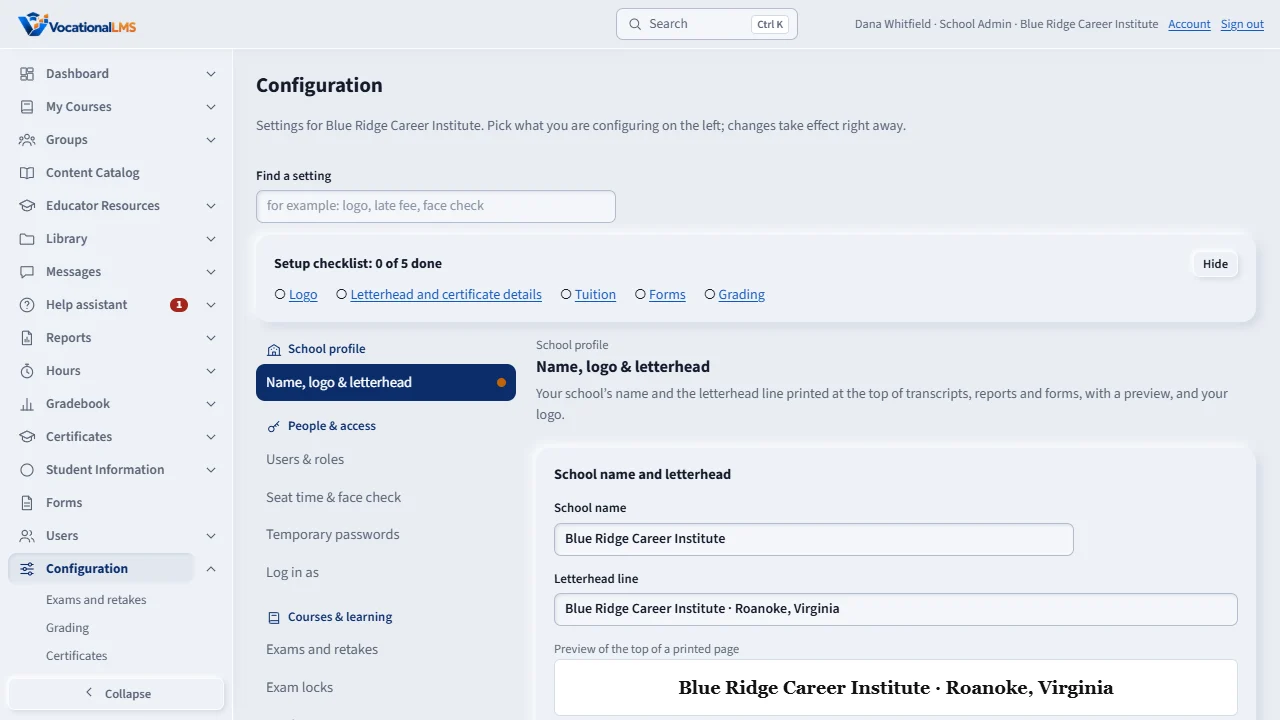
The card at the top lists what a new school still needs: logo, letterhead, tuition, forms and grading. Click an unfinished item to go to it.
Open this in VocationalLMSConfiguration
Who can do this: The School Admin changes settings. A Director has Configuration in the left menu and can look at the School profile, Users & roles, Student Information, Tuition & Fees and Forms tabs (View only). Instructors and auditors have no Configuration.
What it is for
Configuration now holds the settings that used to be spread over the Dashboard, Student Information, Forms and Tuition & Fees. Pick a group on the left (School profile, People & access, Courses & learning, Student Information, Tuition & Fees, Forms & signatures, Communication, Integrations & keys, Billing & seats). Each tab starts with one line that says what it is for. Nothing was renamed or removed, and the old addresses still open.
Steps
Find a setting
- Open Configuration in the left menu. Type a word in Find a setting (for example logo, late fee or face check) and press Enter, or click a tab on the left.
- On a phone the list of tabs is behind one button at the top of the page.
Change it
- Make the change and press the tab's own Save (or switch the toggle). The page does not reload, and Saved with the time appears beside the tab title.
- A tab marked View only can be looked at but not changed with your role.
New school: the checklist
- The card at the top lists Logo, Letterhead and certificate details, Tuition, Forms and Grading. Click an unfinished item to go to its tab. Hide removes the card; Show the setup checklist brings it back.
What happens next
An orange dot beside a tab means it is not set up yet.
Common problems
| # | Problem | What to do |
|---|---|---|
| 1 | I cannot find the Form Setup or SAP policy page. | They are under Configuration, Student Information. The old Student Information menu entries still open them, with a bar that links to the tab. |
| 2 | I want to change the school name or the line at the top of printed pages. | Open Configuration, School profile, Name, logo and letterhead. Type the school name and the letterhead line; the preview shows the top of a printed page. Save. Transcripts, grade reports, finance reports and signed forms print the new line from now on. A certificate already issued keeps the school name it was printed with; the name on new certificates is under Courses and learning, Certificates. |