
V-59For the VocationalLMS Super Admin
Forms for schools: build for one school, the platform library, assign and push updates
Build a form for one school, or build it once in the platform library and give a copy to one, several or all schools. Push new versions; schools choose whether to take them.
How-to video V-59 · 0:49
Read the words of this video
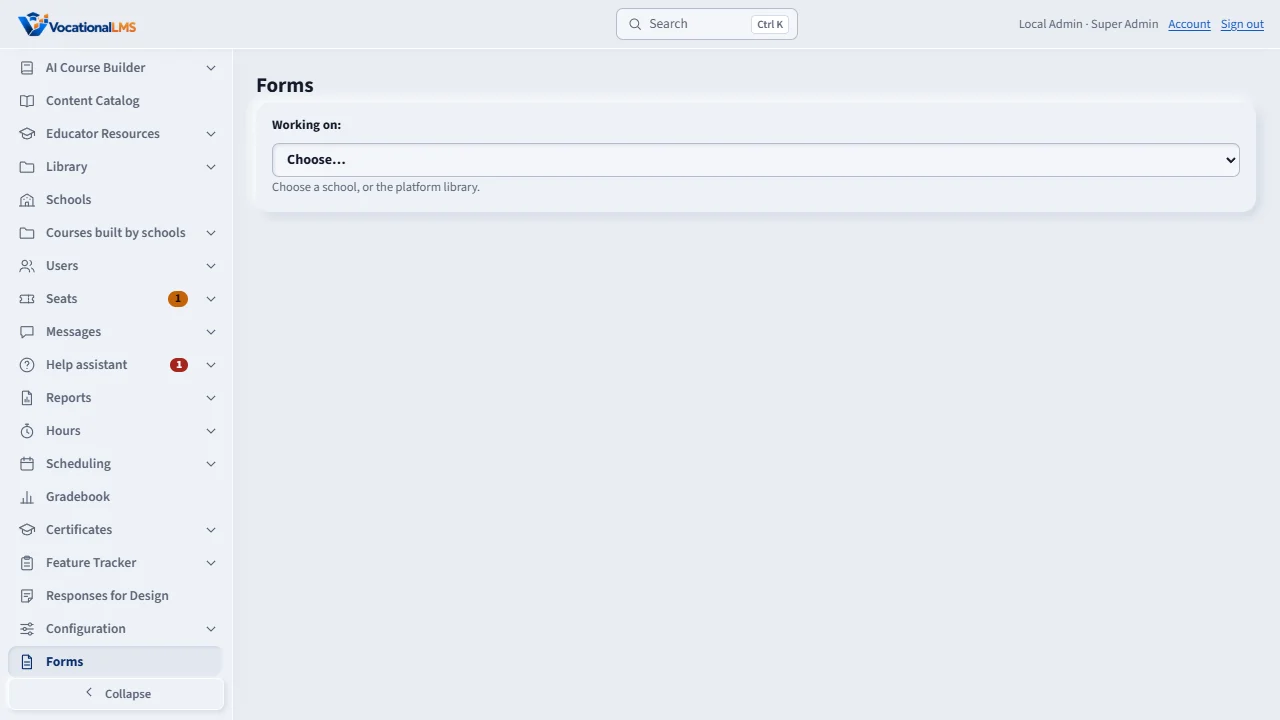
Forms is in the Super Admin menu. At the top, Working on chooses a school or the Platform library. A form built for a school belongs to that school.
In the Platform library, add starter forms, edit the wording and publish each one.
Assign to schools shows every school and every library form. Tick forms and schools and click Assign. Each school gets its own editable copy marked From VocationalLMS.
When you change a library form, schools show update available. Push the update to the ones that have not edited their copy. A school that edited keeps its own wording.
Open this in VocationalLMSForms > Assign to schools
Who can do this: Only the VocationalLMS Super Admin (not while acting as a school). A School Admin sees only the forms of their own school, including the copies assigned to them.
What it is for
Forms is in the Super Admin's left menu. At the top, Working on chooses a school or the Platform library. Forms built for a school belong to that school, exactly as if its School Admin had built them (logged as created by the Super Admin). The library holds forms built once for every school, including the school's real forms from Add starter forms. You never send a form to a student, fill one in, or sign for a school: the school's own people do that.
Steps
Build for one school
- Open Forms, choose the school under Working on, and use the builder as in A-95. The same page shows that school's Sent forms (read only) and its signed PDFs.
Build in the library and assign
- Choose Platform library, click Add starter forms, edit the wording, and Publish each form.
- Open Assign to schools. The grid shows each school and each library form: not assigned, assigned (with the version), update available, school edited, or withdrawn. Tick forms and schools (or All schools) and click Assign. A window lists exactly which schools get which forms; press Confirm.
- Each school gets its own editable copy, marked From VocationalLMS, with the library form and version recorded. Later changes to the library never change a form a school already sent.
Push an update, or take a form back
- Publish the new library version, tick one form and the schools, and click Push update. The school sees A newer version is available; its School Admin sees what changed and chooses Update my copy. Nothing is overwritten by itself. If the school changed its copy it must choose Replace with the new version or Keep mine.
- Un-assign withdraws a form from a school: the copy can no longer be sent. Forms already sent or signed stay intact and viewable. Platform audit lists every library edit, assignment, push and withdrawal with who did it, the school, the form and the version.
What happens next
DocuSign settings stay with each school's own School Admin.
Common problems
| # | Problem | What to do |
|---|---|---|
| 1 | Assign says to publish first. | Only a published library form can be assigned or pushed. Open it in the library and click Publish. |
| 2 | I see Choose a school first. | Pick a school or the Platform library under Working on at the top of the Forms page. |
| 3 | I cannot send a form. | By design. The school's School Admin sends, countersigns and fills in. |