
V-42For the VocationalLMS Super Admin
Reviewers for library courses
Invite a licensed person to review a library course, or give the course to an existing staff account; record their credential, follow their progress and send a reminder.
How-to video V-42 · 1:42
Read the words of this video
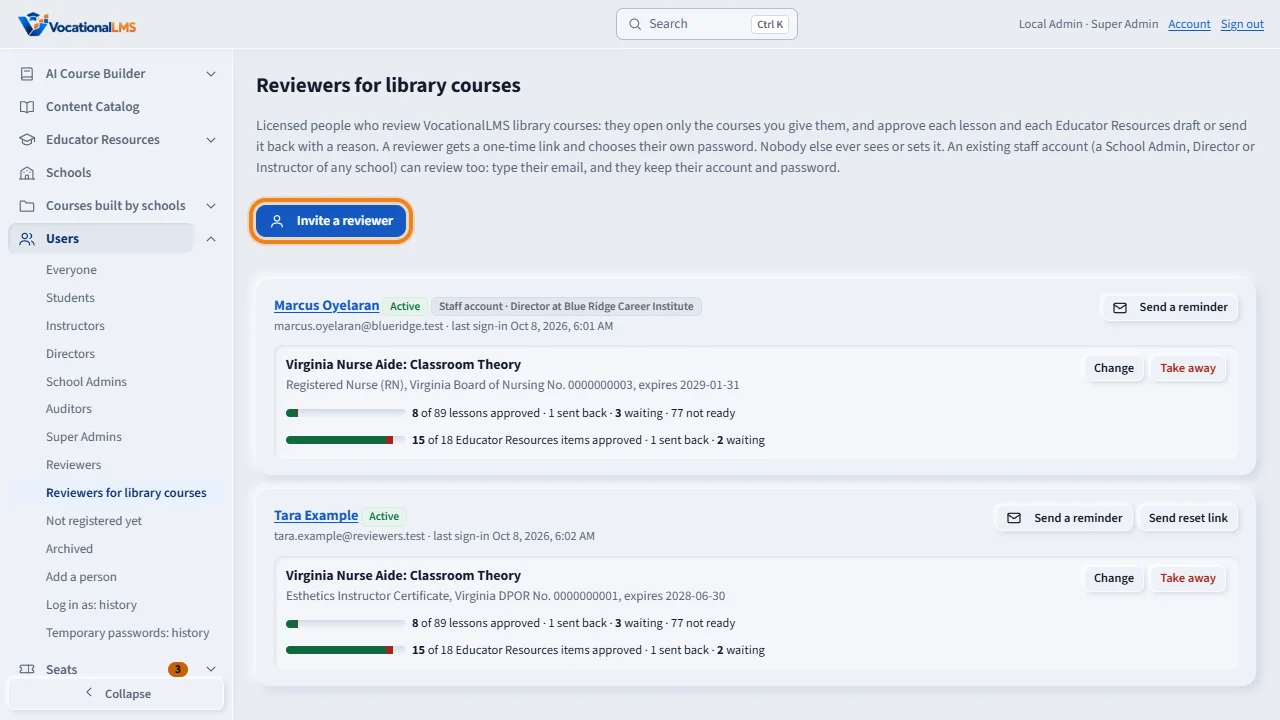
A reviewer is a licensed person you ask to review a library course. Open Users in the menu and choose Reviewers for library courses. Then click Invite a reviewer.
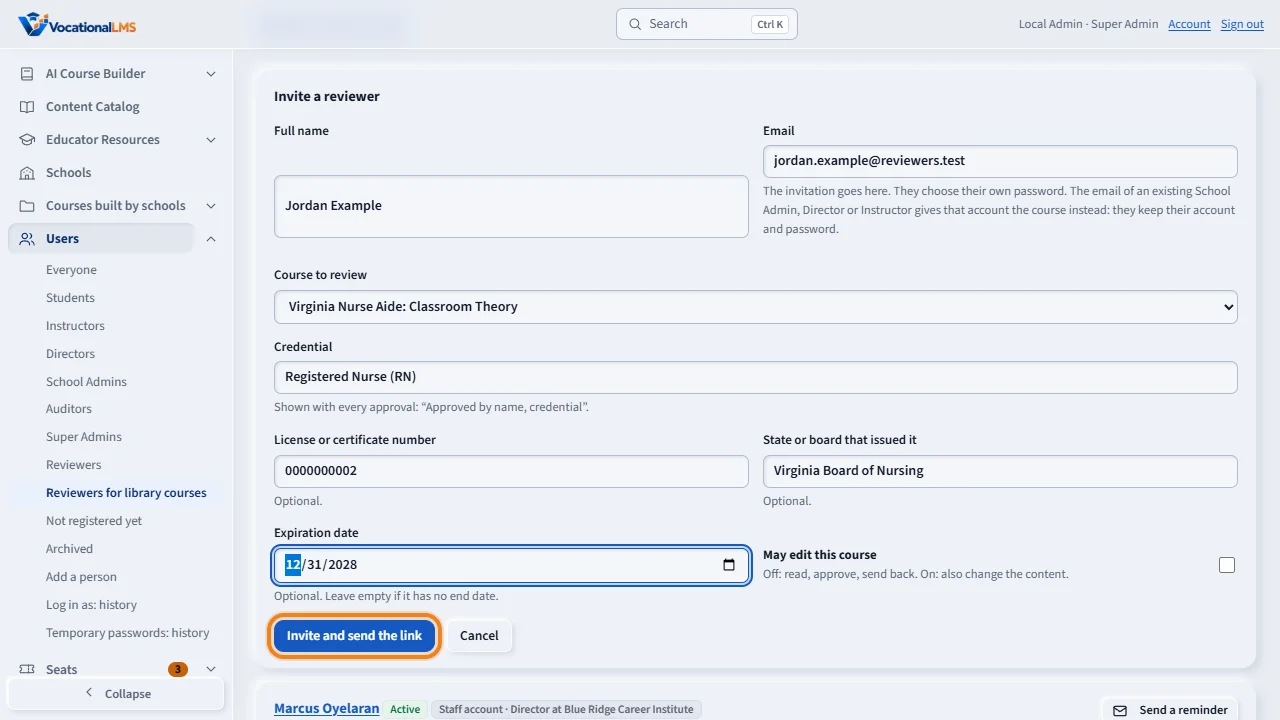
Type the full name and email, choose the course to review, and type the credential. You can add the license number, the state or board, and the expiration date. Leave May edit this course off, unless the reviewer should also change the content. Then click Invite and send the link.
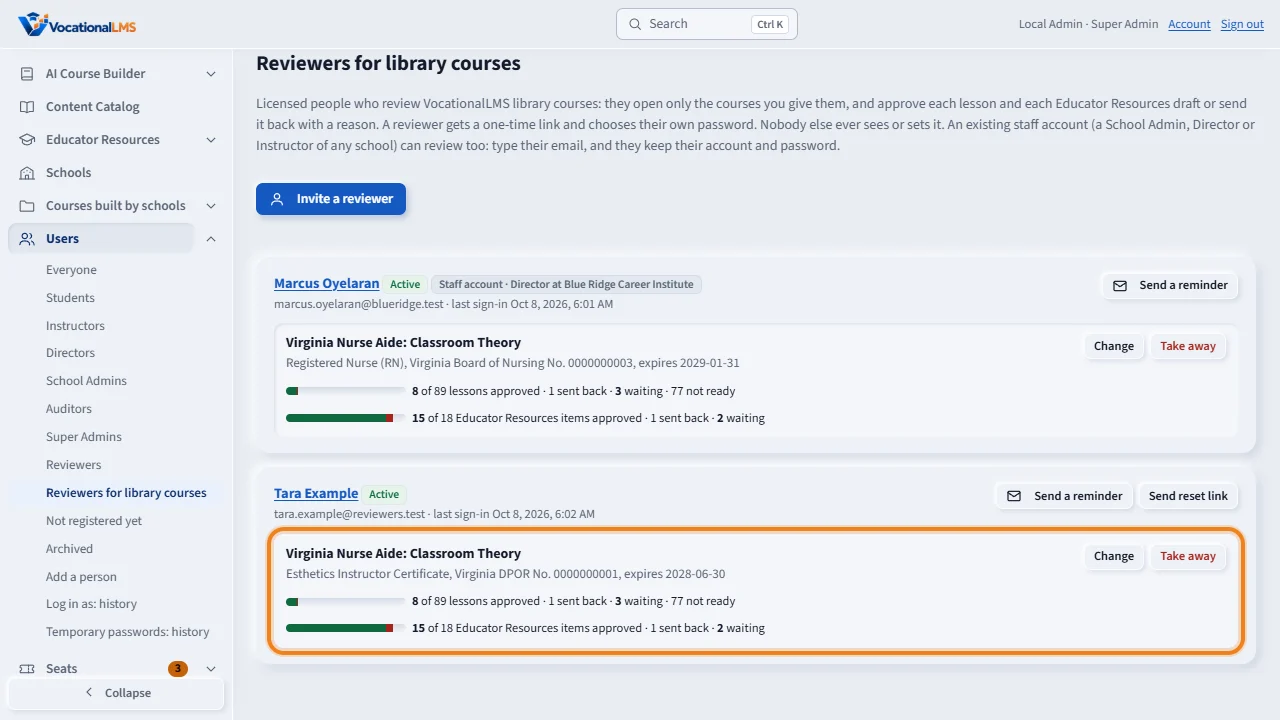
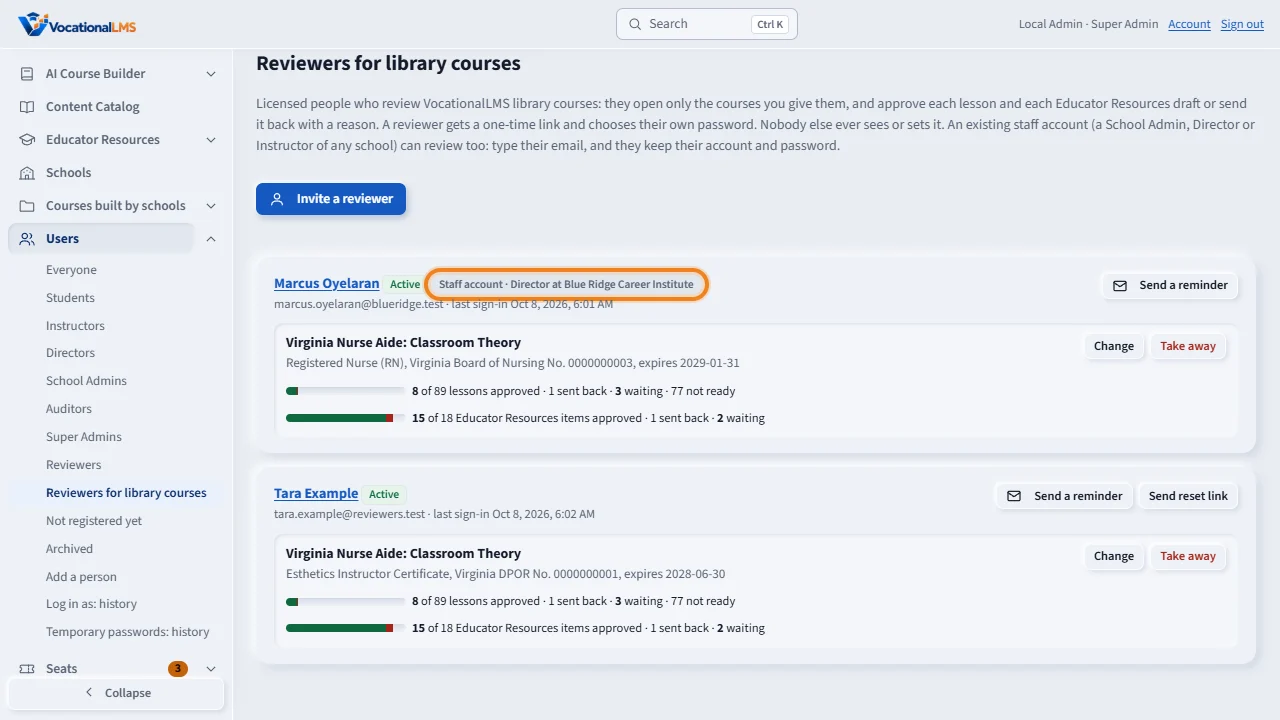
Each reviewer's card lists their courses with the credential you recorded, and how many lessons and Educator Resources items are approved, sent back and waiting.
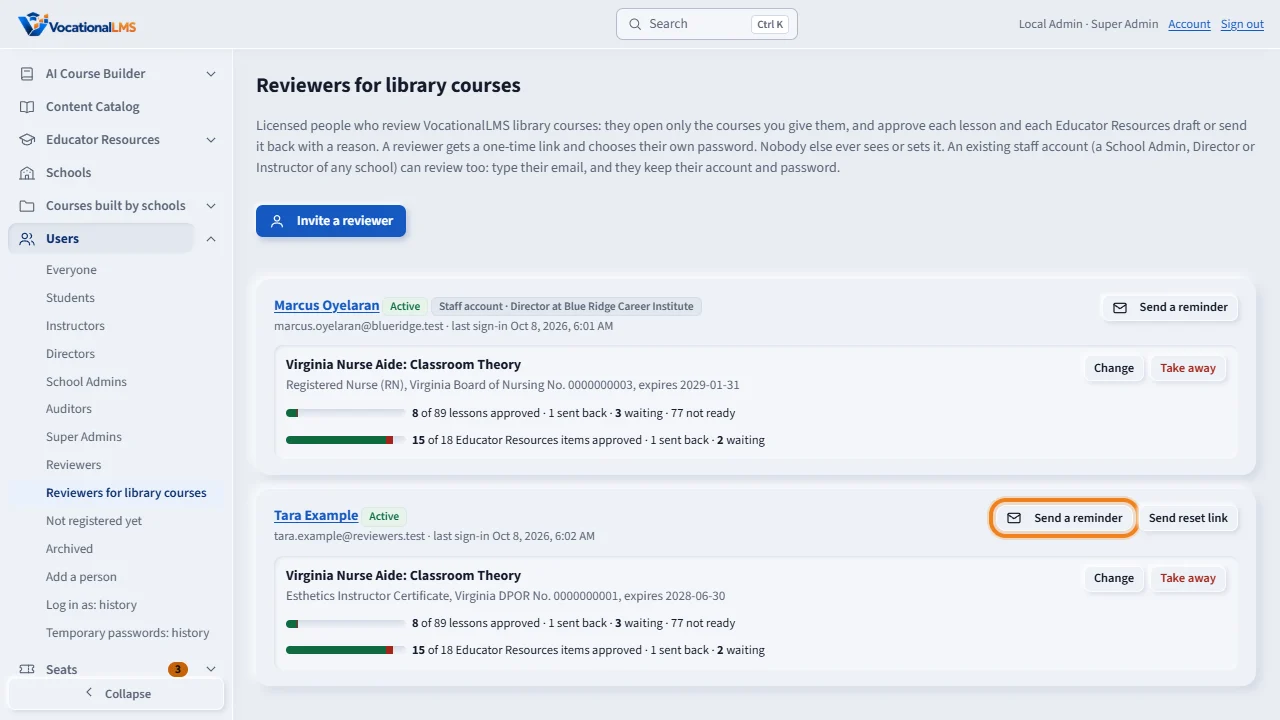
Click Send a reminder to email the reviewer how much is waiting, with a link to their page. Give a course adds another course. Change updates the credential. Take away removes a course, and every approval the reviewer gave is kept.
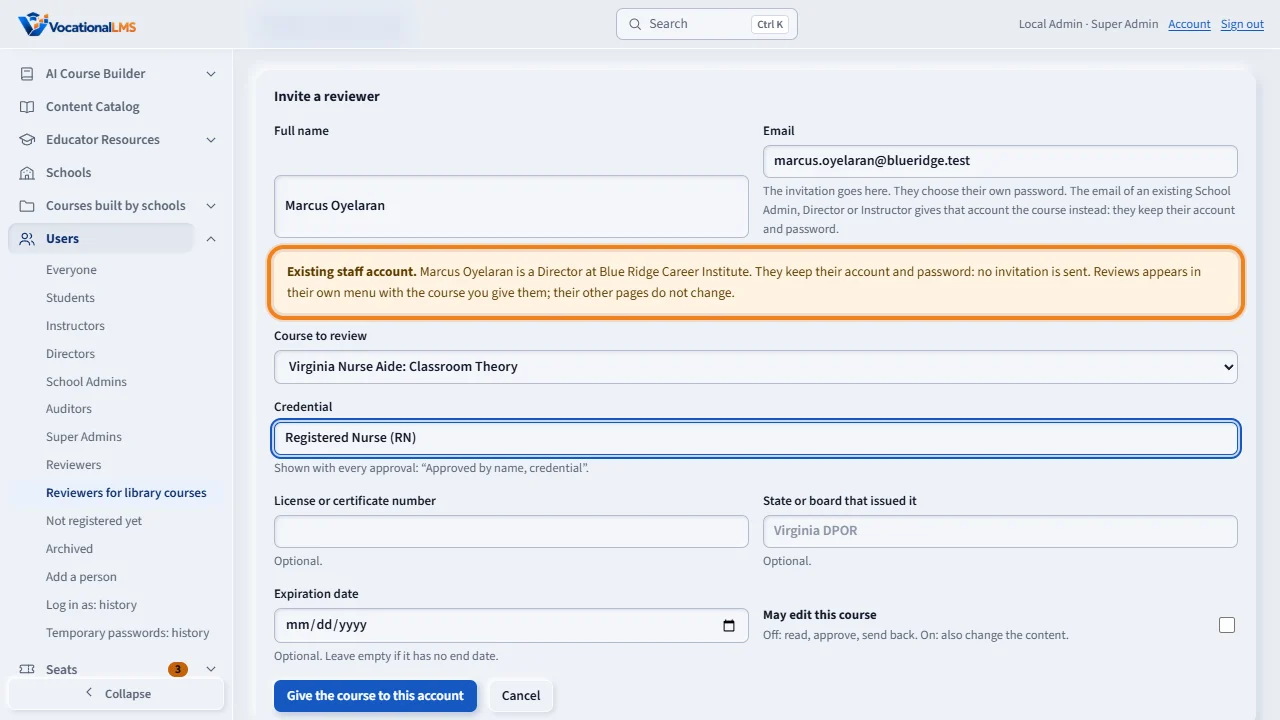
An existing staff account can review too: a School Admin, a Director or an Instructor of any school. Type their email on the same form. The page says who it is, and that they keep their account and password: no invitation is sent. Choose the course, type the credential, and click Give the course to this account.
Their card says Staff account, with their role and school. Reviews then appears in their own menu, with the number waiting, and opens the same page a reviewer sees, for that course only. Their other pages do not change. Take away removes the course and the Reviews entry; their approvals stay.
Open this in VocationalLMSUsers > Reviewers for library courses
Who can do this: The VocationalLMS Super Admin only. A school cannot see or manage reviewers.
What it is for
A reviewer is a licensed person you ask to review a VocationalLMS library course. A reviewer opens only the courses you give them and approves each lesson and each Educator Resources draft, or sends it back with a reason. You keep the reviewer's credential for each course; it is written with every approval, so a lesson reads Approved by the name and the credential. A reviewer is usually a new account with no school. An existing staff account (a School Admin, a Director or an Instructor of any school) can review too: they keep their account and password, and Reviews appears in their own menu.
Steps
Invite a reviewer
- Open Users in the menu and choose Reviewers for library courses.
- Click Invite a reviewer. Type the Full name and Email.
- Choose the Course to review.
- Type the Credential, for example Registered Nurse (RN). If you wish, add the License or certificate number, the State or board that issued it and the Expiration date.
- Leave May edit this course off unless the reviewer should also change the lessons and resources.
- Click Invite and send the link. The reviewer gets a one-time link and chooses their own password.
Give a course to an existing staff account
- Click Invite a reviewer and type the Email of the School Admin, Director or Instructor. The page says Existing staff account, with their name, role and school, and that they keep their account and password. (A student, an auditor or a Super Admin can't be given a course; the page says so.)
- Choose the Course to review and type the Credential as for any reviewer.
- Click Give the course to this account. No invitation is sent and nothing about their account changes.
- Their card says Staff account with their role and school. In their own menu, Reviews appears with the number of items waiting; it opens the same page a reviewer sees, for that course only. Their other pages do not change.
- Every approval they give is recorded under their own account as Reviewer (Director account), with the credential line. Take away removes the course and the Reviews entry; their approvals stay.
Follow the work
- Each reviewer's card lists their courses with two lines: lessons and Educator Resources items approved, sent back and waiting.
- Click Send a reminder to email the reviewer how much is waiting, with a link to their page.
- Click Give a course for another course, Change for the credential or the may-edit tick, Take away to remove a course.
- Open a lesson's Review tab to read who approved it or the reason it was sent back.
What happens next
Your own approvals keep working as before and are recorded as yours, with the words you type. A lesson a reviewer sends back becomes Written again; send it for review when it is fixed. A resource that was sent back waits for the reviewer again as soon as you change it. A course still goes into the catalog only when every lesson is approved. Taking a course away keeps every approval the reviewer gave.
Common problems
| # | Problem | What to do |
|---|---|---|
| 1 | “Choose a VocationalLMS library course.” | A school's own course is reviewed by that school, not by a library reviewer. |
| 2 | “The reminder was not sent: email isn't set up yet.” | Set up VocationalLMS email under Configuration, Email. Until then, write to the reviewer yourself. |
| 3 | The reviewer cannot change a lesson. | That is right unless May edit this course is ticked for that course. |
| 4 | “A student can't review courses.” | The email you typed belongs to a student. Reviewers are licensed people: a staff account, or a new reviewer account with another email. |
| 5 | “This email already belongs to a reviewer.” | Use Give a course on their card instead of the invitation form. |
| 6 | You want to remove a reviewer. | Open their page from the card (click the name) and click Archive. Their approvals stay. For a staff account, click Take away on each course: the account itself belongs to the school. |