
V-19For the VocationalLMS Super Admin
Responses for Design
Every question you asked about VocationalLMS, with the response and its status.
How-to video V-19 · 0:48
Read the words of this video
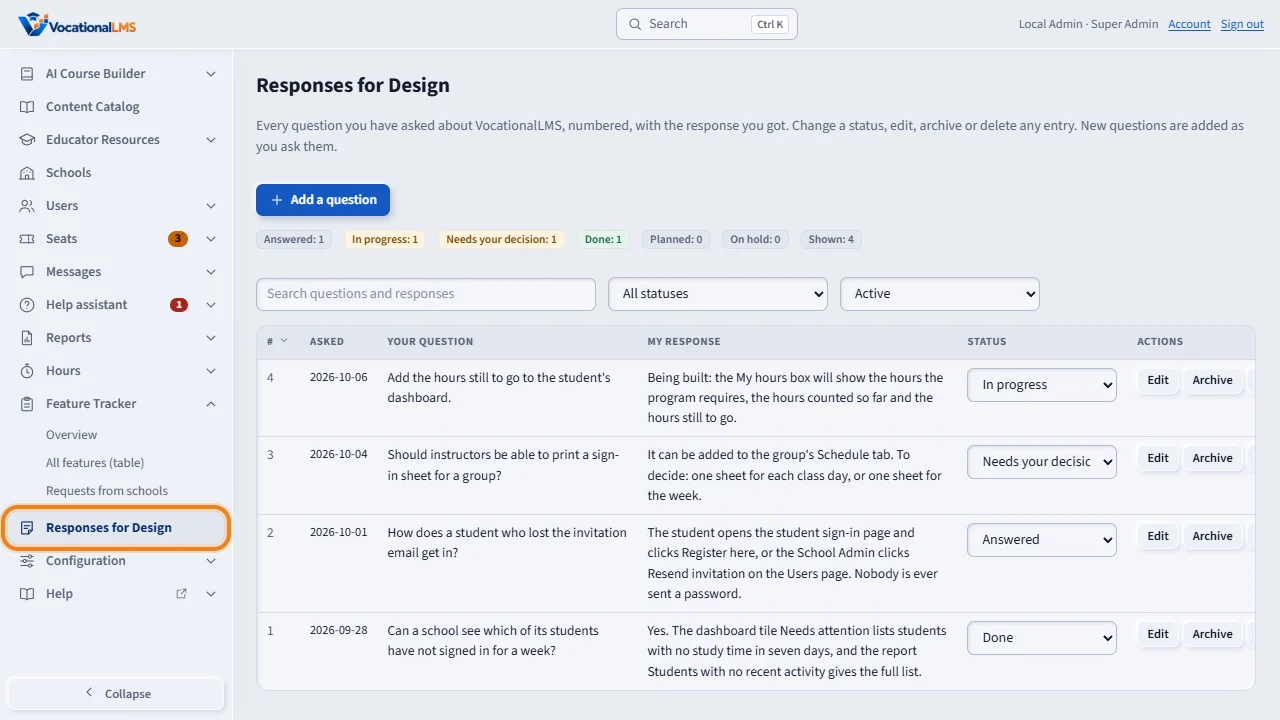
Responses for Design is the log of every question you asked about VocationalLMS, with the response that was given, so decisions are not lost. Click Responses for Design in the menu on the left.
Each row has a number, the date, the question, the response and a status. Search the text, or filter by status: answered, in progress, needs your decision, or done.
Add a question logs a new question with its response. On a row, the drop-down changes the status, and Edit changes the text.
Archive hides a row without deleting it. Choose Archived, or Active plus archived, to see it again. Rows marked Needs your decision are waiting for you.
Open this in VocationalLMSResponses for Design
What it is for
Responses for Design is the log of your questions and the answers given, so decisions are not lost. Each row has a number, the date, the question, the response and a status.
Steps
- Click Responses for Design.
- Search the questions and responses, or filter by status: Answered, In progress, Needs your decision, Done.
- Change a row's status with its drop-down. Edit changes the text.
- Archive hides a row; choose Archived or Active + archived to see it again. Delete removes it.
- Add a question logs a new question with its response.
What happens next
Click a column heading to sort. Rows marked Needs your decision are waiting for you.
Common problems
| # | Problem | What to do |
|---|---|---|
| 1 | The list is empty on a new server. | Rows are added as questions are asked; nothing is wrong. |