
A-132For School Admins and Directors
Procedure scripts: an expert approves every step, then the procedure video plays under the student's lesson video
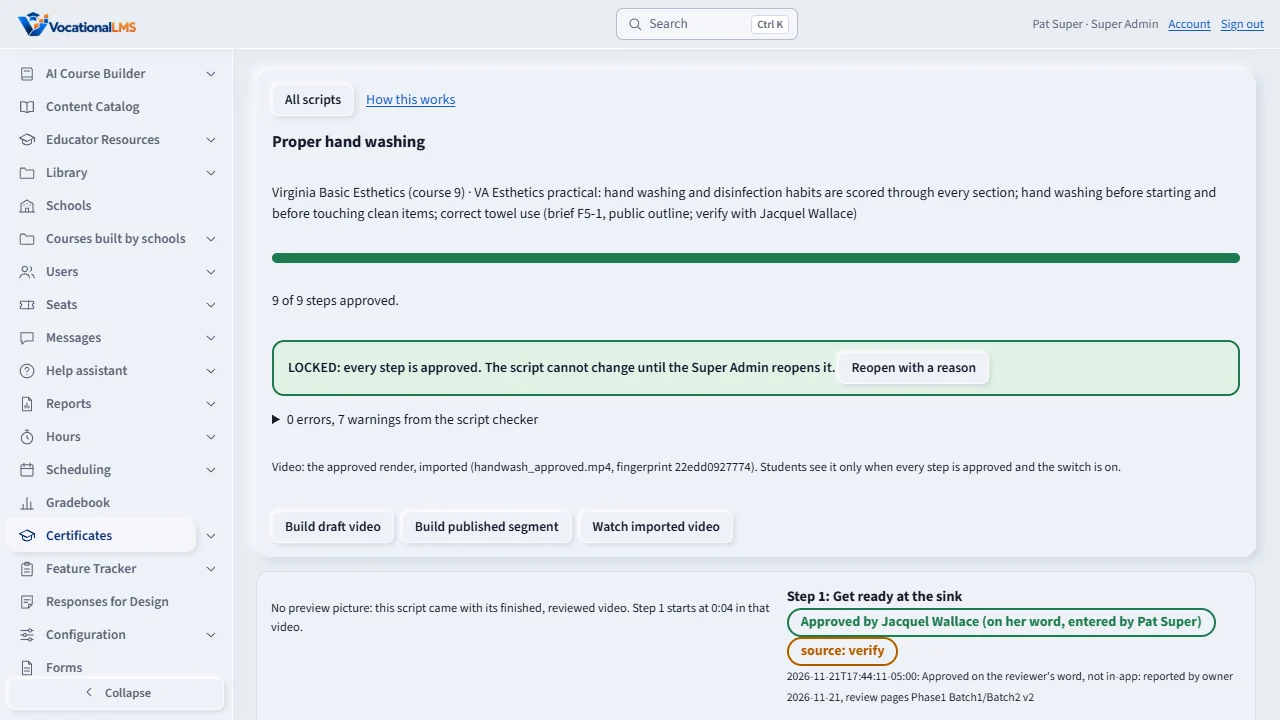
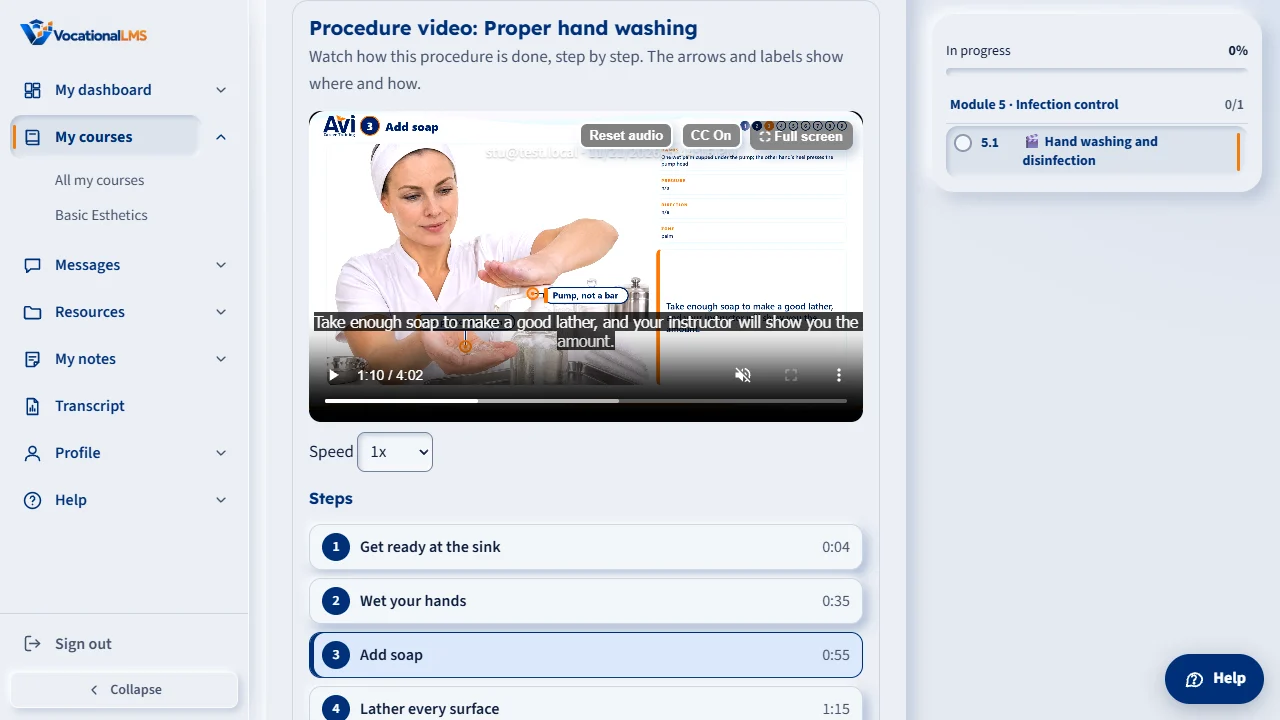
Staff review of a procedure script, step by step, and what the student sees once it is approved: the approved procedure video under the lesson video, with captions, a step list and a speed choice. Includes the Super Admin's action to record an approval the expert gave outside the app.
How-to video A-132 · 1:55
Read the words of this video
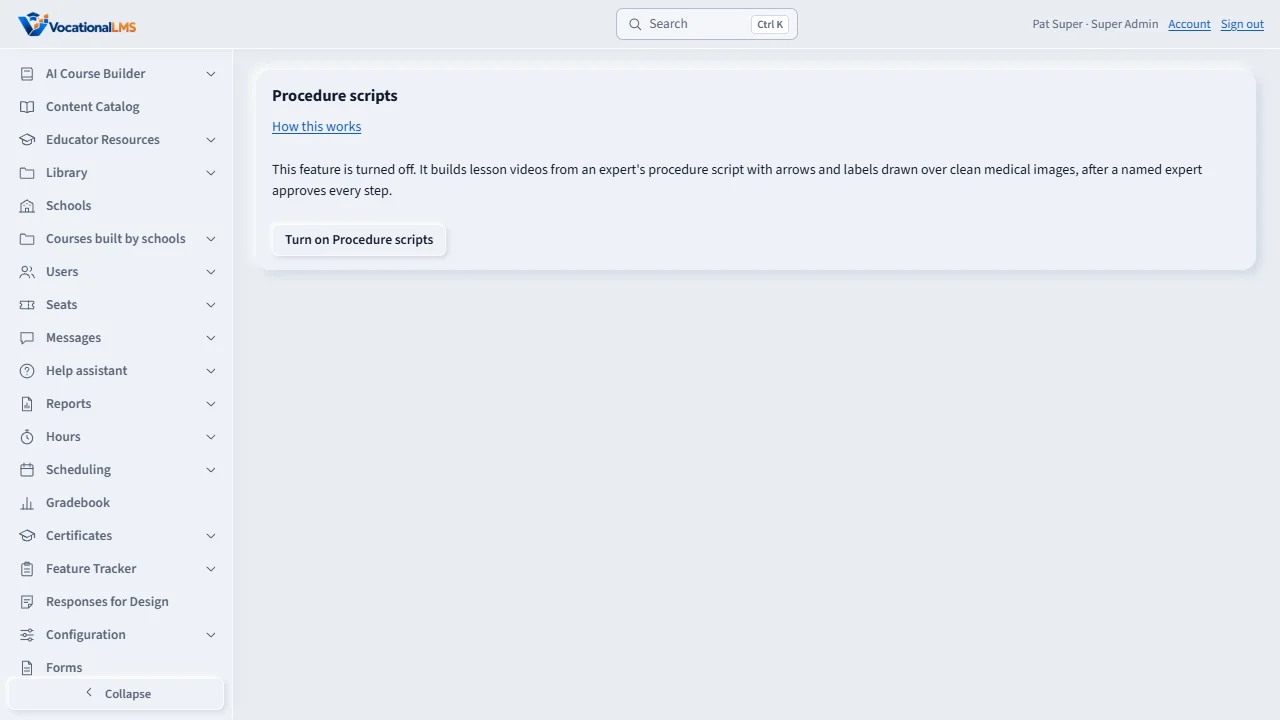
Procedure scripts is where an expert approves every step of a procedure before it becomes a lesson video. The page stays off until the Super Admin turns it on. Click Turn on Procedure scripts. Nothing is built or paid for by turning it on.
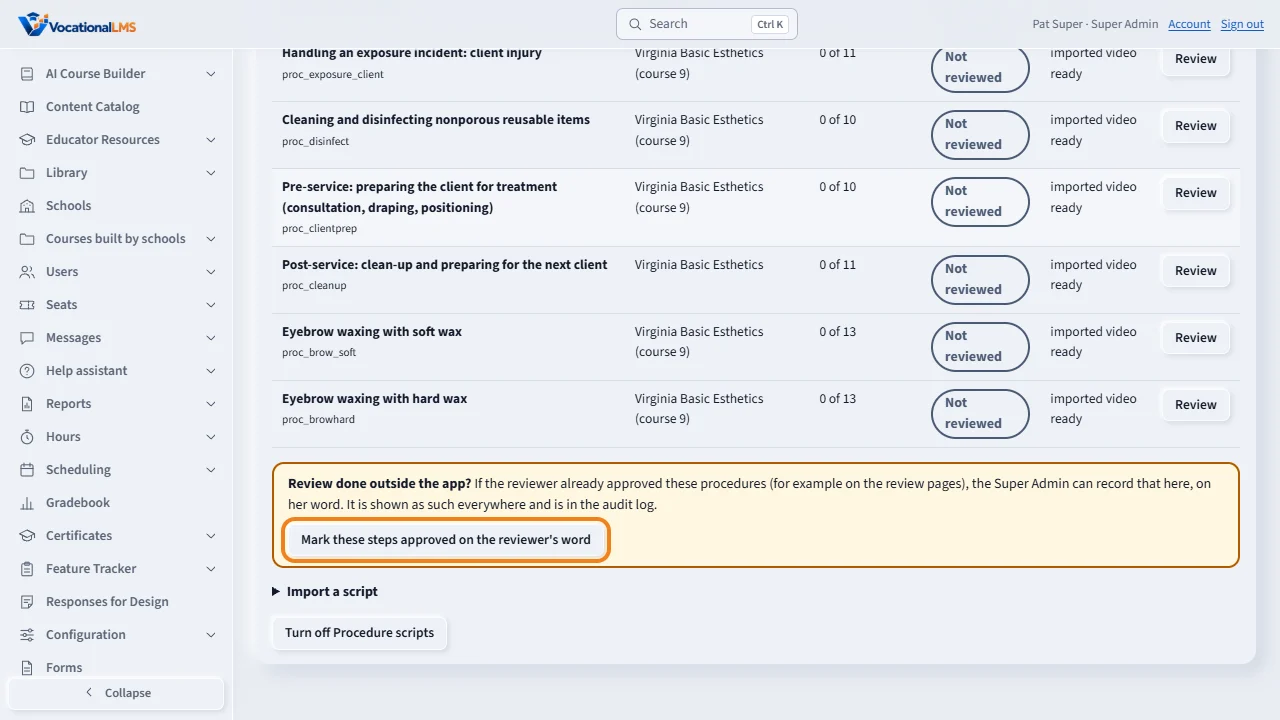
Each script shows how many of its steps are approved. If the expert already approved these procedures outside the app, the Super Admin can record that with the button, Mark these steps approved on the reviewer's word.
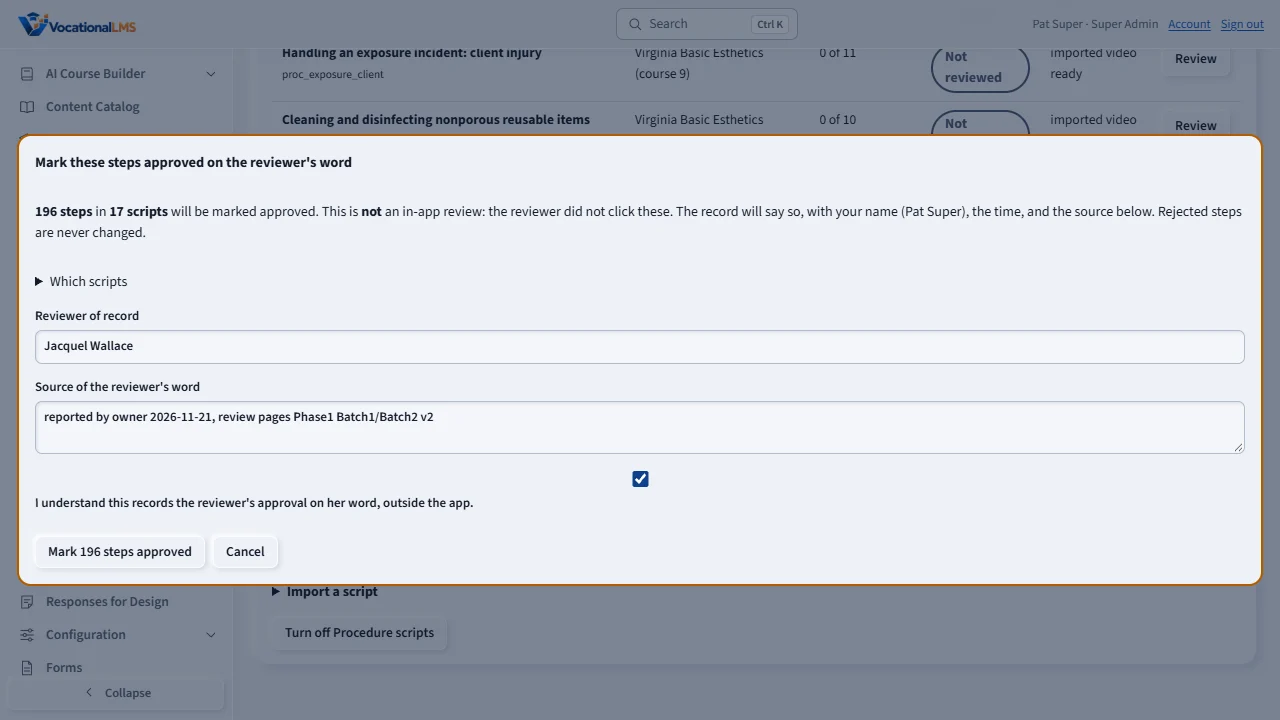
A confirm window shows exactly what will be recorded: how many steps, the reviewer's name, and where her word came from. Tick the box, then confirm. Nothing is written before that, and Cancel writes nothing.
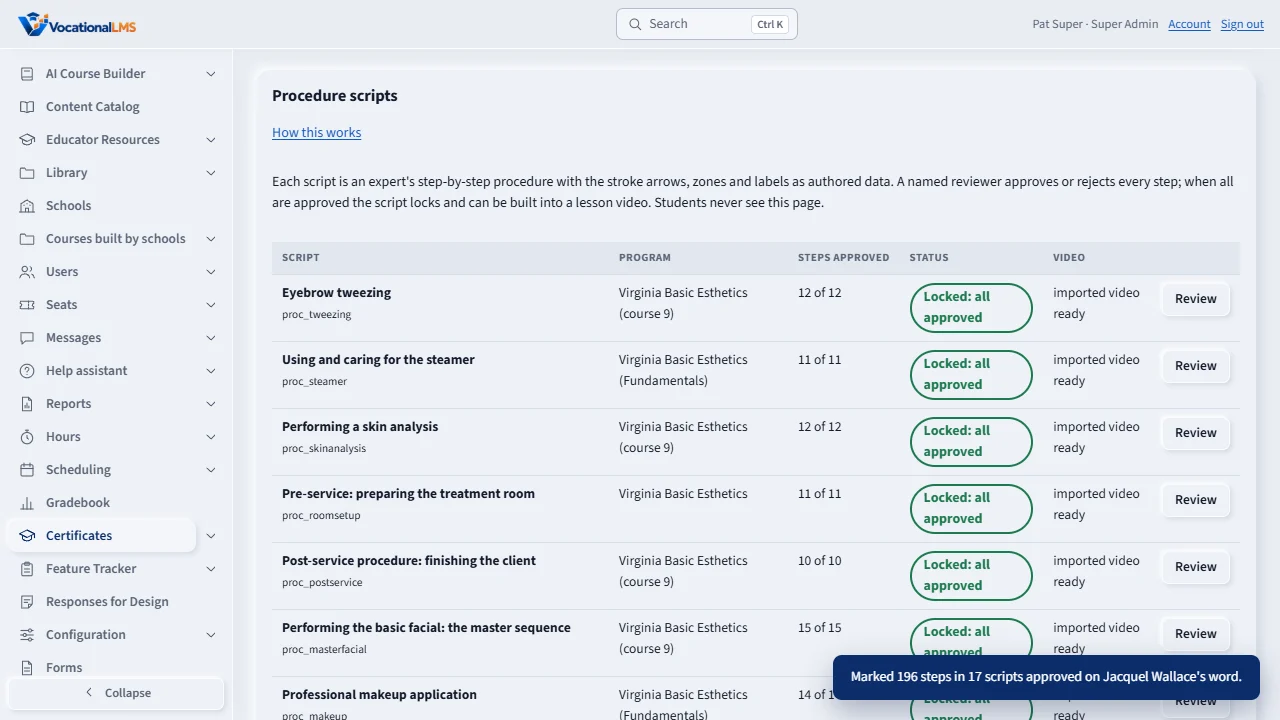
Every step is now approved and each script is locked. The record says approved on her word, so nobody mistakes it for a click in the app.
Open a script to see each step and who approved it. A step shows approved by the reviewer, on her word, entered by the Super Admin. Type the lesson number and click Attach to lesson. If anyone later changes a step, that step goes back to Not reviewed.
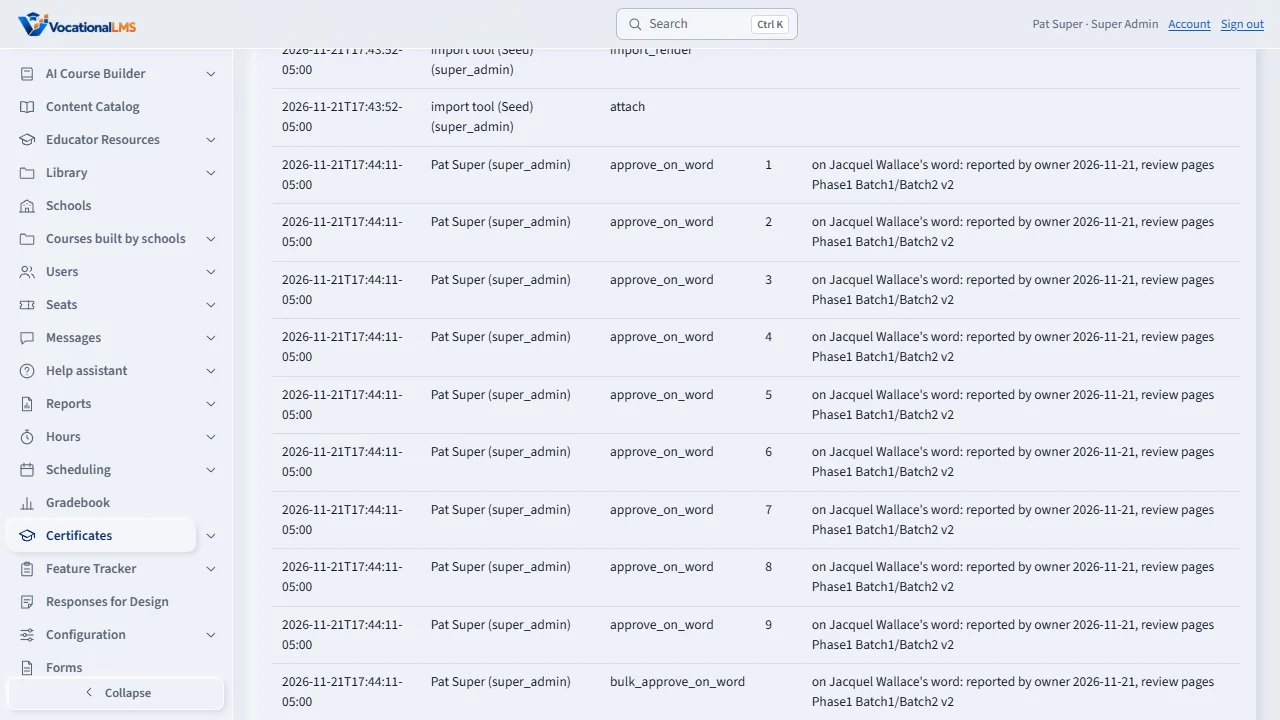
The audit log at the bottom has one row for every step and a summary row, with who entered it, the reviewer of record, the source and the time. The log checks itself.
When the switch is on, a locked script attached to a lesson appears under the lesson video. Students get the same protected player, with captions, play, pause, seek, full screen and a speed choice. Each step is a button that jumps to it.
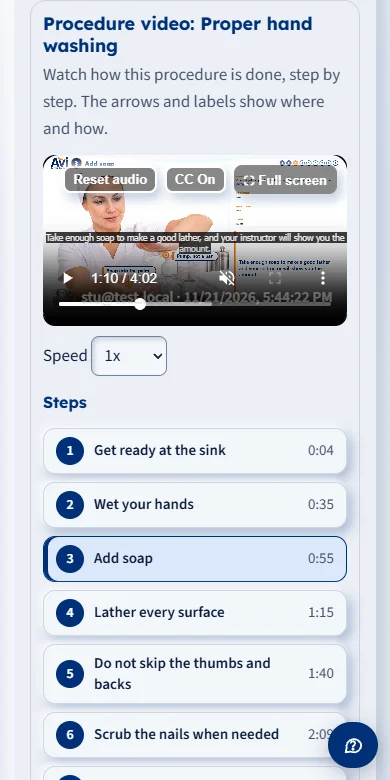
It works the same on a phone. The steps stack under the video, and the written steps open under Read the steps. With the switch off, students see nothing new.
Open this in VocationalLMSStudio > Procedure scripts (shown only when the feature is on)
Who can do this: Staff only for the review screen: the Super Admin imports, attaches, builds, reopens and uses the reviewer's-word action; the Super Admin, a School Admin, a Director and an Instructor can approve or reject; an auditor can look. Students see only the finished video of an approved, locked script that is attached to a lesson they can open, and only while the switch is on. The server refuses every other request from a student.
What it is for
A procedure script is an expert's step-by-step procedure (for example hand washing or a facial) written as data: the narration, the hand position, the pressure (light, medium or firm, never a number), the direction, the zone, the stroke paths on a named image, the checklist and where each step comes from. The arrows, zones, step numbers and labels in the video are drawn by our own renderer over clean images. No image or video model draws a mark, and there is no AI footage of a procedure. A named expert approves every step before the script can be used. When every step is approved the script locks; a locked script that is attached to a lesson shows its video to students under the lesson video, only while the platform switch is on. With the switch off nothing changes for students.
Steps
- Open Procedure scripts (search for it, or go to Studio > Procedure scripts). The page says it is turned off until the Super Admin clicks Turn on Procedure scripts. Turning it on builds nothing and spends nothing. Use the How this works link on the page to open this article.
- Choose a script and click Review. Each step shows the words, the hands, pressure, direction, the strokes, the source tag, the Virginia practical tag and the checklist (and a preview picture, for scripts that came with their pictures). A step marked source: verify needs you to confirm it against a source before approving.
- Click Approve step if the strokes, hands, pressure, direction and words are right, or write what is wrong and click Reject. Your name and the time come from your sign-in, not from anything you type. If anyone later changes a step, that step goes back to Not reviewed by itself.
- If the expert already approved the procedures outside the app (for example on the review pages), the Super Admin can click Mark these steps approved on the reviewer's word on the list (all scripts) or on one script. A confirm window shows how many steps, the reviewer of record (default Jacquel Wallace) and the source of her word (default: reported by owner 2026-11-21, review pages Phase1 Batch1/Batch2 v2). Tick the box and confirm. Nothing is written before that, and Cancel writes nothing.
- Every step marked this way says on her word, entered by the Super Admin, with the source and the time, and has its own row in the audit log plus a summary row. Rejected steps are never changed. A step changed later goes back to Not reviewed.
- On a script's page, type the lesson number (the number in the lesson's address,
/learn?lesson=123) and click Attach to lesson. When the last step is approved the script locks. Students then see the video under the lesson video, provided the switch is on. - What the student sees: Procedure video: [name] under the lesson video, in the same protected player (captions button, full screen, play, pause and seek), a Speed choice up to 1.5 times, a list of Steps where each step is a button that jumps the video to that step, and Read the steps for the written text. It works on a phone. The lesson's own video, reading and quiz still decide progress.
What happens next
To turn the student view on for everyone, the Super Admin clicks Turn on Procedure scripts. To turn it off again, click Turn off Procedure scripts: students no longer see any procedure video and nothing is deleted. If a script is reopened, its video disappears from students until every step is approved again. If a step's words are changed after the video was made, the video also stays hidden (it was made from the older words) until a matching video is made.
Common problems
| # | Problem | What to do |
|---|---|---|
| 1 | The page says this feature is turned off. | It is off until the Super Admin turns it on (the button on that page). Nothing is built or spent by turning it on. |
| 2 | Approve is missing. | You are looking at a locked script, or your role can only look (an auditor). Ask the Super Admin to reopen it. |
| 3 | The button Mark these steps approved on the reviewer's word is missing. | Only the Super Admin sees it, and only while some script still has steps that are not approved. |
| 4 | A step I approved shows Not reviewed again. | Someone changed that step after your approval, so your approval no longer matches what is on screen. Review it again. |
| 5 | A student cannot see the procedure video. | Check, in this order: the switch is on; the script is attached to the lesson the student opened; every step is approved (the script says Locked); the student is enrolled and the lesson is approved. |
| 6 | A preview picture is missing on a script. | Scripts that came with a finished, reviewed video have no preview pictures. The step list shows where each step starts in the video. |